Step 3: Monitor Submission Status
The following are the steps to monitor the status of your 941 forms after you have submitted them electronically to the IRS.
Step 3.1: Log into Your Account
To monitor the status of your 941 forms, you will need to log into your account. You can log into your account by visiting our login page. After logging in, go to the dashboard monitoring page.
Step 3.2: Understanding the Dashboard
The first section of the dashboard shows how many eFile forms you have used and how many you still have available.

The next section of the eFile Management Dashboard displays the details of your eFile submission. The following information is shown:
- The Company name that the forms were submitted for
- The form type
- The year/quarter that the 941 forms were submitted for
- The submission ID - to view the full submission ID open the detailed view
- The status of the submission
- The number of forms consumed
- The timestamp of when the status was last updated
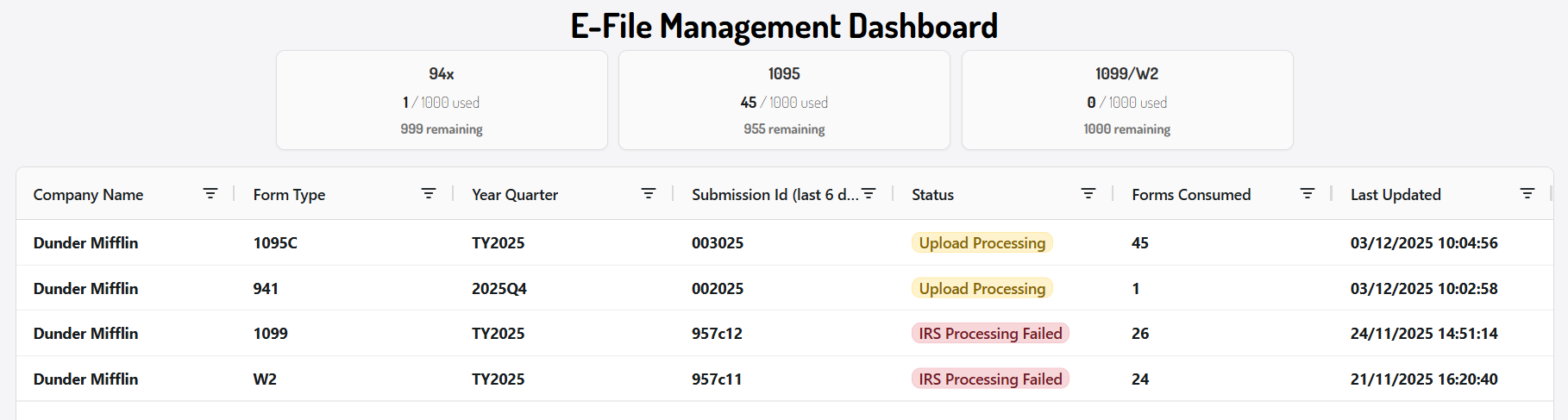
For a more detailed view of your submission status, select any row in the table. A detailed view will appear.
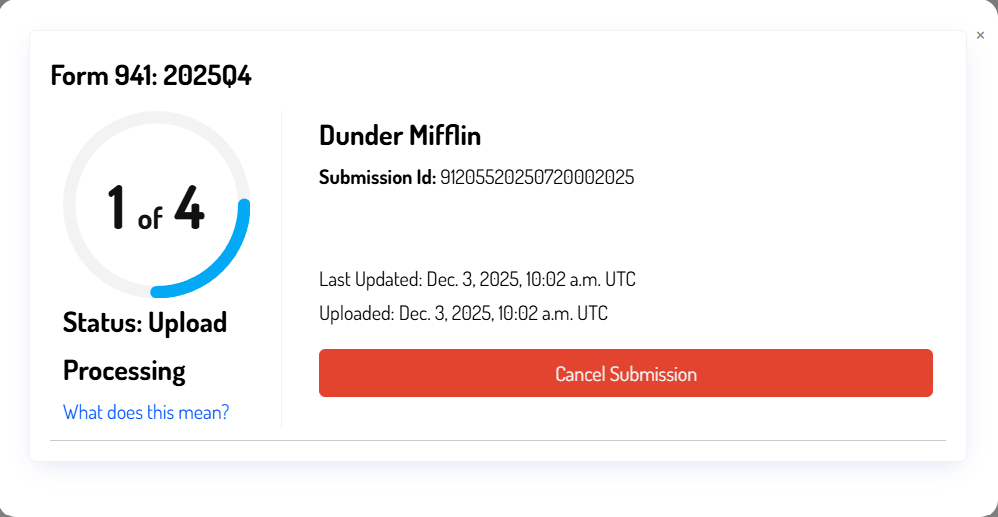
Step 3.3: Internal Review Status
After submitting an e-file, you will likely see an entry of the following status:

The submission in this stage is currently being internally processed in preparation for submission to the IRS. This process can take up to 2 business days.
As processing may take up to 2 business days, please be sure to submit your 941 forms in advance of the deadline to ensure they are processed in time.
Step 3.4: IRS Submission Status
Once the submission has been processed and submitted to the IRS, you may see the following status:

The submission in this stage has been submitted to the IRS and is awaiting acknowledgment from the IRS.
The IRS acknowledgment may come instantly. If that occurs, the status will change to "Accepted by IRS" and this status will be skipped completely.
Step 3.5.1: Submission Completed
Once the IRS has acknowledged the submission, you will see the following status:

The submission in this stage has been acknowledged by the IRS and has been accepted.
We do not validate the data in the submission. If the IRS finds errors in the submission later, you may need to file a 941 correction. Please ensure all data is correct before submitting.
Step 3.5.2: Submissions with Errors
If there is a processing error in a submission, you will see an error status with an error explanation attached. Error statuses will look like the following:
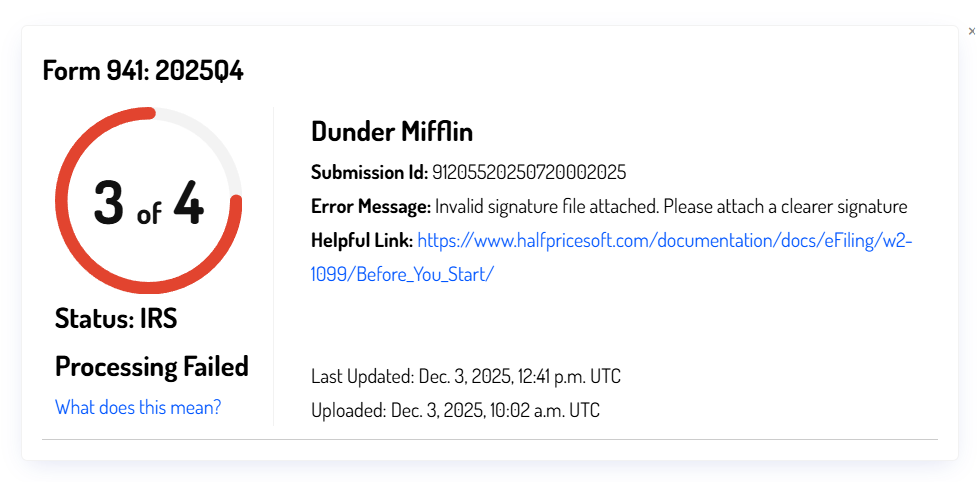
If you see an error status, please review the error explanation, correct the error in the submission, and resubmit.
We will not count your first 10 errored submissions against your total submissions. After the 10th errored submission, they will count against your total submissions.
Any further questions about specifics of an error can be redirected to our support team. Please be sure to note the submission ID and the error message when contacting support.
Cancelling a Submission
To cancel a submission, select the row you want to cancel. The detailed view will appear, and the option to cancel the submission will be available. This can only be done during the Internal Review stage and will prevent the eFile submission from being delivered to the IRS. Cancelled submissions, as well as submissions rejected due to errors, will not count against your total eFile form submissions.
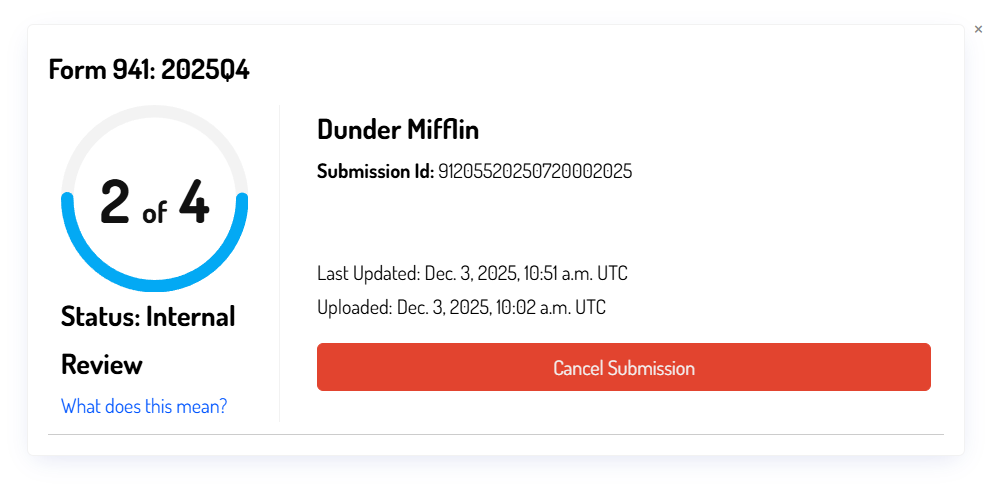
You can only cancel submissions that are in the Internal Review status. Once a submission has been sent to the IRS, it cannot be deleted.
Video Tutorial
If you prefer a video tutorial, you can watch our video tutorial on how to set up e-filing in ezPaycheck.