Preparing Your 1099-NEC Forms in ezW2
This article shows you how to create a company in ezW2 and add a 1099-NEC form. If you have already added your company accounts you can skip to step 3.2. The Additional Resources section includes links to import guides and other helpful articles.
ezW2 can only create and eFile 1099-NEC forms. If you need to eFile any other types of 1099 forms check out our ez1099 solution.
Step 3.1: Creating Company Accounts
Creating a new company is only required during the initial setup or when adding an additional company in ezW2.
Open ezW2 and select the Company Management tab.
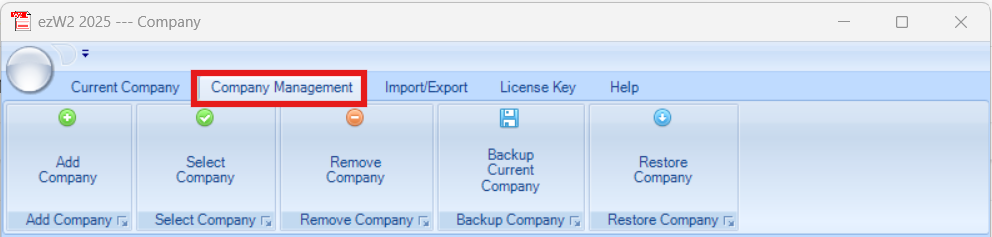
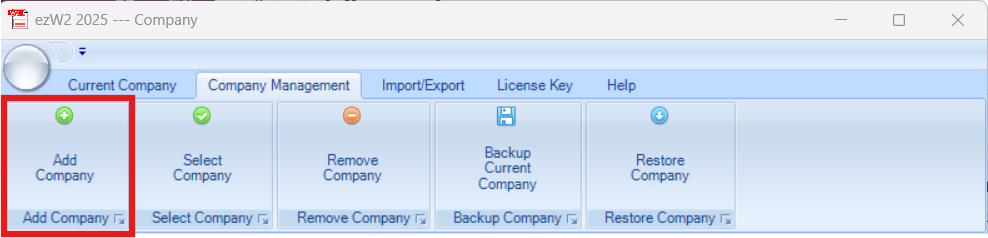
You will see company management options. Select Add Company to create a new company.
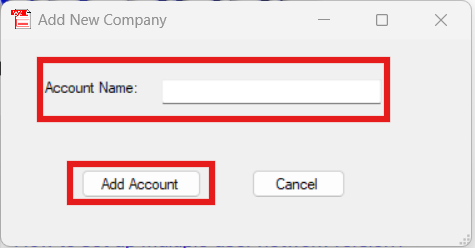
When the dialog opens, enter the company name and select Add Account.
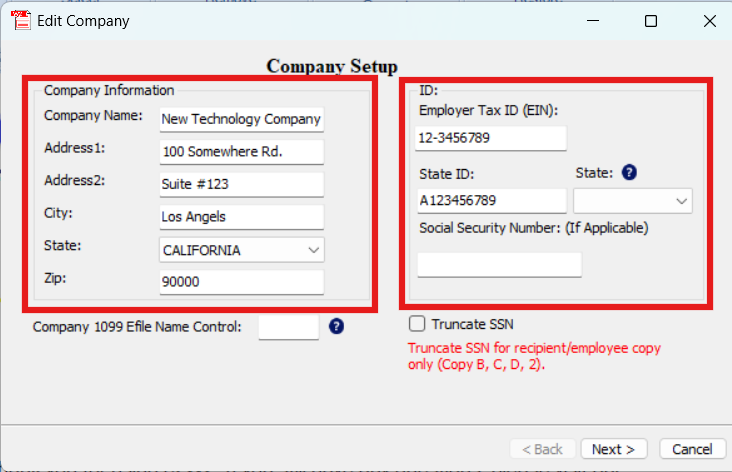
The company setup window opens. Enter the company information and ID details, then select Next.
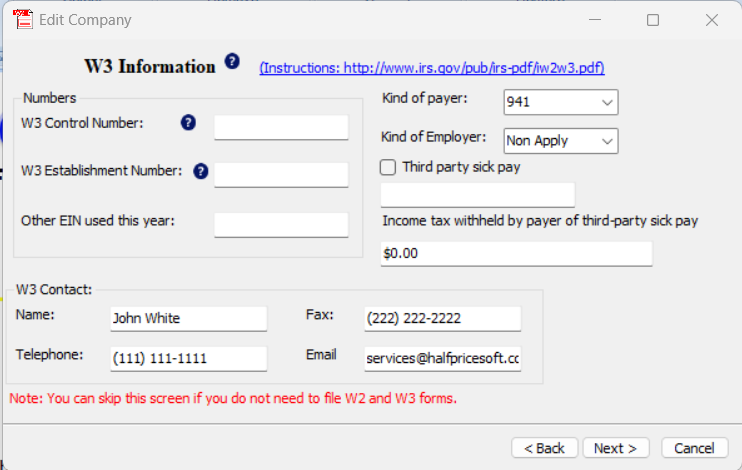
Enter the W3 information. This information is not used when eFiling 1099-NEC, but it is required to complete the company setup process. Select Next to continue.
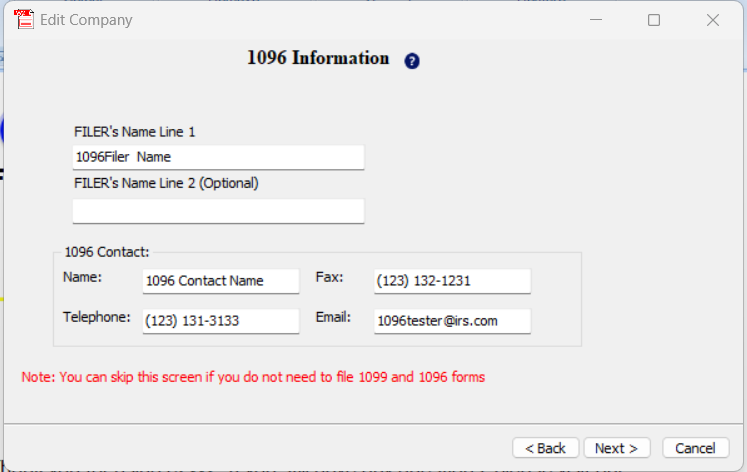
Add the 1096 information to your company profile. Select Next to continue.
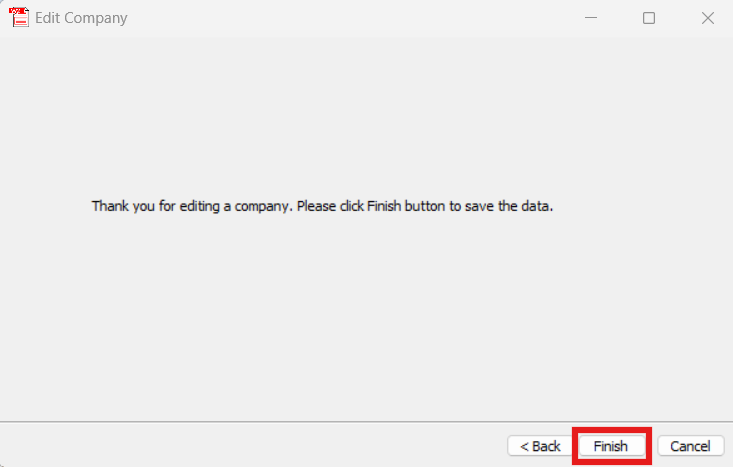
Select Finish to create the company account.
You don’t need to complete this step every time. You only need to create a new company when you first set up ezW2 or when adding additional companies.
Step 3.2: Preparing 1099-NEC Forms For eFiling
This step will guide you through preparing your 1099-NEC forms in ezW2. You can either import data from various sources or manually create the forms within the software. This article specifically covers importing 1099-NEC data from ezPaycheck and manually creating 1099-NEC forms in ezW2. For information on other import options, refer to the Additional Resources section below.
Step 3.2.1: Creating 1099-NEC Forms by Importing from ezPaycheck
First, identify which company from ezPaycheck you want to import into ezW2. Open ezPaycheck, confirm you are on the correct company, then look at the top of the application for the company name and database directory. Make note of both.

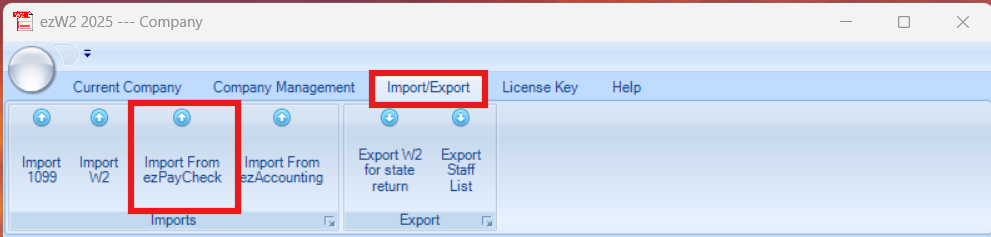
Open ezW2 and go to the Import/Export tab. Select Import from ezPaycheck.
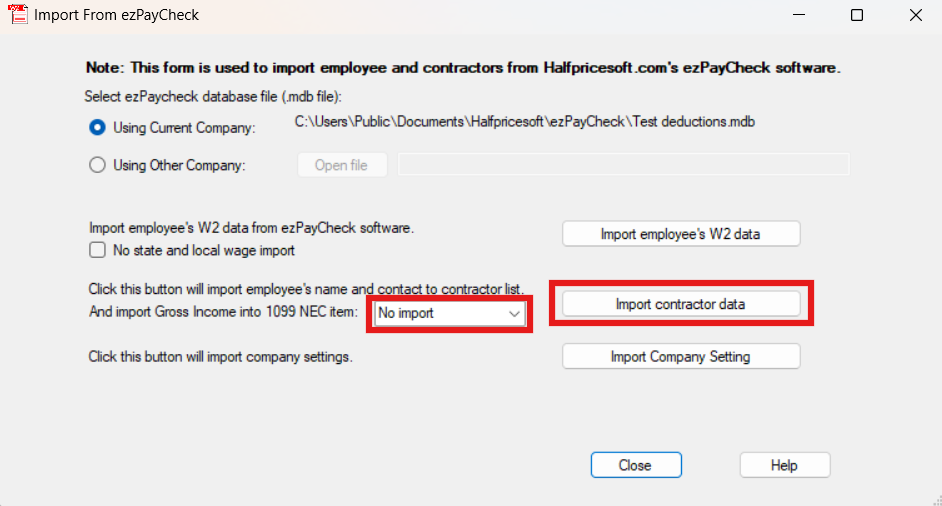
In the first section of the dialog, choose which company to import. If Using Current Company shows the correct company, select it. If not, choose Using Other Company and browse to the directory path you noted earlier. Then select Import Employee’s W2 Data. Choose if and where you want to import gross income on the 1099-NEC form and the select Import contractor data.
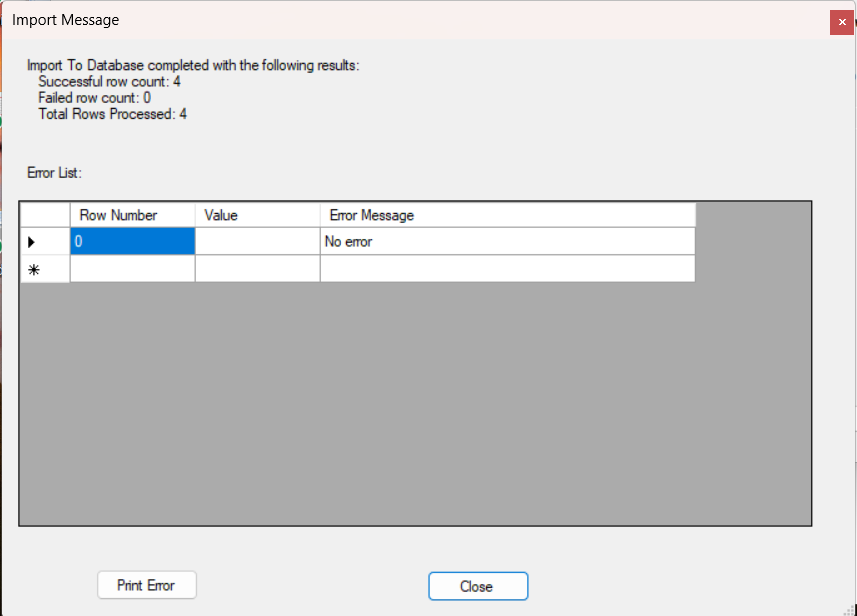
An import message will appear detailing the number of errors and rows processed.
Return to the Form 1099 page and confirm the imported employees data correctly. If everything looks good, start the eFiling process. Here is a guide on submitting your 1099-NEC forms.
Step 3.2.2: Creating 1099-NEC Forms in ezW2
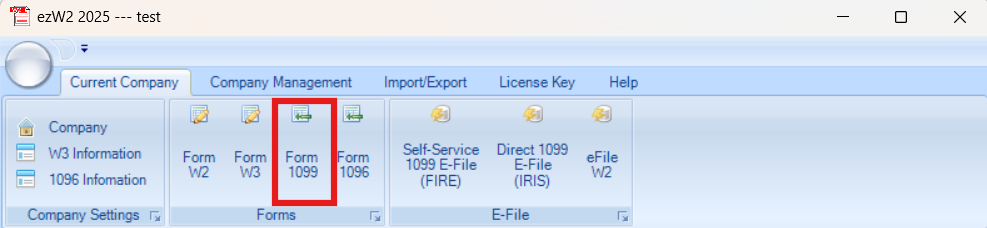
After creating a company, you can add 1099-NEC forms. Select Form 1099.
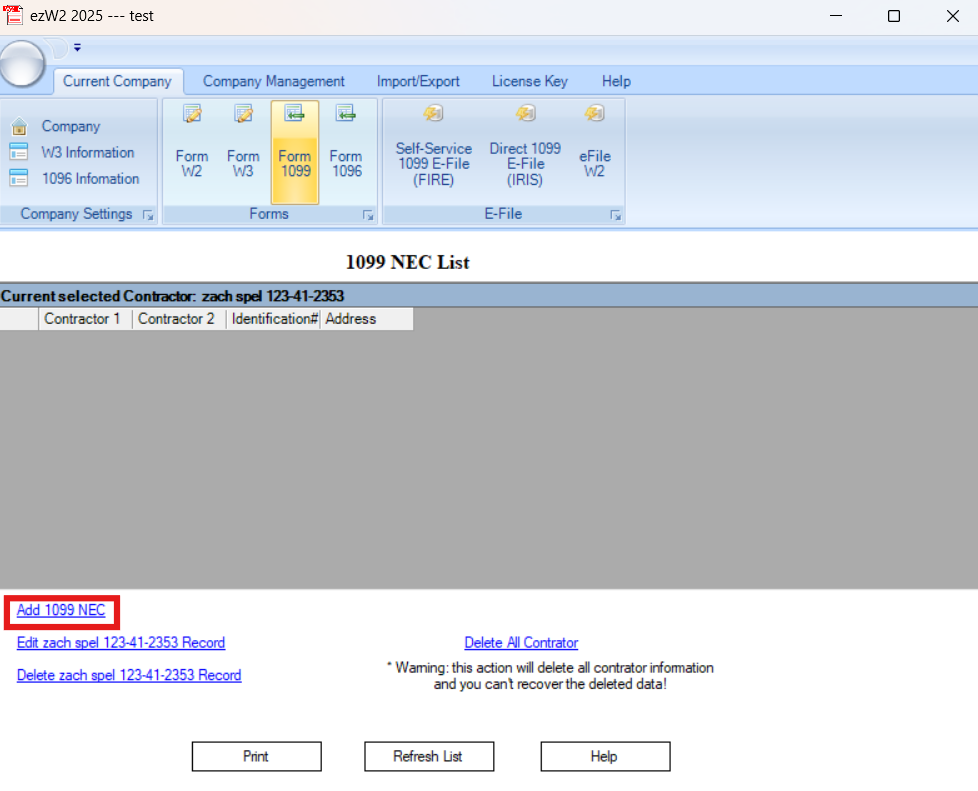
At the bottom of the page, select Add 1099 NEC.
A 1099-NEC form opens in a new window. Enter the required information, then select Save. If all required fields are complete, a Database updated message will appear indicating the 1099-NEC form was saved successfully.
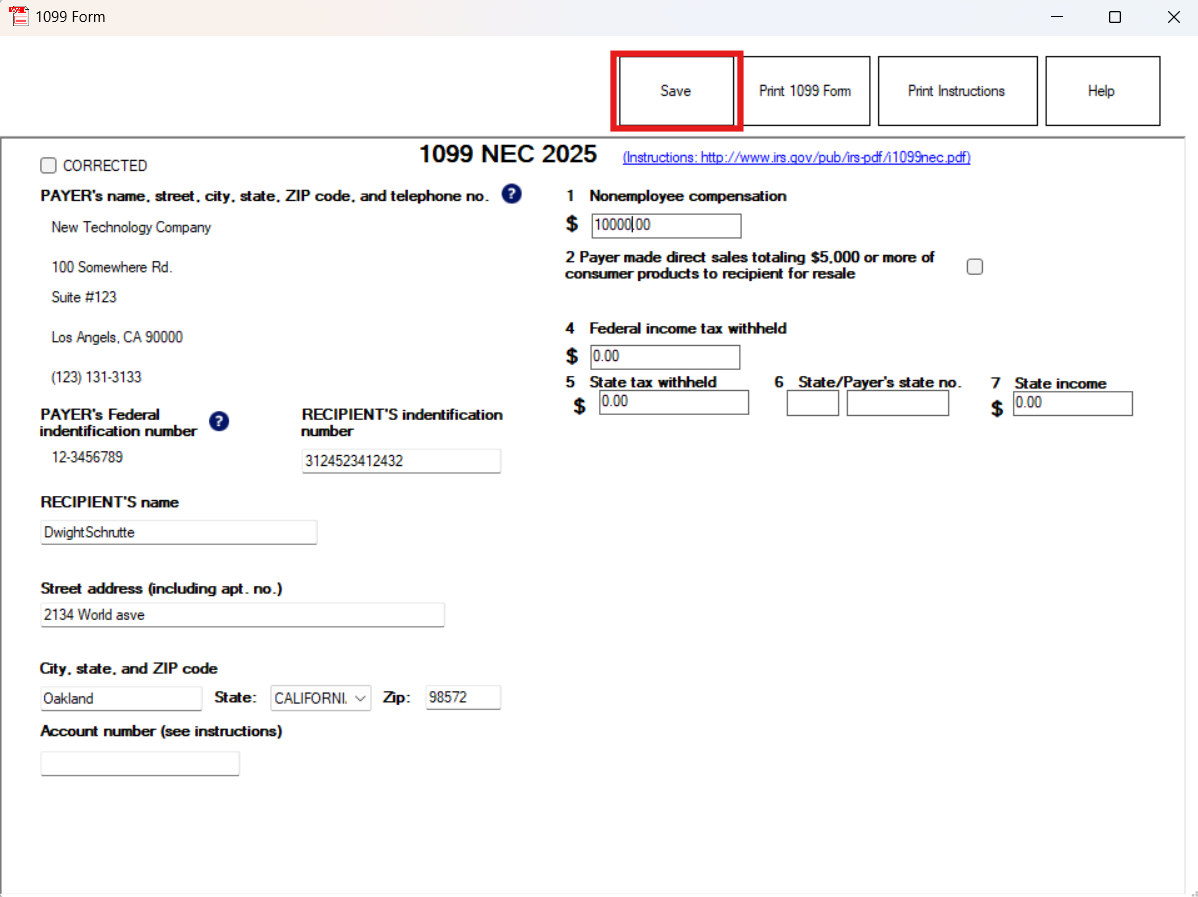
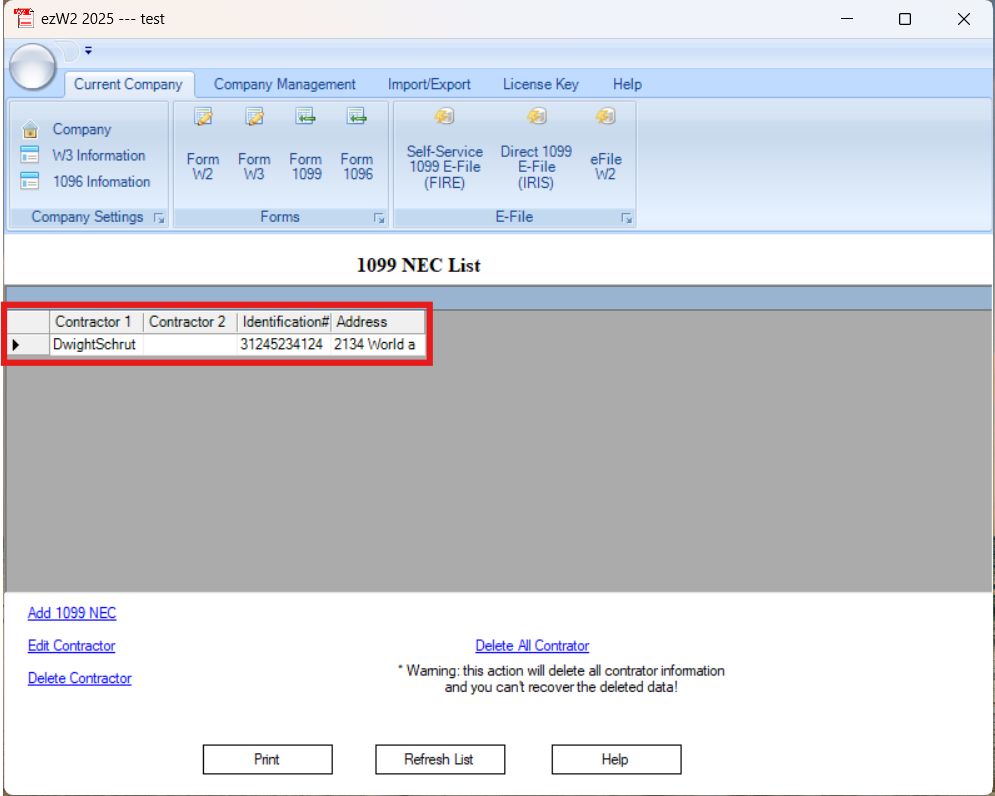
Once the database has been updated, close the 1099-NEC window. The new form will appear in the 1099-NEC List.
After preparing your 1099-NEC forms, continue to Submitting 1099 Forms.
Additional Resources
The links below offer helpful resources that build on this article and guide you through using ezW2 successfully.