Preparing Your W2 Correction Forms in ezW2 Correction
This article shows you how to create a company in ezW2 Correction and add a W2 Correction form. If you have already added your company accounts you can skip to step 1.2. The Additional Resources section includes links to import guides and other helpful articles.
Step 1.1: Creating Company Accounts
Creating a new company is only required during the initial setup or when adding an additional company in ezW2 Correction.
Open ezW2 Correction and select the Company Management tab.
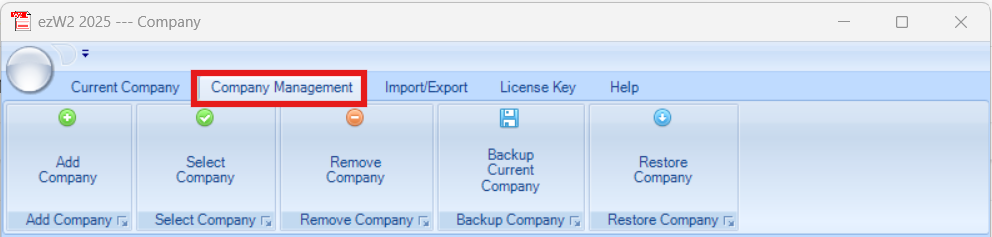
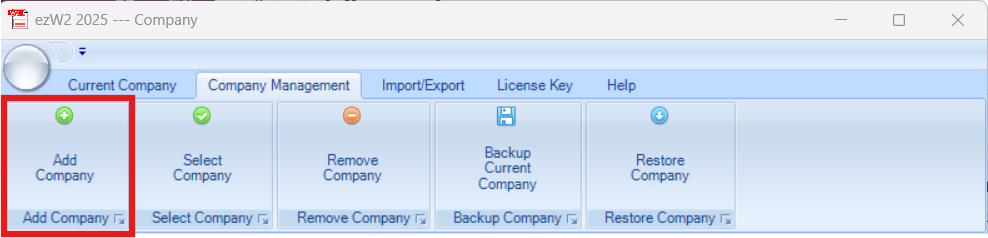
You will see company management options. Select Add Company to create a new company.
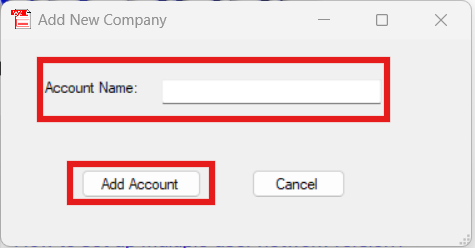
When the dialog opens, enter the company name and select Add Account.
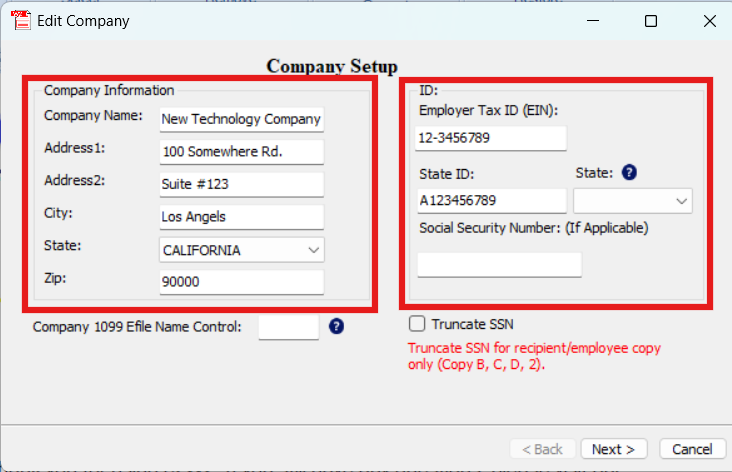
The company setup window opens. Enter the company information and ID details, then select Next.
You don’t need to complete this step every time. You only need to create a new company when you first set up ezW2 Correction or when adding additional companies.
Step 1.2: Preparing W2 Correction Forms For eFiling
This step will guide you through preparing your W2 Correction forms in ezW2 Correction. You can either import data from various sources or manually create the forms within the software. This article specifically covers manually creating W2 Correction forms in ezW2 Correction. For information on other import options, refer to the Additional Resources section below.
Step 1.2.1: Creating W2 Correction Forms
After creating a company, you can add W2 Correction forms. Select Form W2C.
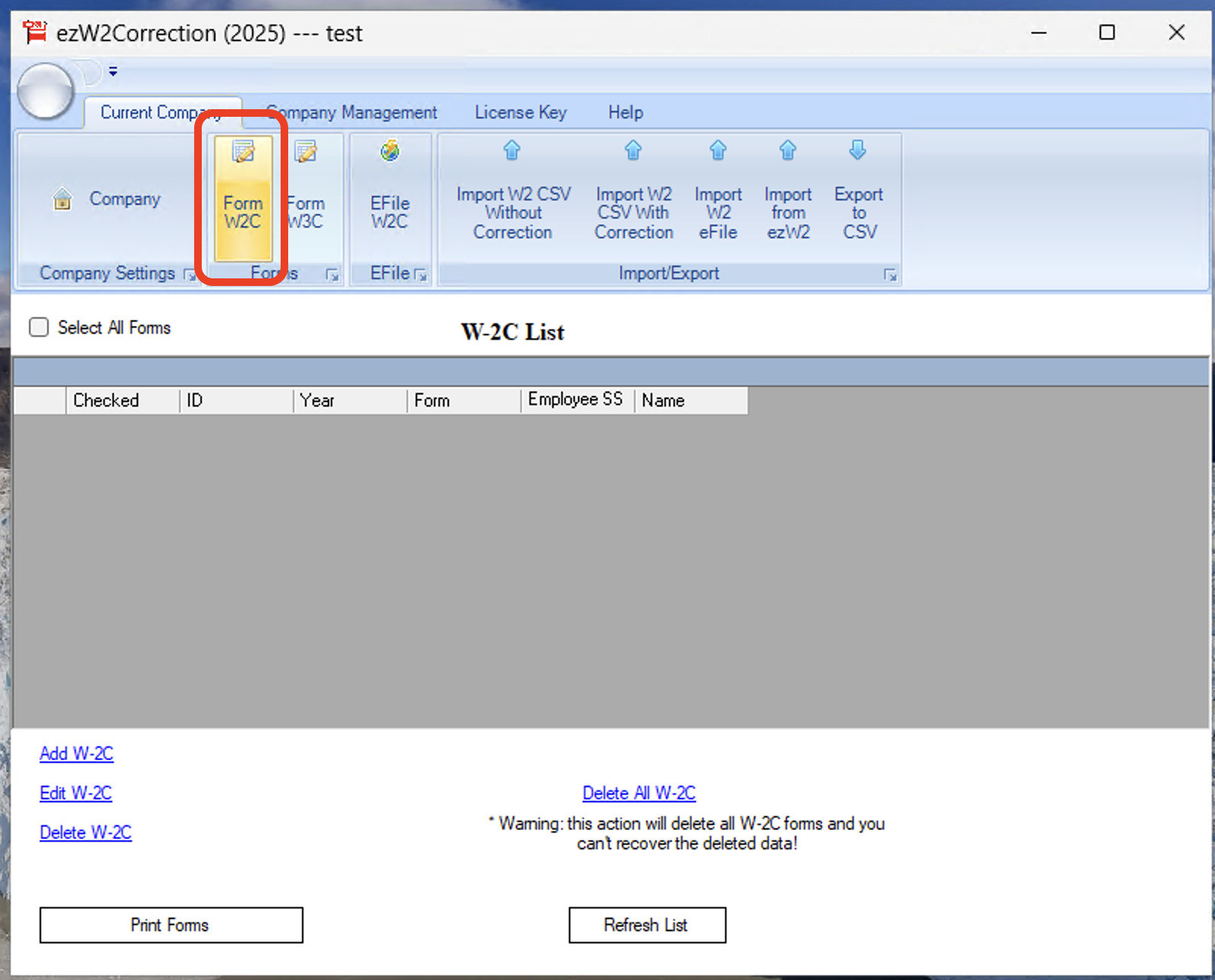
Click the Add W2C button to add a new W2 Correction form. Fill out the fields as needed.
After preparing your W2 Correction forms, continue to Submitting W2 Correction Forms.
Additional Resources
The links below offer helpful resources that build on this article and guide you through using ezW2 Correction successfully.