eFiling Your W2 Correction Forms in ezW2 Correction
Follow the steps below to eFile your W2 Correction forms with ezW2 Correction.
To use the ezW2Correction direct eFile feature, you need the following:
-
ezW2Correction e-file Version License - The eFile version is required to access the eFile service within ezW2Correction.
-
eFile W2 Form Credits - You must purchase one eFile credit for each W2C form you plan to eFile. For example, if you need to eFile 10 forms, you need to purchase 10 eFiling credits. You can purchase the credits here.
-
Free Halfpricesoft Customer Account - A free account is required to upload forms and track submission status through Halfpricesoft's online portal.
Step 2.1: Starting the eFiling Process
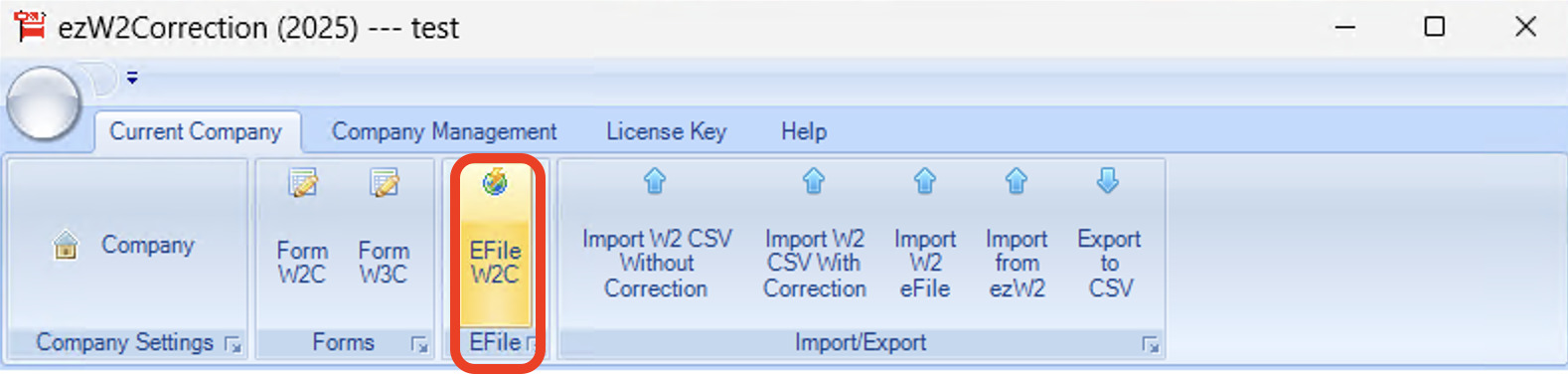
After preparing your W2 Correction forms, select eFile W2C in the top section of the application.
Step 2.2: Adding W2 Correction eFile Information
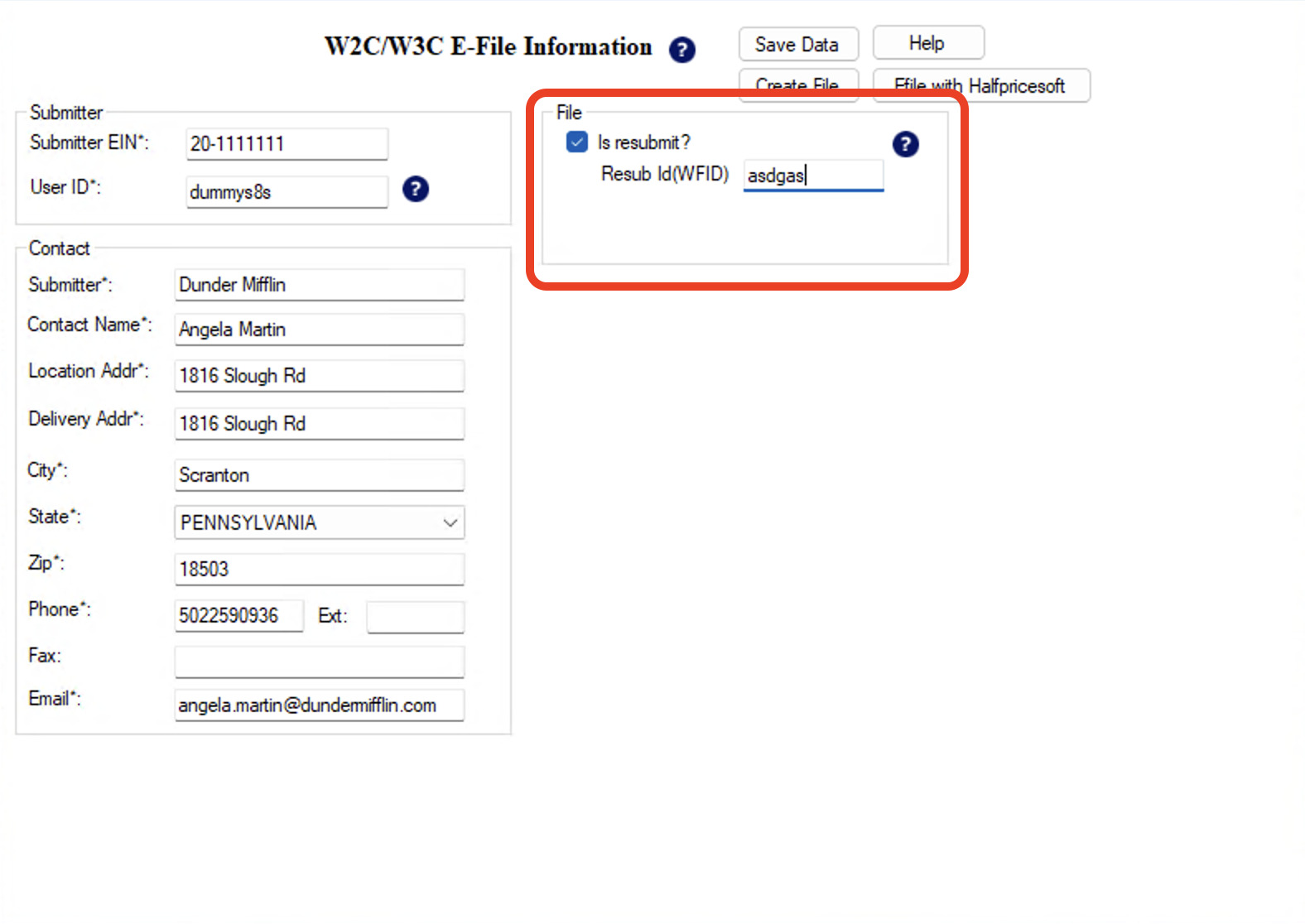
After selecting eFile W2C, the following page opens.
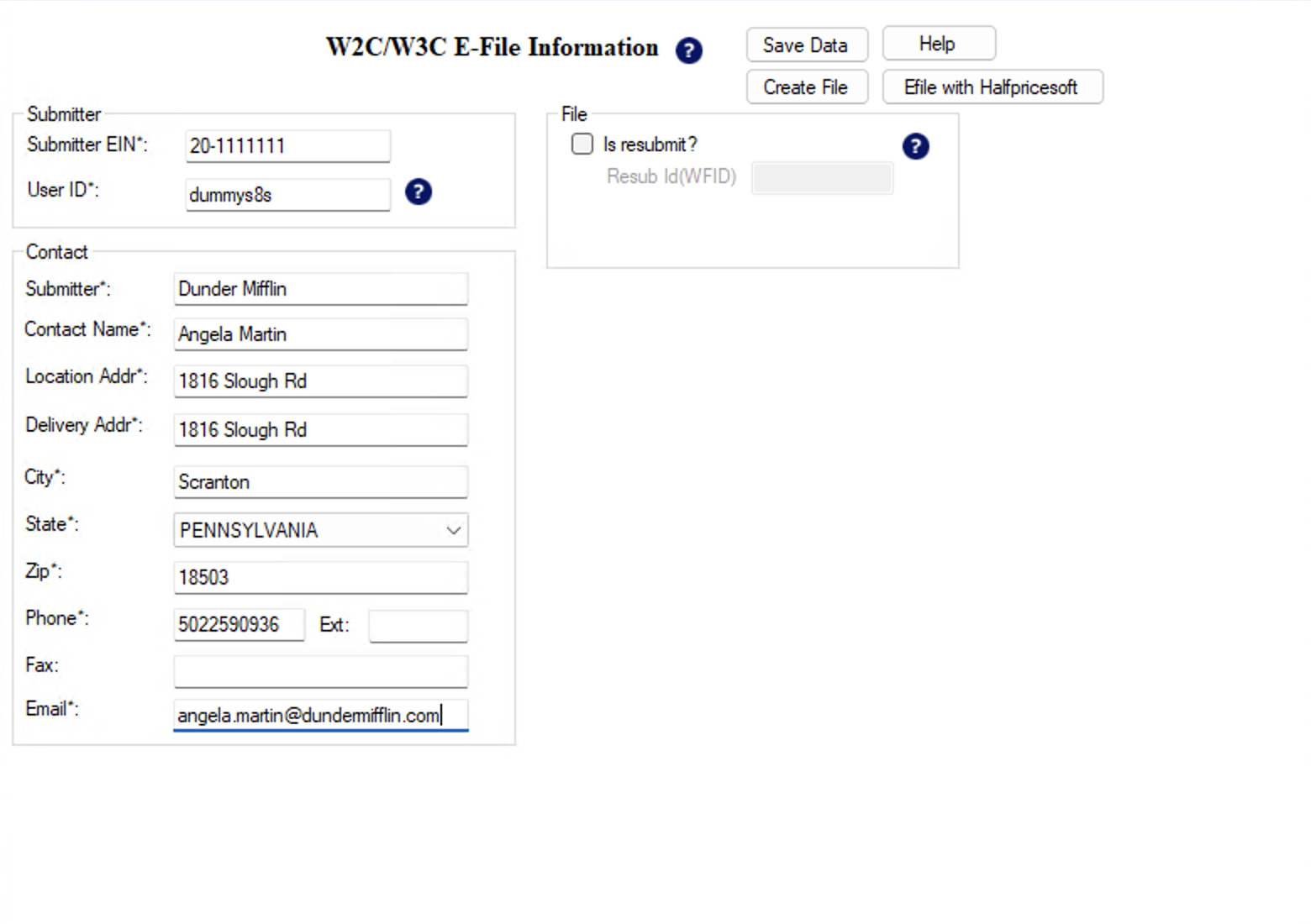
When eFiling directly through Halfpricesoft, the Submitter EIN and User ID fields are populated by Halfpricesoft after your eFile is uploaded. Enter placeholder values for these fields during setup.
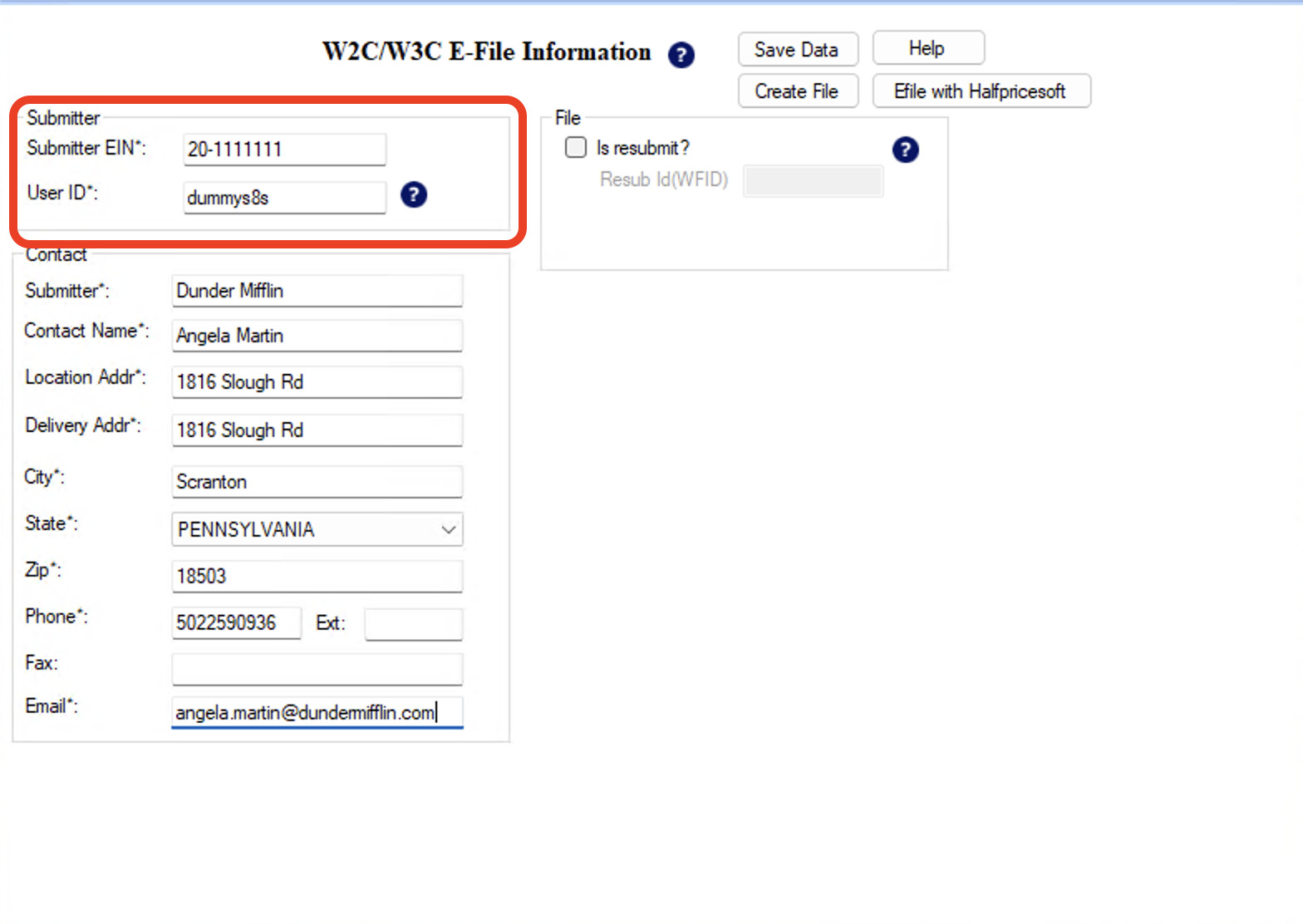
In the contact section, enter the contact details for the company you’re eFiling on behalf of.
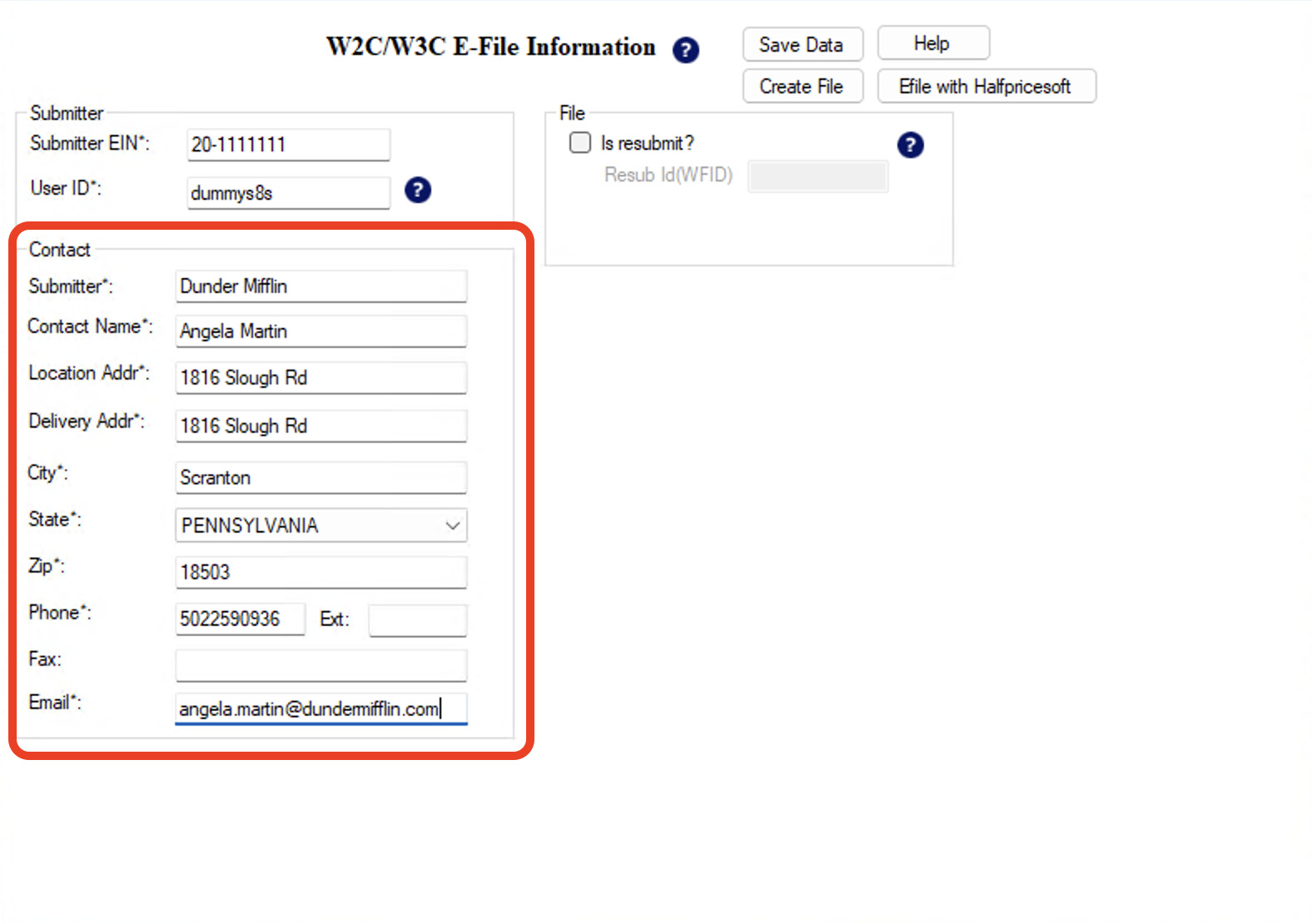
If the W2 Correction you are eFiling is a resubmission, select Is resubmit? in the File section and enter the Resub ID (WFID). If you are not resubmitting, leave this unchecked and continue.
The Resub ID, also known as the WFID, is provided when a W2 Correction form is submitted.
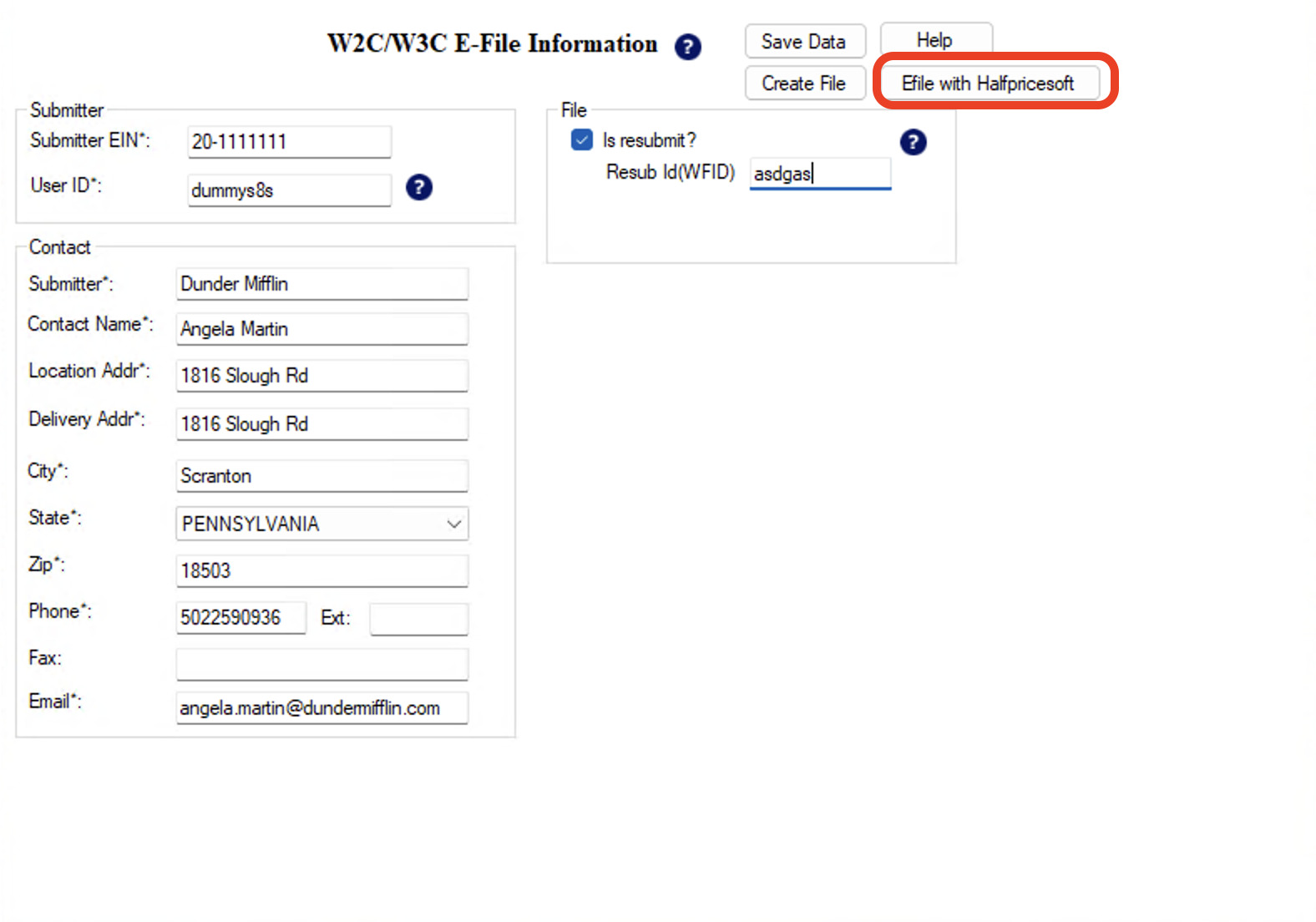
Once all required fields are complete, select Efile with Halfpricesoft.
Step 2.3: Uploading the eFile
After selecting Efile with Halfpricesoft, a new window appears.
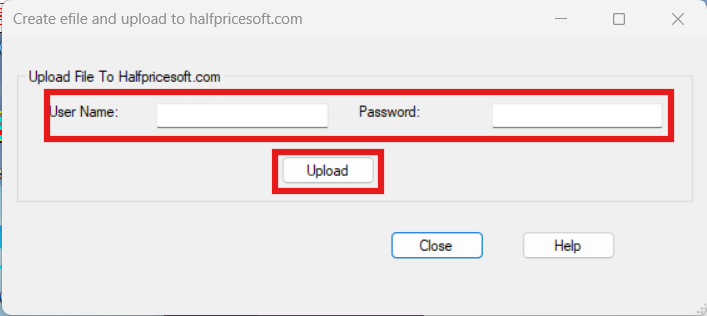
Enter the email used to purchase the eFile service in the username field and your Halfpricesoft online portal password in the password field. Select Upload when both fields are complete.
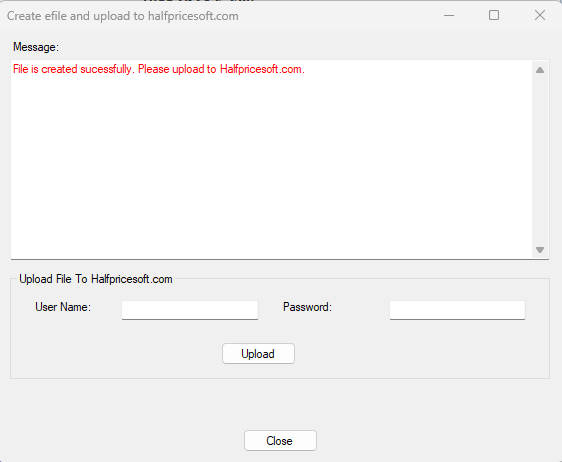
If the upload is successful, the following window appears:
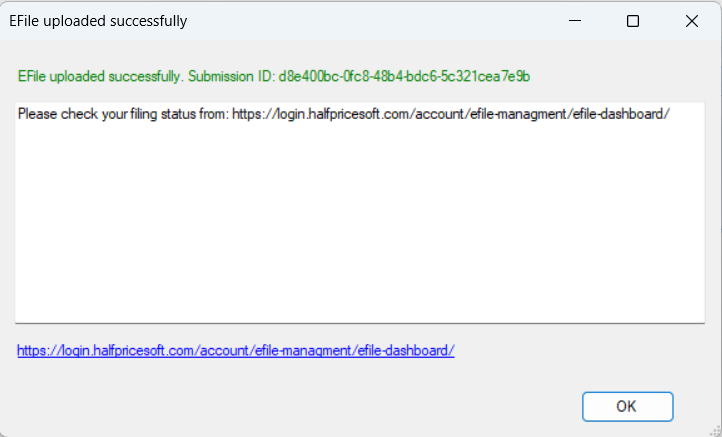
Continue to Monitoring Submission Status to learn how to track your eFile submission status.
When you upload your W2 Correction eFile forms to the IRS, Halfpricesoft will automatically include the required W3C form with your submission.