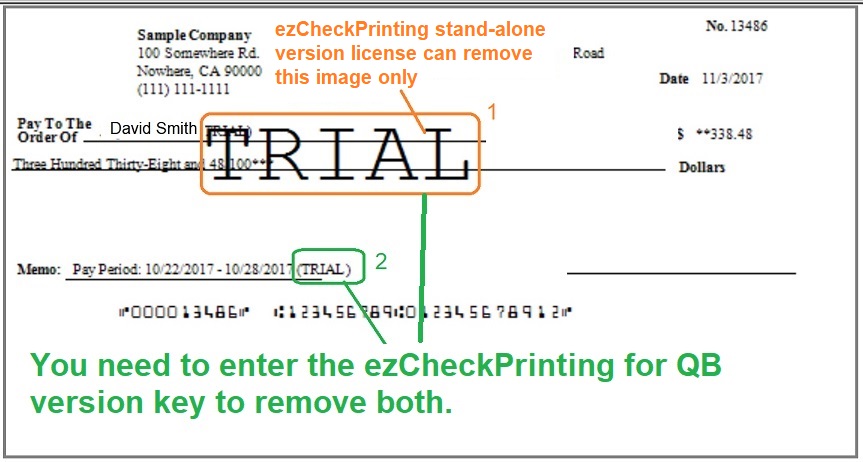
License
Mac
tip
Versions 5, 6, and 7 use two license keys. Follow the version 7, 6, and 5 license guide to register the software.
Step 1: Purchase the license key
After you purchase ezCheckPrinting for QuickBooks/Quicken, you receive a license message with the key.

Step 2: Register the key
- If ezCheckPrinting and the QuickBooks virtual printer are not installed yet, download and install them.
- Start ezCheckPrinting from the desktop shortcut.

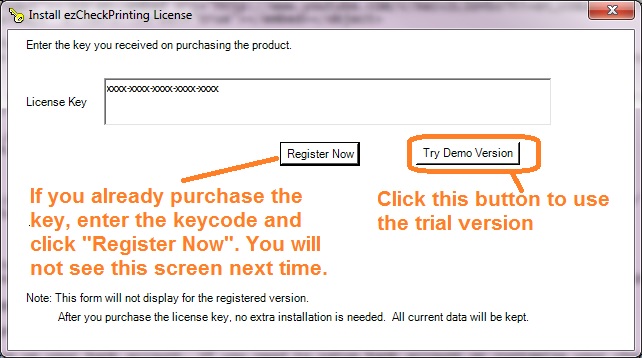
If the license is not registered, the key box opens on its own. You can also open it from the top menu: Help > Register/Unregister License Key.
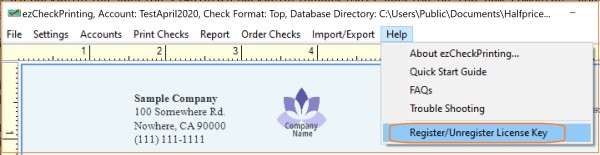
- Copy and paste the license code, including the dashes.
How to copy and paste
Highlight the key in the license email and press Ctrl + C. Click the registration box and press Ctrl + V.
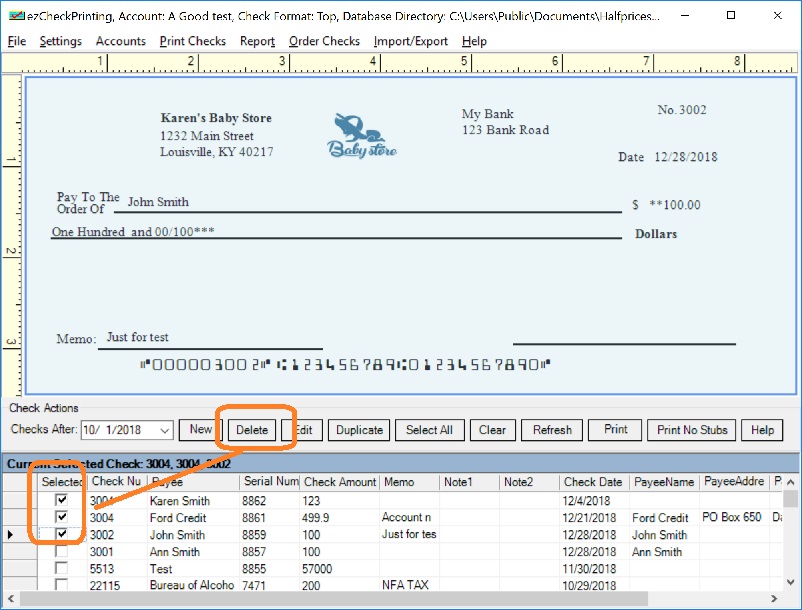
Step 3: Delete checks created during the trial
If you created QuickBooks checks during the trial, remove those checks from the ezCheckPrinting check list.
Step 4: Print a new QuickBooks check
Print a new check. The new check should not show the trial watermark.