Monitor Submission Status
After submitting, you can view the status of your submission on our website. Since many users need to file multiple corrections with the IRS due to errors, we strongly recommend monitoring your application's status regularly.
Step 2.1: Log into Your Account
To monitor the status of your 1095 forms, you will need to log into your account. You can log into your account by visiting our login page. After logging in, go to the dashboard monitoring page.
Step 2.2: Understanding the Dashboard
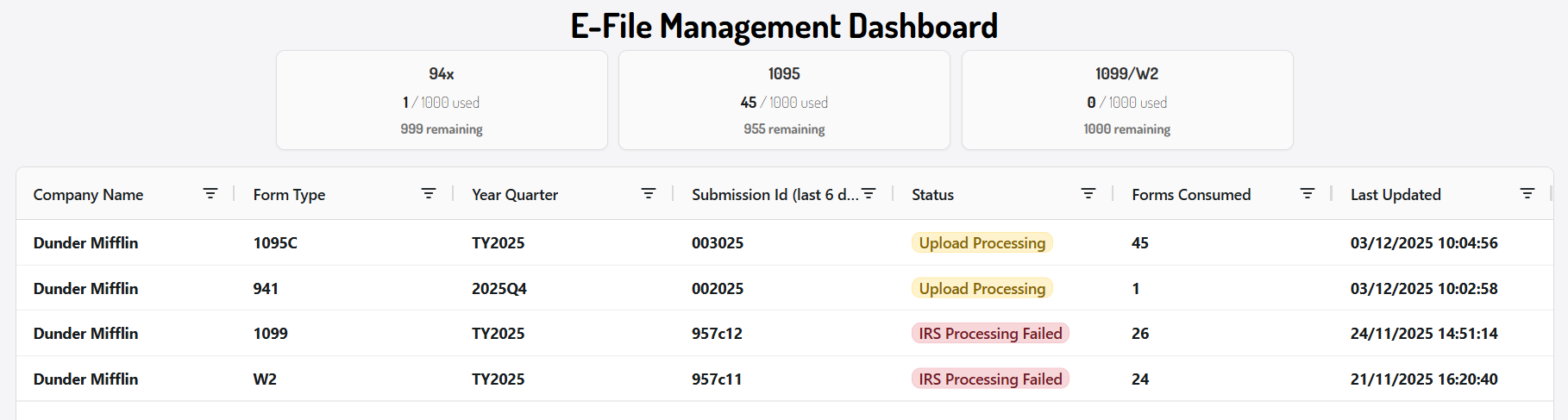
The first section of the dashboard shows how many eFile forms you have used and how many you still have available.

The next section of the eFile Management Dashboard displays the details of your eFile submission. The following information is shown:
- The Company name that the forms were submitted for
- The form type
- The year/quarter that the 1095 forms were submitted for
- The submission ID - to view the full submission ID open the detailed view
- The status of the submission
- The number of forms consumed
- The timestamp of when the status was last updated
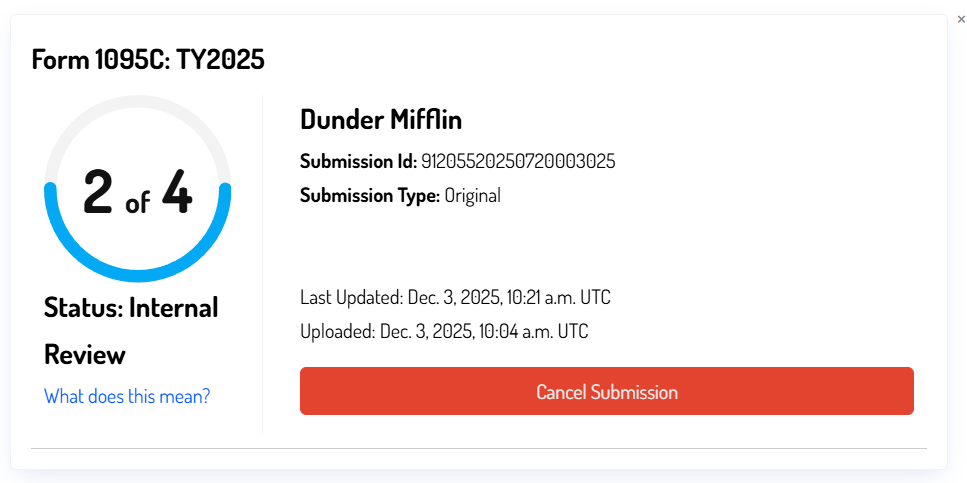
For a more detailed view of your submission status, select any row in the table. A detailed view will appear.
Step 2.3: The Submission Process
Immediately after a successful submission, you should see a status similar to the following:

As per our company policy, we will forward the file to the IRS within 48 hours of your submission.
Once the file is sent to the IRS, the status will update to:

The IRS may take some time to process your file. We will update the status as soon as the IRS processes your submission.
For most first-time filers, the IRS will return a partial acceptance status, which will appear as:

This indicates that while the IRS has accepted your file, it has identified some errors. You will need to correct these errors and resubmit the file. For detailed instructions on correcting errors, please refer to the next section.
We strongly recommend downloading the acknowledgment file as proof of your submission, as the IRS may request it during an audit.
Once you see this status:

This means the IRS has fully accepted your file, and no further action is required.
Be sure to download the acknowledgment file as proof of your submission, as it may be requested by the IRS in the event of an audit.
Step 2.4: Cancelling a Submission
To cancel a submission, select the row you want to cancel. The detailed view will appear, and the option to cancel the submission will be available. This can only be done during the Internal Review stage and will prevent the eFile submission from being delivered to the IRS. Cancelled submissions, as well as submissions rejected due to errors, will not count against your total eFile form submissions.

You can only cancel submissions that are in the Internal Review status. Once a submission has been sent to the IRS, it cannot be deleted.