Temporary workaround if you need to write checks now
Use this step when
The virtual printer is failing and checks still need to go out.
Come back to the matching topic in QuickBooks virtual printer troubleshooting when there is time to fix the printer.
Option 1: Pre-printed blank checks
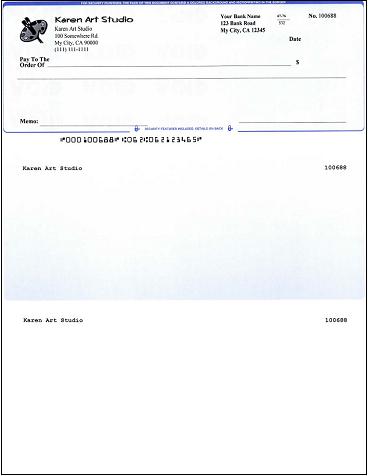
- Start ezCheckPrinting and print pre-printed blank checks that include the MICR encoding line. Top, middle, bottom, and 3-per-page formats are supported.
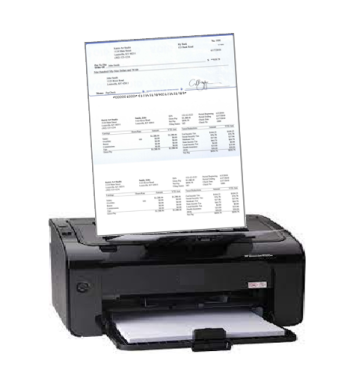
- Load those blank checks into the printer.
- Open QuickBooks (or the other application) and fill in the check data with a real physical printer. Do not use the virtual printer for this fill-in step.
Option 2: Import
- Export the check data from the other program to a .csv file.
- Import that file into ezCheckPrinting and print the checks in a batch.
