Missing check data
ezCheckPrinting opens on the same computer and the checks that were there before are gone.
If this is a new computer, transfer the data from the old one. The steps below are for the same computer.
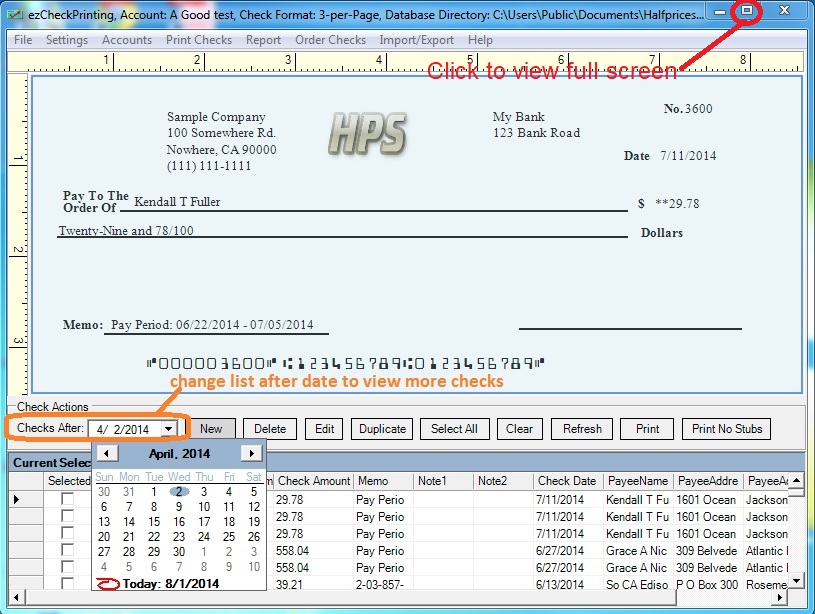
1. Widen the check list date
If the bank account information is still correct, the list may be hiding older checks. Change Check after to an earlier date.
Watch: How to view more checks.
2. Switch to the account that has the checks
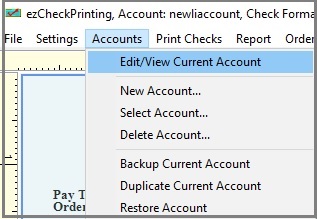
Open Accounts > Select Account, and choose the account you were using.
3. Restore a backup
If you have a backup, restore it
Watch: How to restore a check account.
- Open Accounts > Restore account, and select the database file you'd like to restore
- Open Accounts > Select Account, and select the restored file.
4. Copy the database file back yourself
Use this when the data folder was moved, for example after a new hard drive or a Windows update. The database file is a Microsoft Access .mdb file.
Default folder:
C:\Users\Public\Documents\Halfpricesoft\ezCheckPrinting
Version 4 and earlier sometimes stored the file in one of these folders:
C:\Users\(your Windows user name)\AppData\Local\VirtualStore\Program Files (x86)\Halfpricesoft\ezCheckPrintingC:\Program Files\Halfpricesoft\ezCheckPrinting
You can also search the computer for *.mdb.
Copy the file you find into the default folder, then open Accounts > Select Account, and select that file.