Database directory error
Use this step when
ezCheckPrinting reports a database access error or a database path error.
1. Reset the settings file
-
Open the data folder:
C:\Users\Public\Documents\Halfpricesoft\ezCheckPrinting -
Delete
settings.xml.
-
Start ezCheckPrinting and enter the license key again.
-
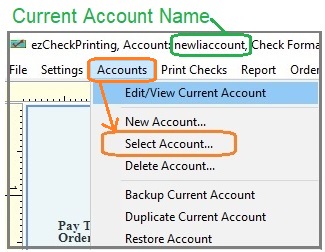
If the checks are not in the current account, open Accounts > Select Account.
-
If the error remains, the current user needs full control of the data folder. Follow Folder permissions.
2. Reinstall as an administrator
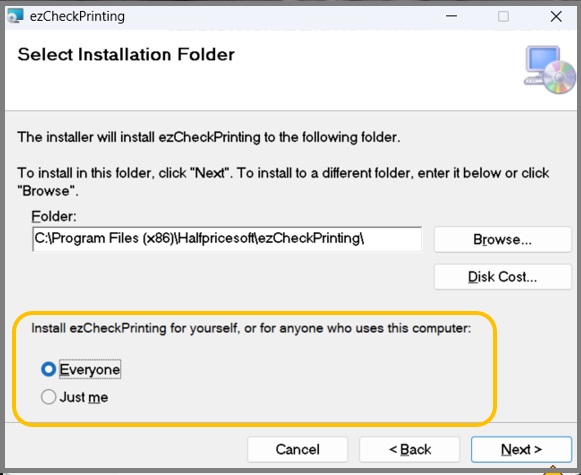
If step 1 did not clear the error, reinstall ezCheckPrinting from scratch. Log in as an administrator and choose Everyone on the install screen.
3. Check permissions again
If the error is still there after the reinstall, set folder permissions for the account that runs ezCheckPrinting.