Trial watermarks
Use this step when
You see a trial watermark on your checks.
Current version
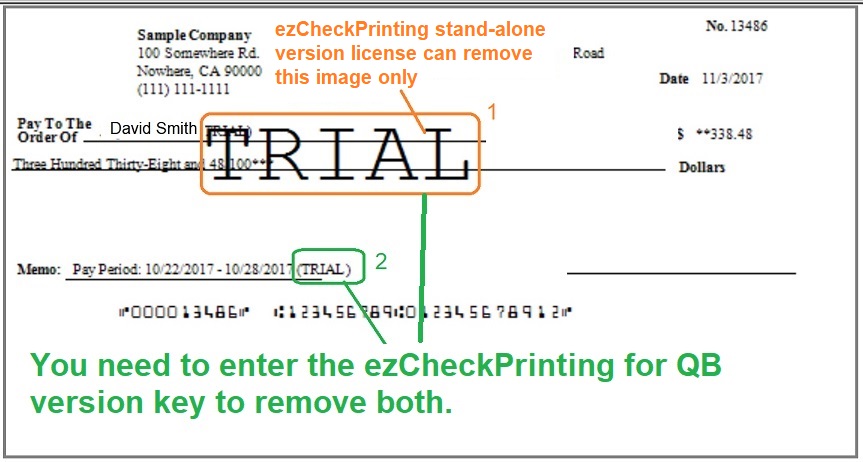
- Watermarks are printed in trial mode. Use the License page if you have not entered the key yet.
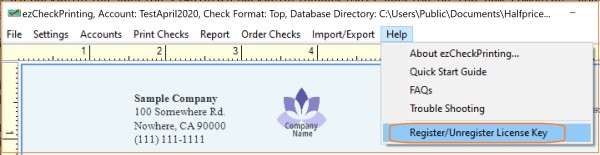
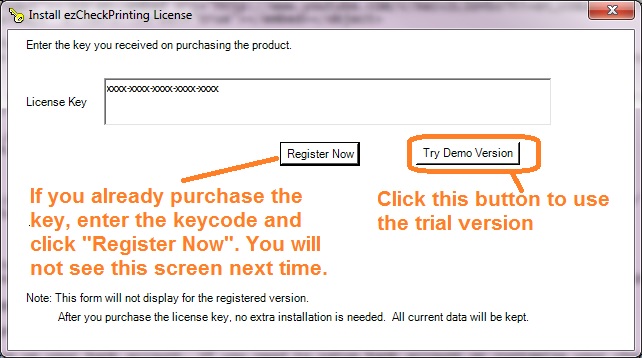
- Confirm the purchase is ezCheckPrinting for QuickBooks/Quicken, not the stand-alone check printing software. If the stand-alone version was purchased by mistake, contact support to change the order.

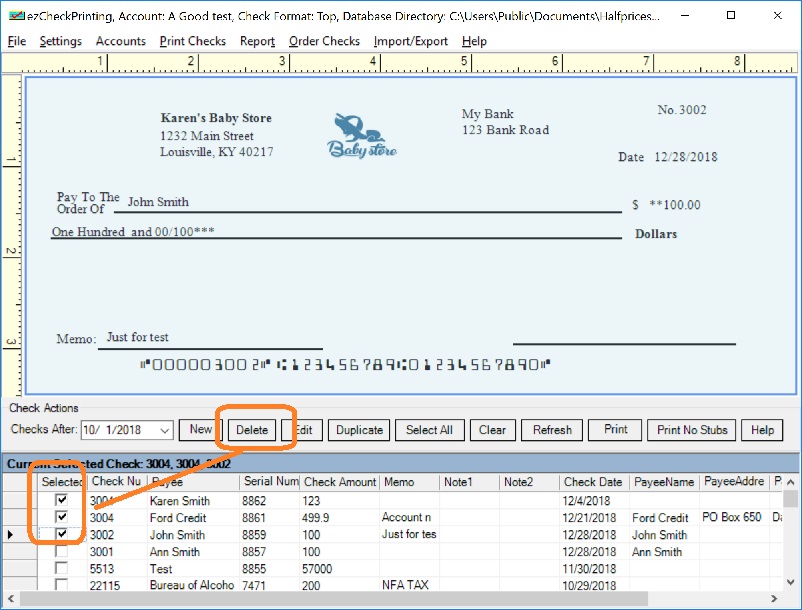
- Delete the checks that were created during the trial. New QuickBooks checks printed after registration should not have the watermark.
- If you're still seeing a watermark, see What to send if you still need help
Version 7, 6, 5, and 4 (two keys)
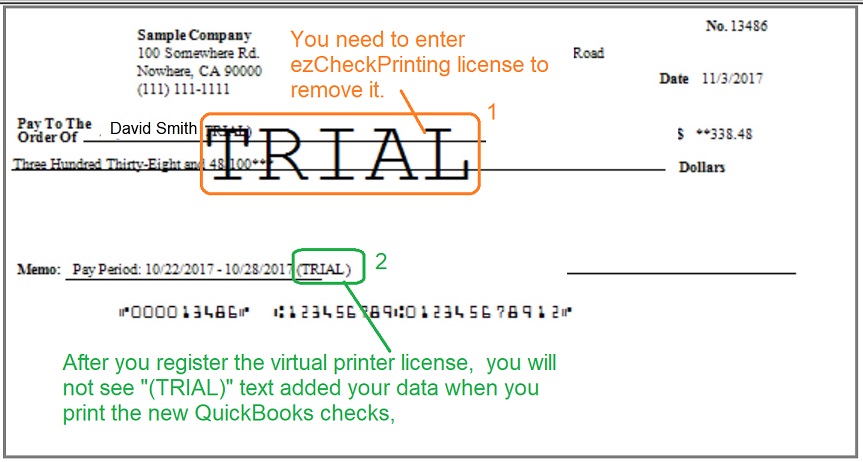
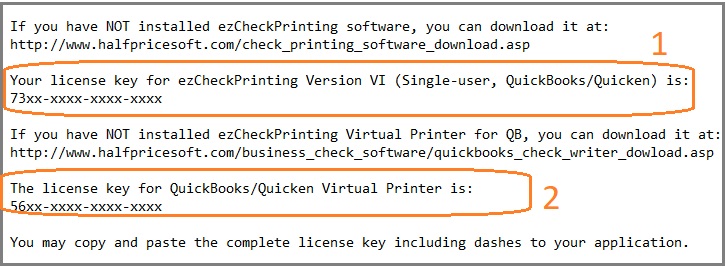
A big TRIAL image across the check: register the first key, the ezCheckPrinting license, in ezCheckPrinting.

The word "trial" appears behind the payee name and memo: register the second key, the virtual printer license.
- In ezCheckPrinting, delete the checks that show "trial". Those checks have to be printed again from QuickBooks after the key is registered.
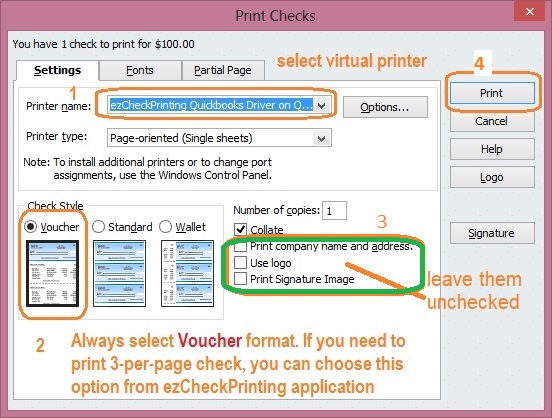
- In QuickBooks, print as usual. On the print-check screen, select EzCheckPrinting QuickBooks Virtual Printer and click Print.
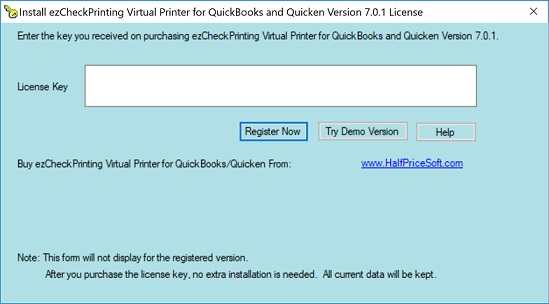
- If the virtual printer is still in trial mode, a key box appears. Paste the second key, including the dashes.
- New checks printed after both keys are registered should not show the image or the "trial" text.