Why is my check not scanning?
A bank or store scanner can reject a check because of the check setup, the printout, or the paper it's printed on. Work through the causes below in order.
Watch: Why the bank cannot scan my check.
1. The MICR line format is wrong
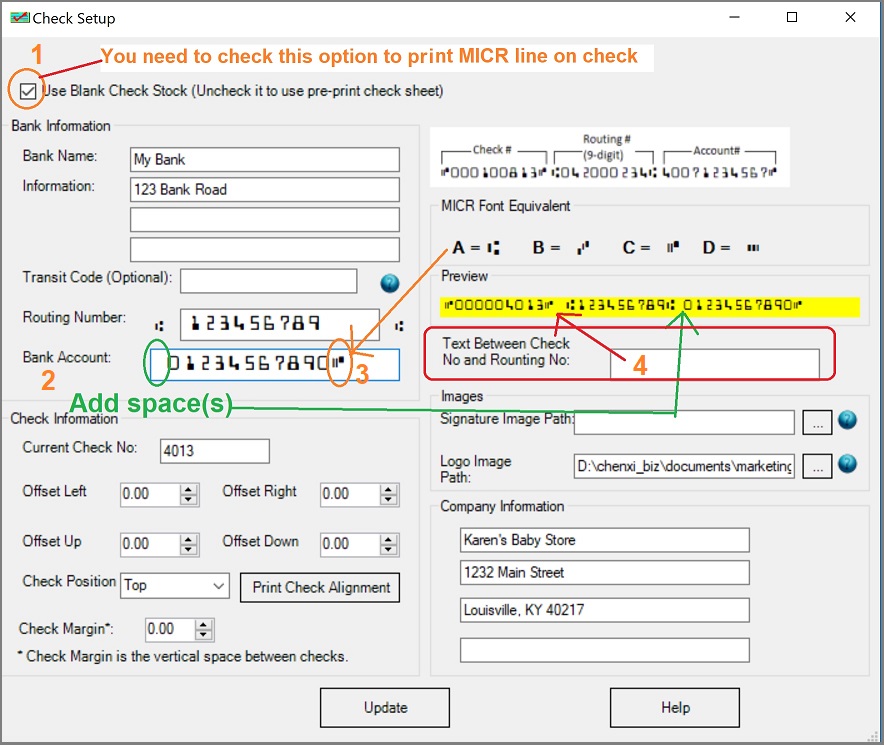
This is the most common reason. Most US banks require the MICR symbol C after the bank account number. Some banks require special characters before, after, or around the account number.

Go to Settings > Check setup to change the MICR line. See How to customize the MICR line.
2. The check was printed on white paper
Print on check paper that has security features. Plain white paper is not check stock.
3. The printer ink cannot be read by older scanners
For blank check stock, print the MICR line with MICR toner or a laser printer. Some grocery stores and ATMs still use older scanners that cannot read a check printed on a regular inkjet printer.
4. The MICR font did not print
Install ezCheckPrinting while logged in as an administrator so the MICR fonts install. If the fonts are wrong, uninstall ezCheckPrinting and install it again. See MICR font display or printing.
5. The check alignment is off
Print an alignment page from the check setup screen, then change the offset values.
To print the check lower, increase Offset down. The default is 0. Try 0.5 first. If the check is still too high, increase the value again.

The full alignment steps are in Check alignment.
How to confirm the check format
Bank mobile app. Print a small test check payable to yourself or an employee. If the bank app can read it, the format is usable for deposit.
Bank deposit. Deposit the same test check. If the bank scanner reads it, the format is correct.