Folder permissions
ezCheckPrinting will not start, will not save a check, or reports a database error, and the Windows account may not be allowed to use the program folders.
ezCheckPrinting needs at least Read, Write, and Execute on these folders and the files inside them:
Data folder
C:\Users\Public\Documents\Halfpricesoft\ezCheckPrinting
Program folder
C:\Program Files (x86)\Halfpricesoft\ezCheckPrinting
View permissions
- In File Explorer, right-click the folder.
- Select Properties, then the Security tab.
- Select the user or group in the list. The permissions for that account are shown below.
Change permissions
- Right-click the folder, select Properties, then the Security tab.
- Click Edit.
- Select the user or group.
- Select Allow for the permissions this account needs. For the account that runs ezCheckPrinting, allow Full control.
- Click Apply, then OK.
Sample: the data folder
-
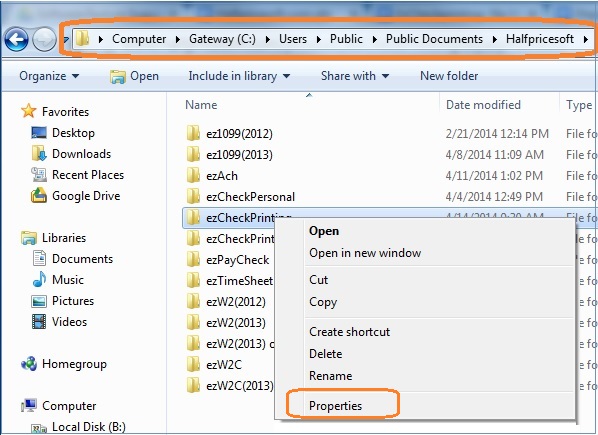
Open File Explorer and go to
C:\Users\Public\Documents\Halfpricesoft. -
Right-click the ezCheckPrinting folder.
-
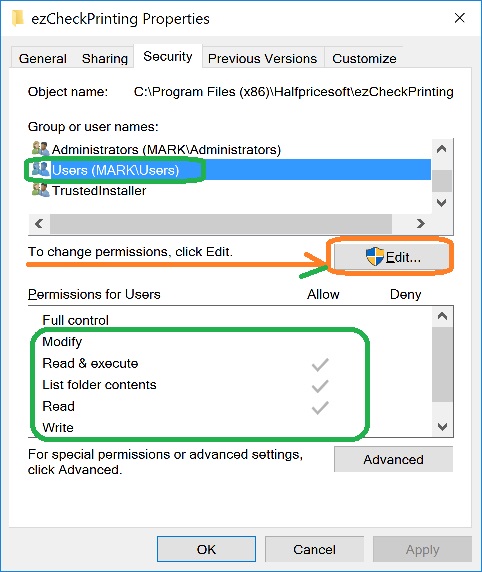
Open the Security tab. This account needs Read, Write, and Execute.
-
Click Edit.
-
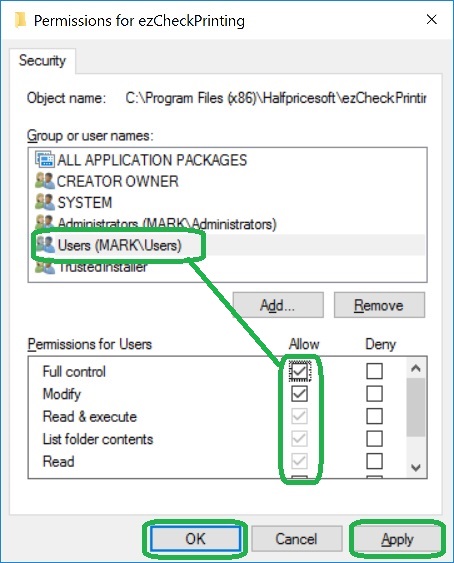
Select Allow for Full control.
-
Click Apply, then OK.
-
Open the Security tab again and confirm the change. If the checkboxes will not stay selected, this account cannot change permissions. Ask the company IT administrator to set them.
Repeat the same steps for C:\Program Files (x86)\Halfpricesoft\ezCheckPrinting.