Installation errors
1. The Windows account cannot install software
Installing ezCheckPrinting requires an administrator account. If this account cannot install programs, ask IT to run the installer.
2. The computer blocks installs that start from the browser
Save the installer to a local folder, then run it from that folder. The steps are on the ezCheckPrinting download page.
3. Invalid argument
- Ask the company IT administrator to install ezCheckPrinting.
- If you are the only user of the computer, create a new local administrator account and change the original account to a standard account. Install ezCheckPrinting using the new administrator account.
Microsoft guide: Manage User Accounts in Windows.
4. Port error
A port error during install is related to the QuickBooks virtual printer installation, not ezCheckPrinting itself. Follow Printer missing or port error.
5. Antivirus blocked the install
These products have blocked the download or the program for some customers. Allow ezCheckPrinting in that product, then install again.
- Bitdefender: Allow an application in Bitdefender.
- Webroot: View and disable shields in Webroot.
- Kaspersky: Allow ezCheckPrinting in the Kaspersky application control or exclusions list.
- Windows Defender: Add an exclusion and, if Controlled folder access is on, allow the app. The steps are in Allow ezCheckPrinting through Windows Security.
- Microsoft: Virus and Threat Protection in the Windows Security App.
6. .NET Framework error
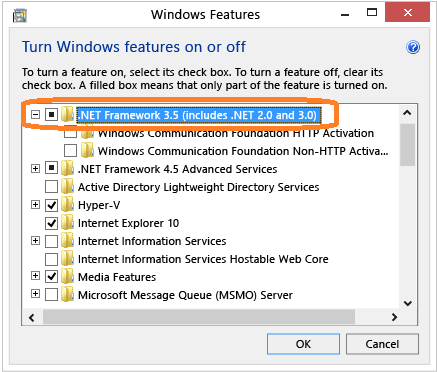
Windows includes .NET Framework. This error means .NET Framework 3.5 is turned off.
- Open Control Panel.
- Open Programs and Features.
- Open Turn Windows features on or off.
- Select .NET Framework 3.5 (includes .NET 2.0 and 3.0). Leave the Windows Communication Foundation (WCF) HTTP Activation child items unselected unless you are a developer who needs them.
- Confirm. This step needs an internet connection.
7. Installation interrupted
Installation interrupted usually means .NET Framework 4.0 is missing or cannot run. Pick one:
- Install .NET Framework 4.0 from Microsoft.
- On Windows XP or Windows 7, use the build made for those versions.