HalfpricesoftHalfpricesoft

How to Set Up Roth After-Tax Deduction from Each Paycheck Automatically

ezPaycheck payroll software makes small business payroll an easy job. It includes multiple customized deduction and tax fields to support ROTH after-tax deduction and more.

A Roth 401(k) or Roth IRA contribution is an after-tax (post-tax) deduction. Because contributions are made with money that has already been taxed, federal income tax, state income tax, and FICA taxes (Social Security and Medicare) are calculated on the gross pay before the Roth deduction is subtracted.

Who Can Use This Guide

Use this guide to set up automatic payroll withholding for employee Roth contributions.

Step 1: Add the ROTH deduction

1.1 Start ezPaycheck and click the left menu "Company Settings" then "Deductions" to view the "Company Deduction Setup" screen

1.2 Check one deduction field, click settings button(...) behind it to enter the details

1.3 Enter the deduction name: Roth

1.4 Enter the Yearly Deduction Uplimit.

1.5 You can set up this deduction by amount or by percent.

Note: ROTH is after-tax(post-tax) deduction. You should not check any exemptions.

1.6 Save the deduction details.

1.7 Save the company deduction settings.
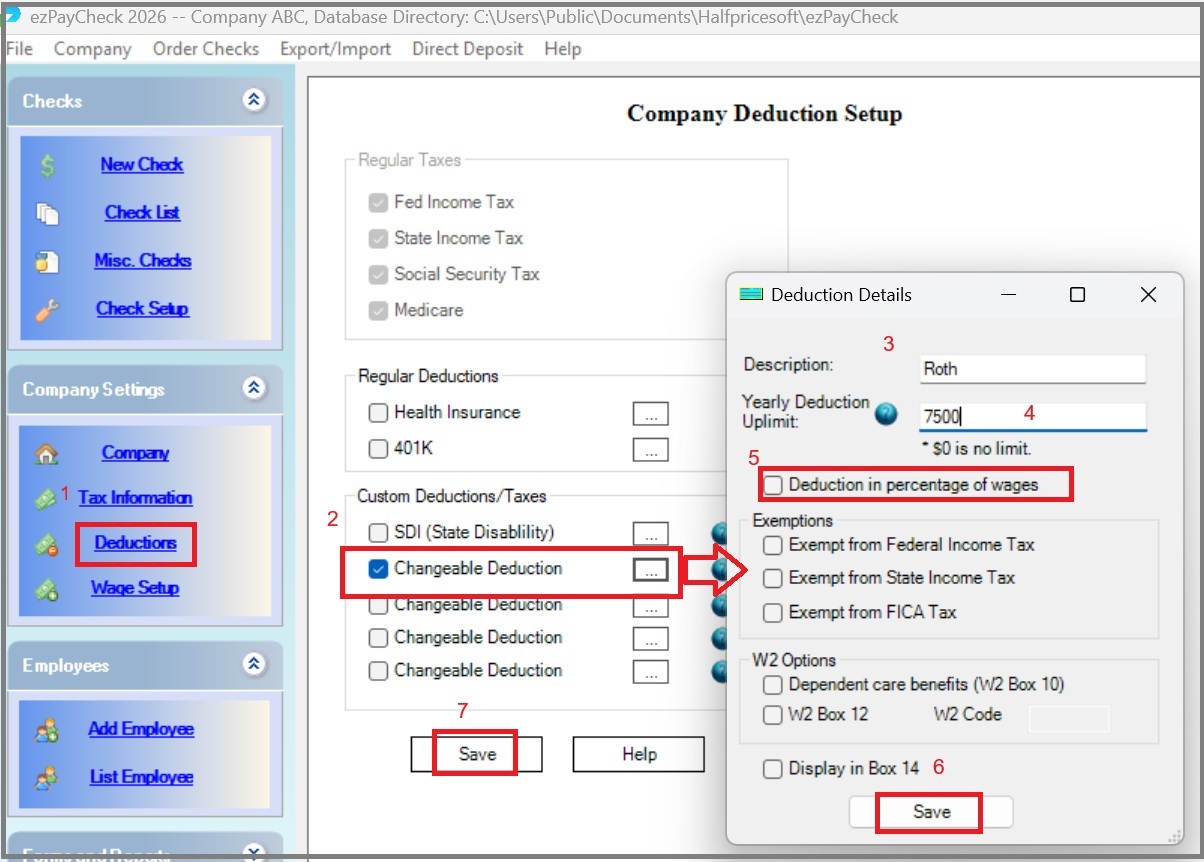
set up ROTH after-tax deduction from paycheck
(Click image to enlarge)

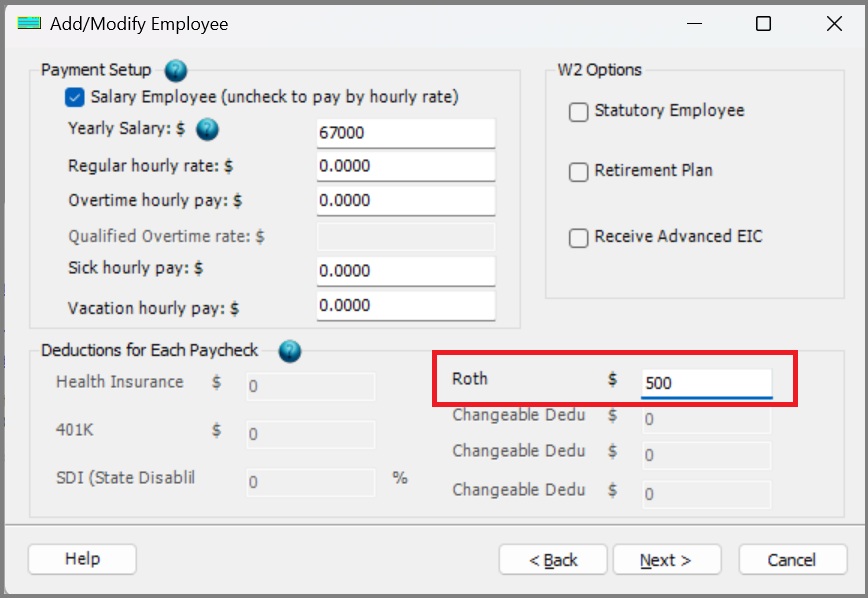
Step 2: Edit employee profile and enter the withhold amount or percent for ROTH plan

ROTH deduction setup
(Click image to enlarge)

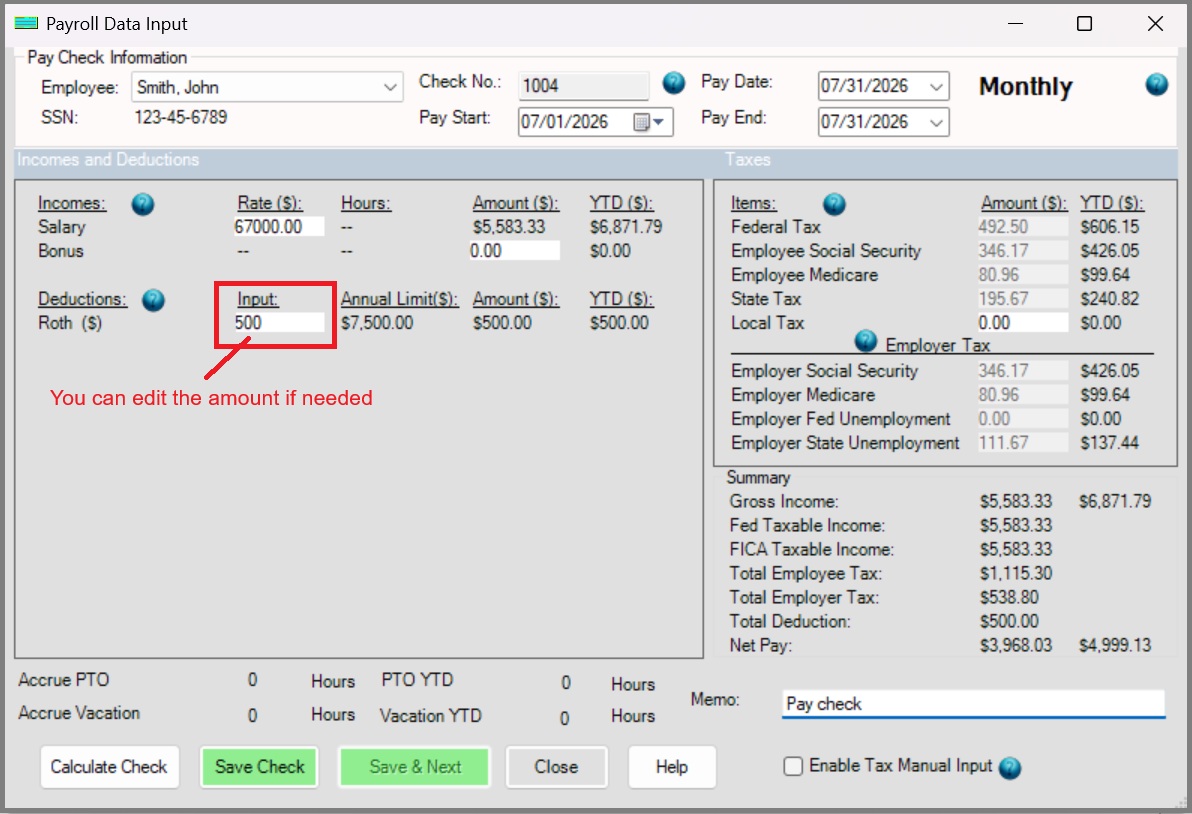
Step 3: Add a new check

You will see the ROTH deduction on the new check. If needed, you can modify the value when you add a new check.

withhold ROTH deduction from paycheck
(Click image to enlarge)