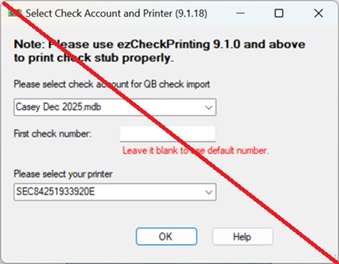
In some environments, Windows security settings may block the virtual printer's pop-up window. You can bypass this by configuring the software to use your default account and printer automatically.
Steps to bypass popup screen when printing checks with virtual printer
Step 1: Locate the settings folder
Open your Windows File Explorer and navigate to the following folder:
C:\Users\Public\Documents\Halfpricesoft\ezCheckPrinting
Step 2: Edit the settings file Find the file named settings.xml.
Right-click it and select Open with Notepad.
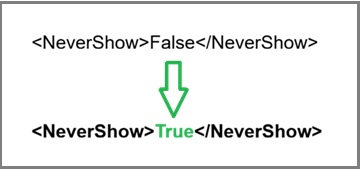
Step 3: Update the "NeverShow" tag Look for the "NeverShow" tag.
Change the value from "False" to "True" as shown below:
Important Note: Once this bypass is active, Virtual Printer will no longer ask you to select an account when you print. If you need to switch to a different bank account, you must open ezCheckPrinting directly and select the account manually before printing from your other software.
Get Help
Please feel free to contact us whenever you need assistance. Our support team is glad to assist you.