Quick Start Guide (for Windows)

For QuickBooks Desktop, Network and Online Versions
Unlimited Accounts and Unlimited Checks with One Flat Rate. No Hidden Cost
Never order expensive pre-printed blank checks for QuickBooks. You can follow the steps below to install ezCheckPrinting and virtual printer, set up bank account, and print QuickBooks checks on blank stock in one step.
ezCheckPrinting QB version is compatible with QuickBooks online, desktop 2025, and previous versions on Windows.
To print checks from QuickBooks and Quicken (no matter desktop version, network version or online version), you need to install both ezCheckPrinting and Virtual Printer
You can try ezCheckPrinting and virtual printer for free with no obligation before purchasing. However, the trial version will print TRIAL watermarks on checks.
Download ezCheckPrinting application
Download ezCheckPrinting virtual Printer for QuickBooks
You must run ezCheckPrinting application at least once and print a test check to make sure both ezCheckPrinting and your printer works!
The virtual printer will call ezCheckPrinting CheckPrint() function to print check(s) from QuickBooks and Quicken. So you need to run ezCheckPrinting software at least once before you can print checks from QuickBooks.
You can click the desktop shortcut to start ezCheckPrinting application.

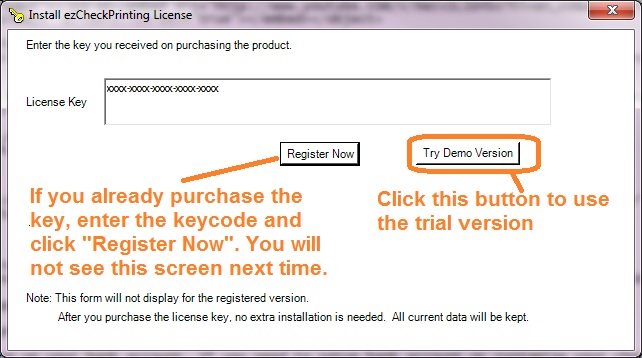
If you have not purchased the key code, you can use the trial version.
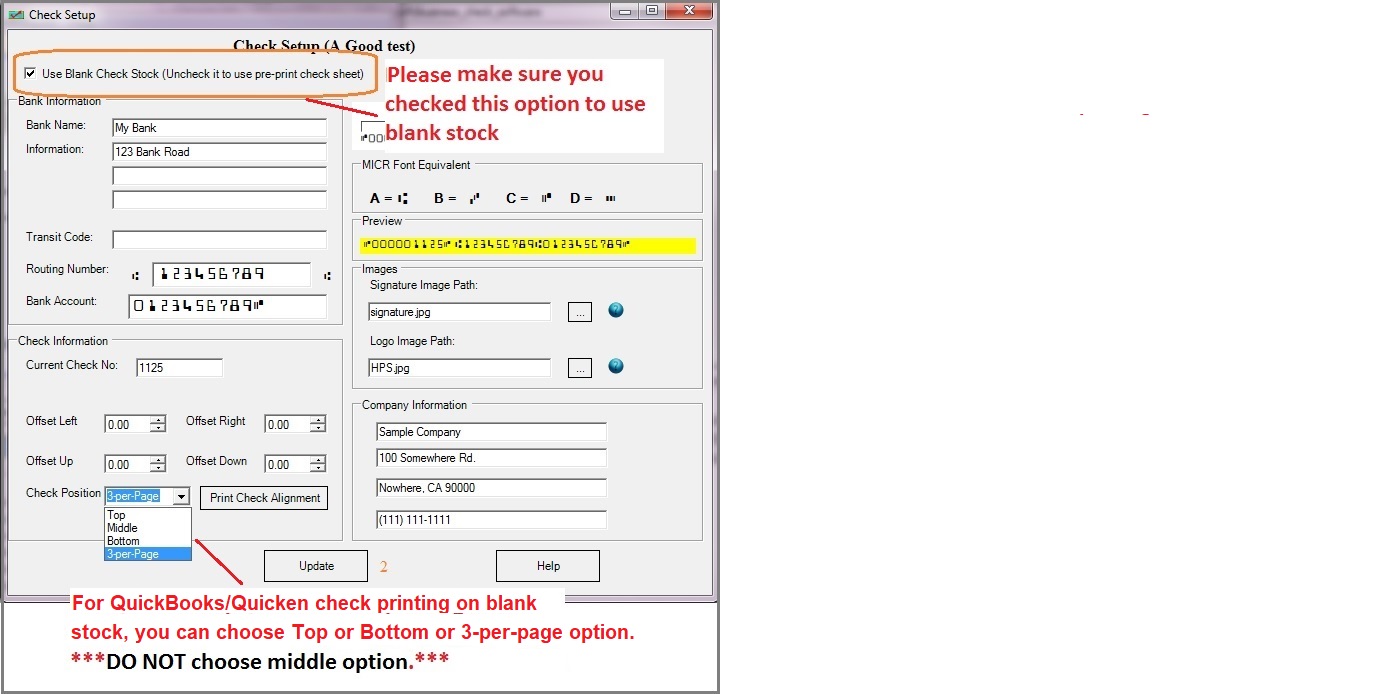
You can set up the bank account and specify the paper check format (top, bottom or 3-per-page) in this step.
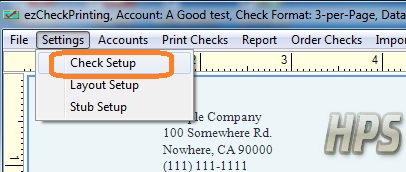
If you like the default layout, you can skip this step.
Open the layout setup screen
Click the top menu "Settings → Layout Setup" to open the check layout page.
Customize Check Layout
You can customize the layout of your check by changing the font size, logo position, logo size or by adding a new label.
For example: You can double click the logo on screen to select it. Then you can resize it or drag/drop the logo to a new position. If you are satisfied with the layout, please click the Save button to save your change.

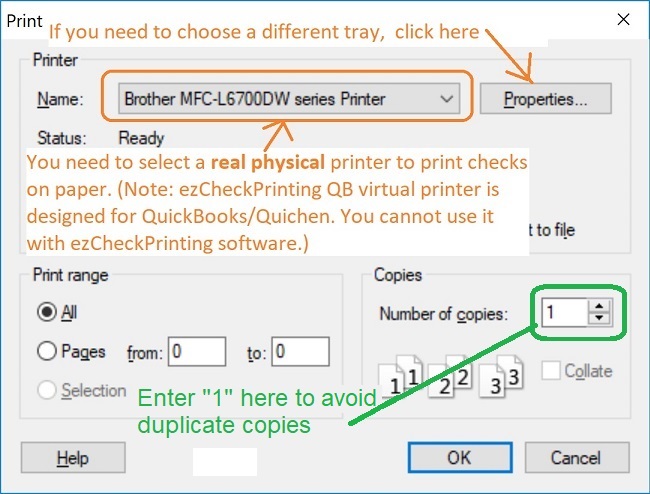
You need to use a real physical printer to print checks in this step. (Do not use the QB virtual printer)
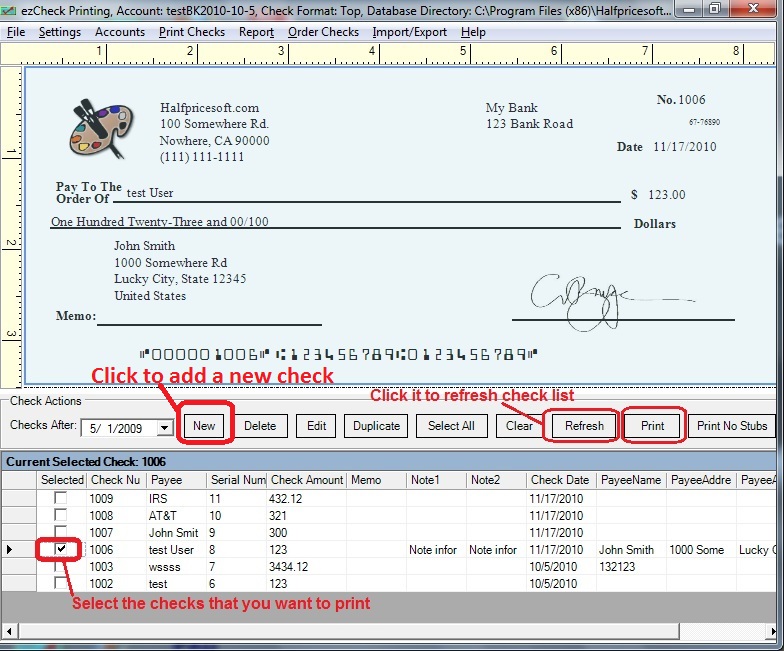
Go back to the main page. Click the New button to add a check.
Select this check from the check list and click the Print button to print your check.
Select Printer
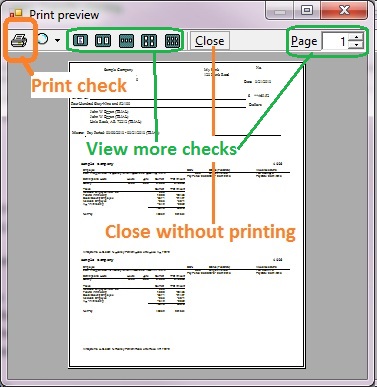
Preview and print check
You can click the printer icon to print check on paper from preview screen.
Print checks from QuickBooks as usual, using ezCheckPrinting QuickBooks Virtual Printer.
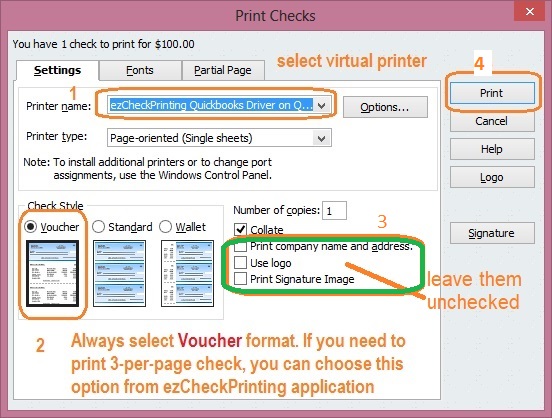
On print check option screen, select EzCheckPrinting QuickBooks Virtual Printer as the current printer.
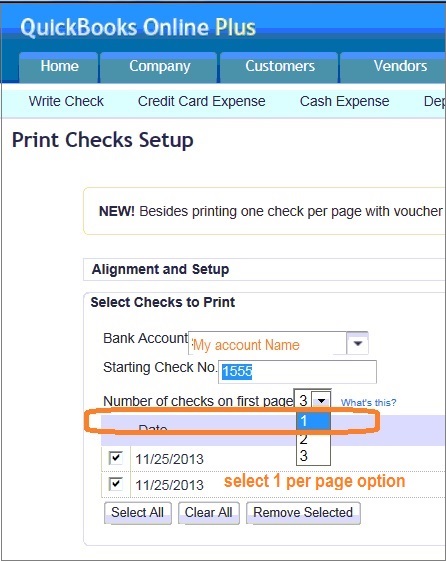
You MUST select voucher check or 1 per page format in this step. This is the required format to transfer check data and stub data. If you need to print checks in different formats such as 3-per-page, you can specify the check format inside ezCheckPrinting instep 2.2. (Learn moreabout how to print checks on 3-per-page sheets)
for desktop version
for online version
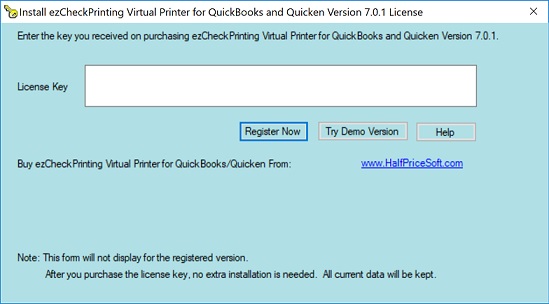
If you are using trial version, you will see the key input pop up window. Once you enter the key code, you will not see it again.
If you are using the trial version and your computer hides the pop up screen, pleaserefer to this guide to display the pop up screen.
You should copy and paste the key code including "-" for ezCheckPrinting virtual printer here. (Guide:How to register the license)
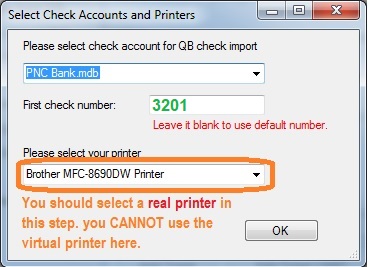
You can switch account and printer in this step
If your computer hides the pop up screen, pleaserefer to this guide to display the pop up screen.
You can click the printer icon to print QuickBooks checks on blank stock.Please close this preview screen after you print the check(s).
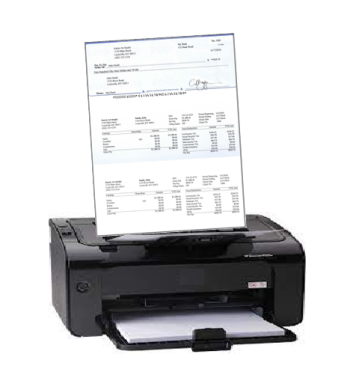
With ezCheckPrinting software, you can
If you need to print checks today, you can also follow this 2-step guide to write checks first.
ezCheckPrinting for QuickBooksallows QuickBooks users to print checks on blank stock with MICR encoding and logo in house. You can also use it to fill out preprinted blank checks also.
If you have not installed this software, you can download and try it free with no obligation and no credit card needed.
ezCheckPrinting for QuickBooks is compatible with Windows 11, 10, 8.1, 8, 7, Vista, XP and other Windows computers.
You will never waste your pre-printed checks when you change your bank or move to a new location. Printing checks with ezCheckPrinting software is easier, cheaper, safer and faster with free test drive.
Please feel free to contact us whenever you need assistance. Our support team is glad to assist you. You can also check the FAQs page or email [email protected].


 Full Guide for QuickBooks Online Users