ezCheckPrinting Quick Start Guide for Quicken (for Windows)
Save your money and stop ordering the expensive pre-printed blank checks for Quicken. With ezCheckPrinting software, you can save money on check printing easily.
To print checks from QuickBooks and Quicken (no matter desktop version, network version or online version), you need to install both ezCheckPrinting and Virutal Printer on your local machine
You can try ezCheckPrinting and virtual printer for free with no obligation before purchasing. However, the trial version will print TRIAL images on checks. You can purchase the key code later to remove it. All the data you entered in the trial version will stay there.
ezCheckPrinting free download
https://www.halfpricesoft.com/check_printing_software_download/
virtual Printer for QuickBooks/Quicken free download
https://www.halfpricesoft.com/business_check_software/quickbooks_virtual_printer_download/
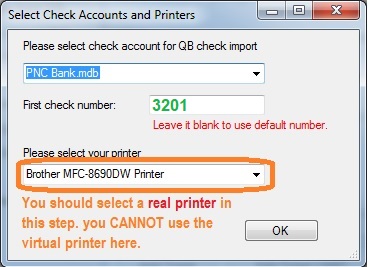
Do not use QB virtual printer in this step!
You can click the desktop shortcut to start ezCheckPrinting application.

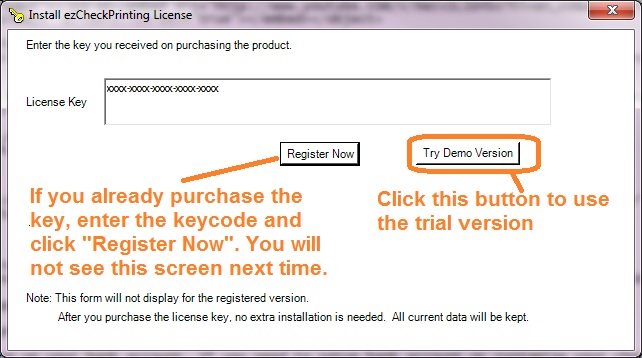
If you have not purchased the key code, you can use the trial version.
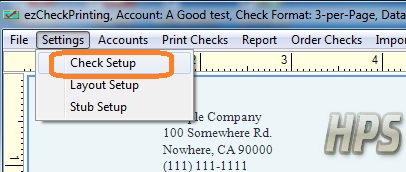
You can access this screen by clicking ezCheckPrinting top menu "Settings", then the sub menu "check setup".
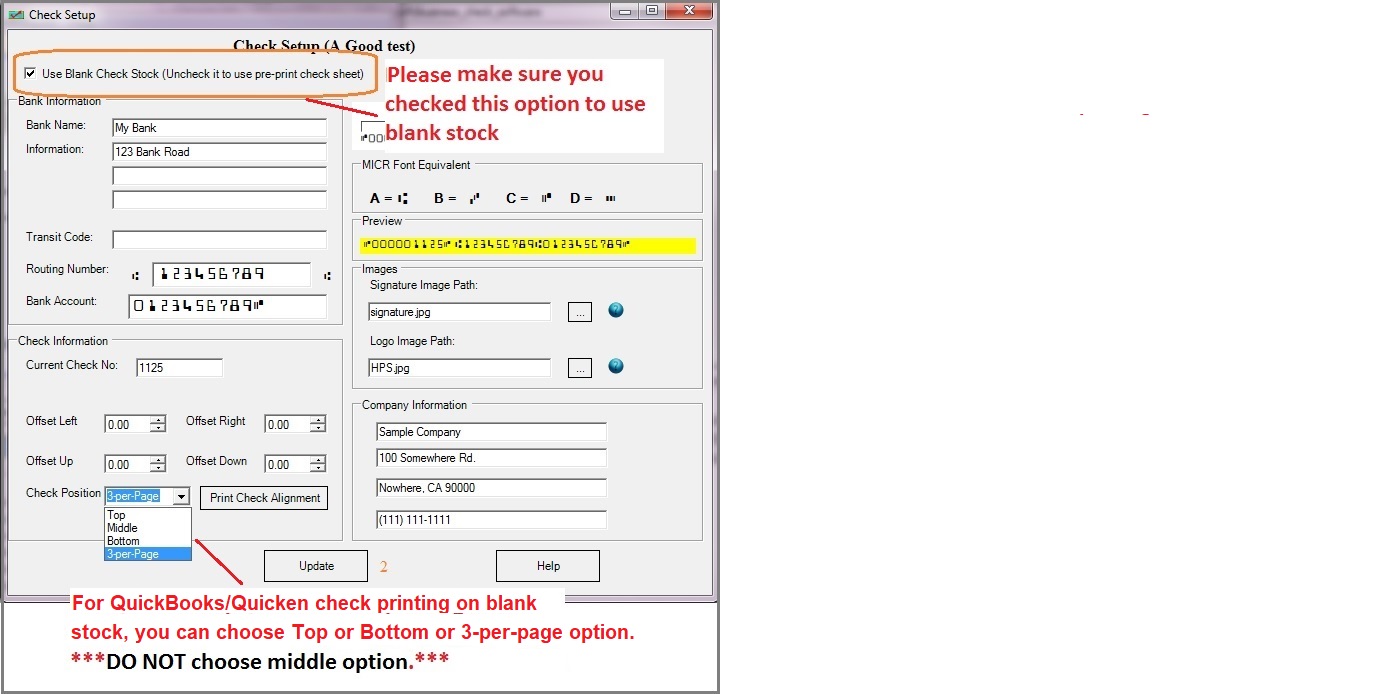
Please make sure you checked the option to use blank stock on check set up screen.
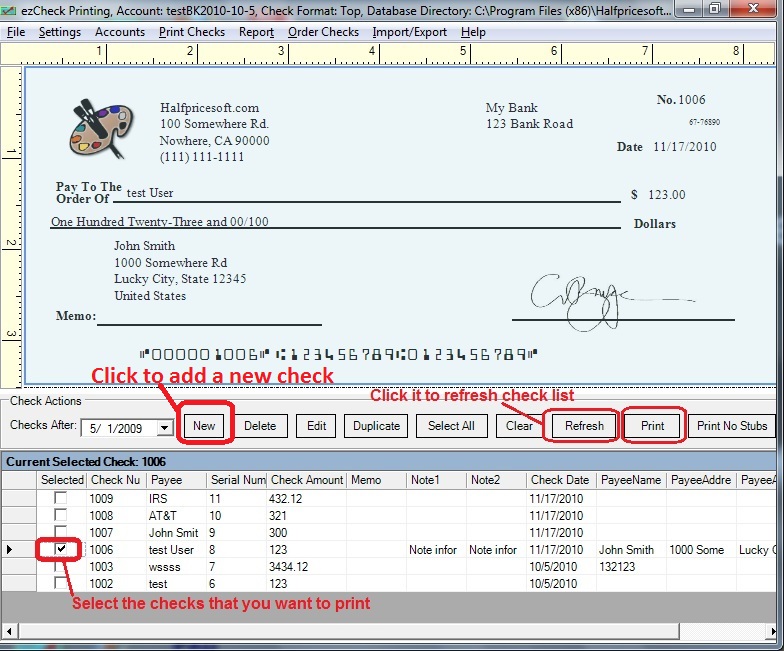
Go back to the main page. Click the New button to add a check.
Select this check from the check list and click the Print button to print your check.
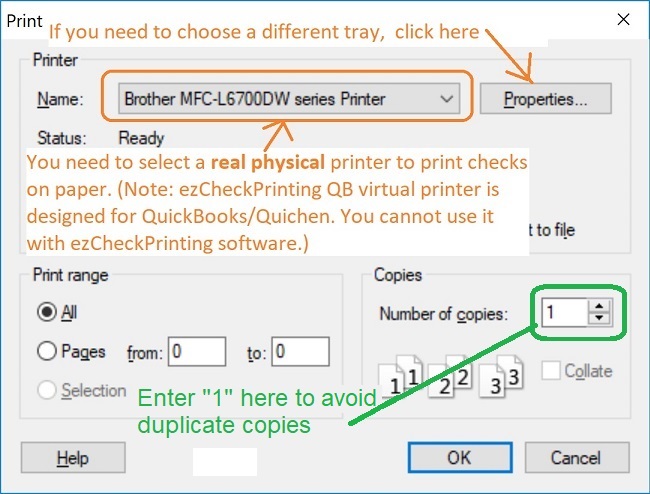
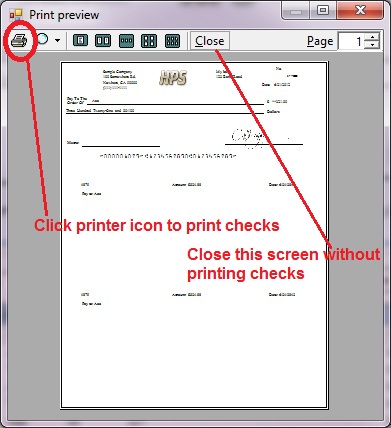
You can click the printer icon to print check on paper from preview screen.
(You can skip this step if ezCheckPrinting virtual printer has already been choosed as the default check printer.)
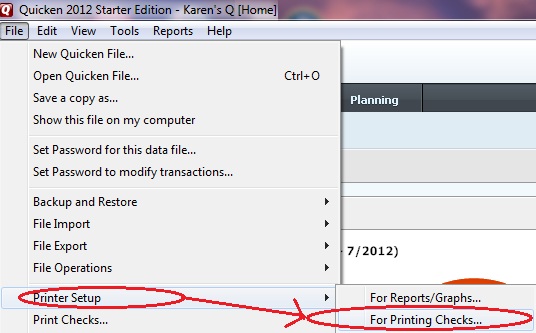
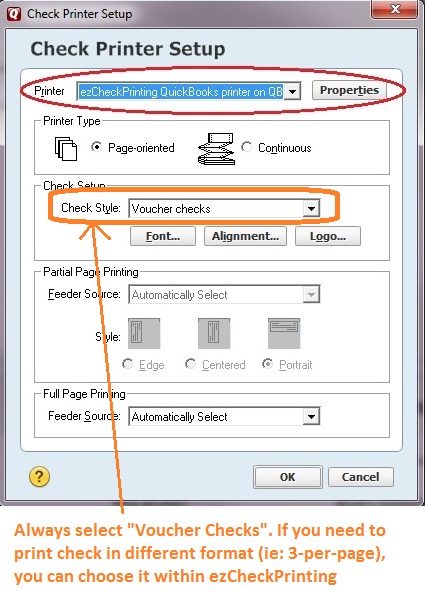
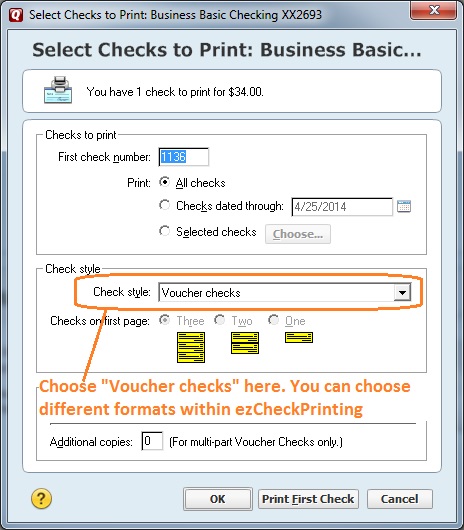
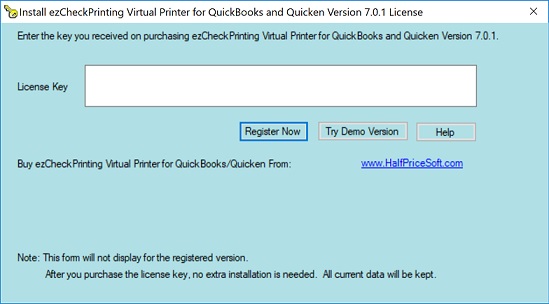
If you are using trial version, you will see the key input pop up window. Once you enter the key code, you will not see it again.
You should copy and paste the key code including "-" for ezCheckPrinting virtual printer here. (Note: the key codes for ezCheckPrinting and virtual printer are different. When you purchase ezCheckPrinting QuickBooks version, you will see two key codes in the key message. Please use the right one)
Change a different check account or a different real printer if needed.
If your computer hides the pop up screen in step 3.3 or 3.4, here are two options:

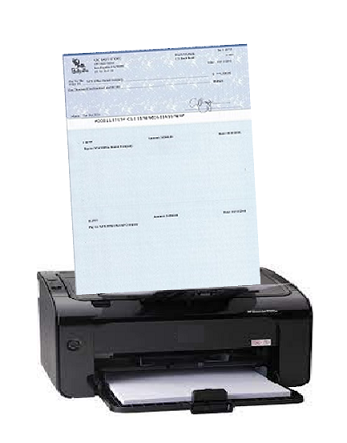
ezCheckPrintingallows QuickBooks and Quicken users to print checks on blank stock in one step.
Download the free demo version with no obligation today.
You will never waste your pre-printed checks when you change your bank or move to a new location. Printing checks with ezCheckPrinting software is easier, cheaper, safer and faster with free test drive.
Please feel free to contact us whenever you need assistance. Our support team is glad to assist you. You can also check the FAQs page or email [email protected].

