Halfpricesoft Halfpricesoft

ACA Software ez1095: How to Import 1095C Data from Spreadsheet

(With sample 1095-C data files for quick testing)


ez1095 ACA software makes it easy to import data from spreadsheets and file ACA form 1095C and 1094C easily and quickly. Here are the step by step guide and toubleshooting guide.

Other data import options:
  • How to import data from QuickBooks IIF file
  • How to import data from XML efile documents
  • How to roll forward last year's data

  • Play


    Sample Data Files

    You can download the sample data file in step 2. We would like to suggest you test with our sample data files if you are a new client.

    If your data is in Excel file, you can convert your file to .csv file easily

    How to convert Excel to .csv file

  • Clicking Excel file top menu "File", then click "Save As"
  • Then save file as .csv (comma delimited) file.


  • Step 1: Start ez1095 Software and Enter Company Information

    1.1 Start ez1095 software.

    If you have not purchased and installed ez1095 software, you are welcome to download the free trial version to test drive the import feature.
    1095 software
    From $295

    Securely File 1095 & 1094 ACA Forms In-House

    ez1095: IRS Approved. Trusted By Thousands.

  • Prepare, print, PDF print and e-file 1095-B, 1094-B, 1095-C and 1094-C ACA forms
  • Unlimited accounts. Unlimited forms.
  • For 2016 to 2026 tax seasons.
  • For both federal and states.
  • Try free DEMO today. No obligation. No credit card required. No risk.

  • ez1095 is compatible with Windows 11, 10, 8.1, 8, 7, and other Windows system, 32-bit or 64-bit.


    After you installed the ez1095 software, you will see a new shortcut created on desktop. You can double click this shortcut to start ez1095 software.

    1095 software shortcut

    If you are using the trial version of ez1095 software, you will see the key input pop up screen. You can enter the key code here or click the "TRY DEMO Version" to try this software for free. (Note: The trial version will print TRIAL image on forms.)

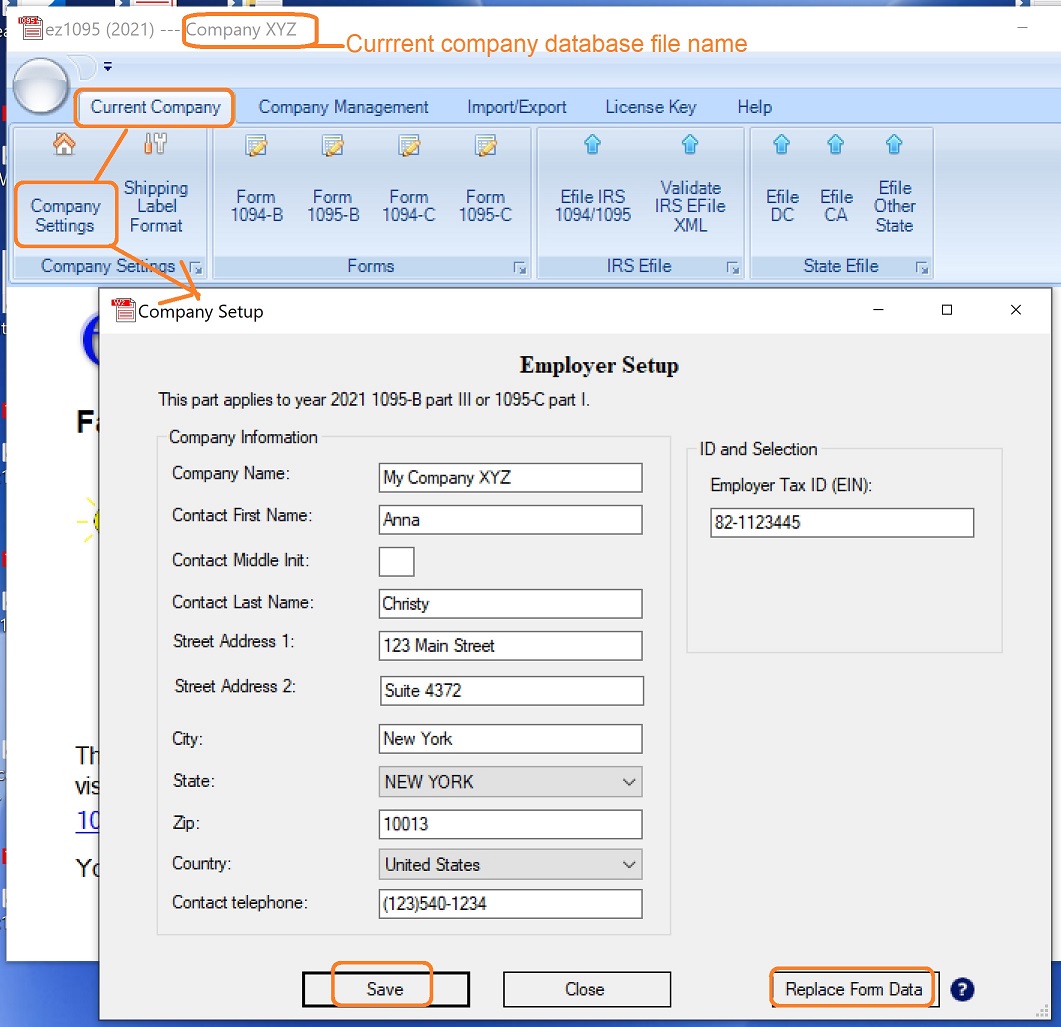
    1.2 Set up your company before you import the 1095 form data

    ez1095 set up company


    Step 2: Download the Sample Data Files (Optional)

    If you are new to the import feature, we highly recommend downloading our sample data files. Once you have successfully imported a sample file, you can use it as a template to format your own data easily.

    2.1 Download the sample file(s)

    Sample File 1: For Standard Plans
    Use this if your company does not offer a self-insured plan. This zip download include one file: Sample1_Data1095C.CSV.

    Sample File 2: For Self-Insured Plans
    Use this if you need to complete Part III for covered individuals. This zip download include two files: Sample2_Data1095C.CSV and Sample2_Data1095CCoveredIndividuals.CSV.


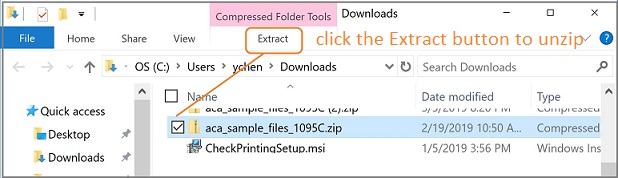
    Download the appropriate file and save it to your local computer. Note: You will need to "Unzip" or "Extract" the folder to access the CSV files inside.
    • Watch the Video: Please refer to the tutorial video above for a visual walkthrough.

    • Request by Email: If you have trouble downloading, contact us and we will email the files to you directly.

    1095 sample data file

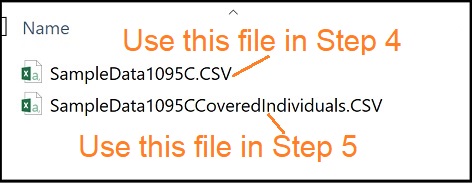
    2.2 After you unzip the file, you will see two sample data files in the folder.

    1095 sample data file


    Step 3: Clear Form List (Optional)

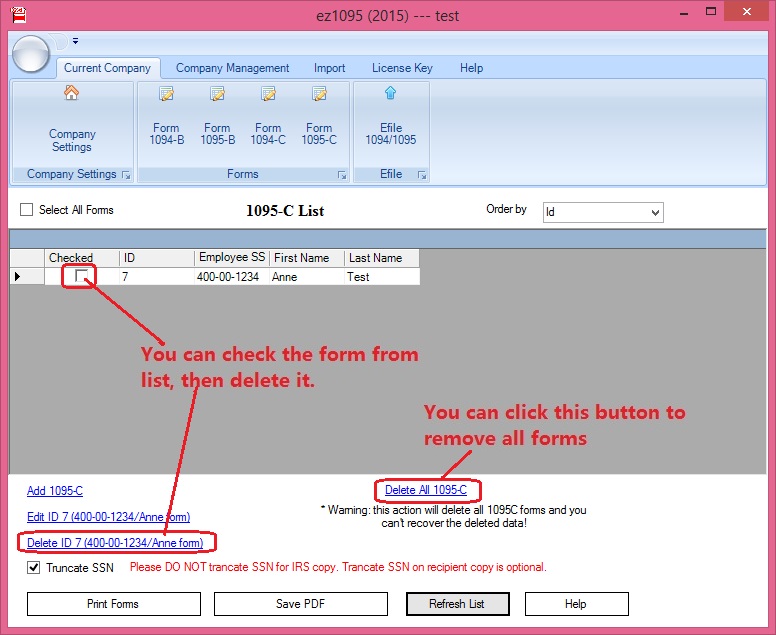
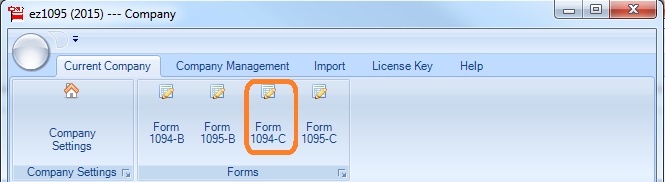
    You can click ez1095 top menu "Current Company" then "Form 1095-C" to view 1095C list. If you have test data in the list, please remove it.

    ez1095 remove 1095 c Form


    Step 4: Import 1095-C Data

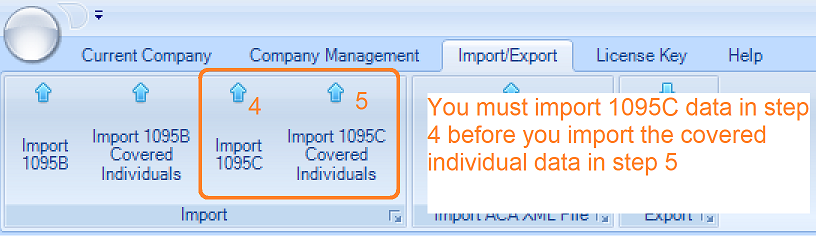
    You should Import 1095-C Data BEFORE import 1095-C covered individuals data

    Click the top menu "Import/Export" then click the sub menu "Import 1095C Data" to view data import screen. You can follow the guide on form to import data.

    ez1095 software import menu

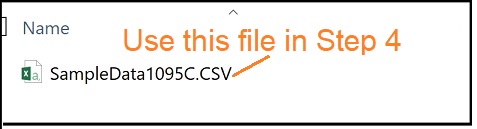
    4.1: select the data file
    If the data file is opened by other application (ie: Excel) now, please close it first. You can not open the same file with two applications at the same time.

    1095 sample data file

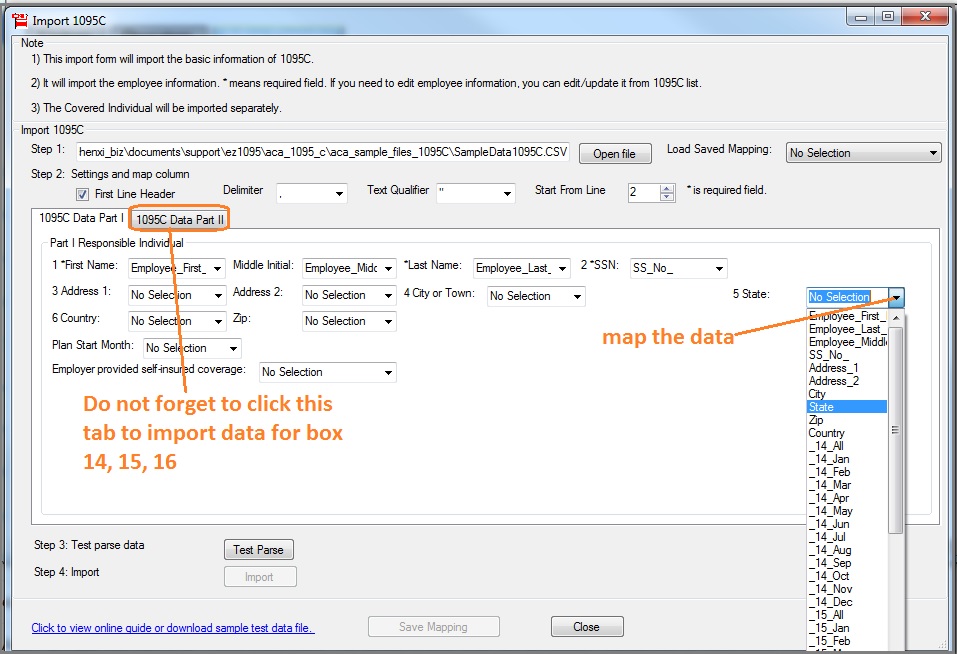
    4.2: Map the data. You need to map all the fields one by one. Or if you saved data map before, you can choose a saved mapping to save time.


    import 1095-C form list
    Click to view larger image

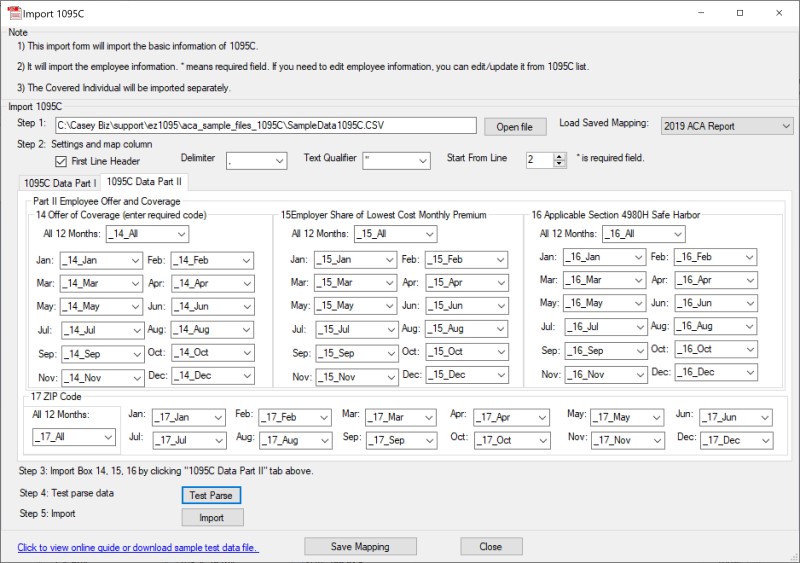
    4.3: If you need to import data for Part II on 1095C form, do not forget to click the second tab "1095C Data part II" to map data for box 14 to 17.

    import 1095-C form list
    Click to view larger image

    4.4: Click "Test Parse" button

    4.5: Click the "Import" button if there is no error in step 4.

    4.6: Click the "Save Mapping" button to save your mapping for future use.


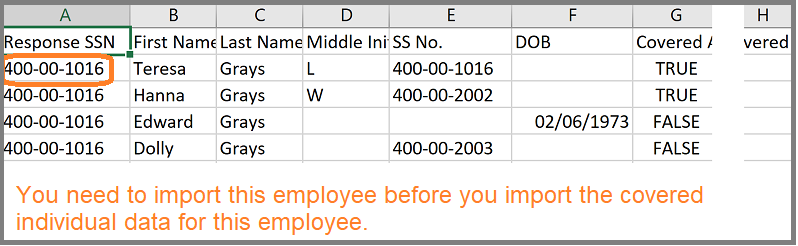
    Step 5: After you import 1095-C data, you can import 1095-C covered individuals

    Note: Only complete this step if you have a self-insured plan. If your plan is not self-insured, you should skip Part III and this import step entirely.

    Who to include in this import:
    Only import data for enrolled members. For example: If you have 500 employees but only 200 are enrolled in your self-insured plan, you only need to import those 200 employees and their family members here.

    5.1 Click the top menu "Import" then click the sub menu "Import 1095C Covered Individual" to view data import screen. You can follow the guide on form to import data.

    5.2: Select the data file
    If the data file is opened by other application (ie: Excel) now, please close it first. You can not open the same file with two applications at the same time.

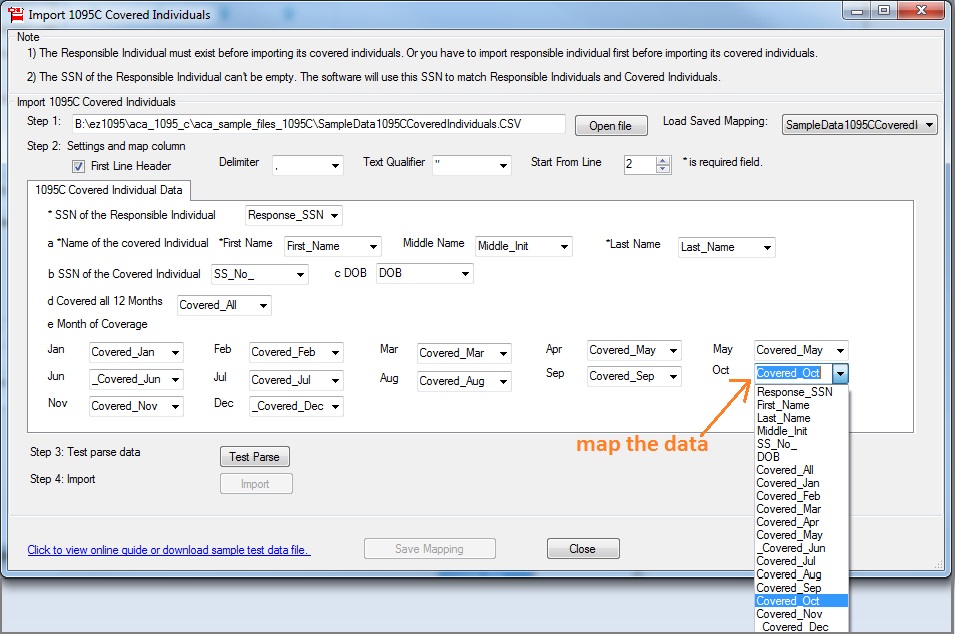
    5.3: Map the data. You need to map all the fields one by one. Or if you saved data map before, you can choose a saved mapping to save time.

    5.4: Click "Test Parse" button

    5.5: Click the "Import" button if there is no error in step 5.4.

    5.6: You can click "Save Mapping" button to save your mapping for future use.


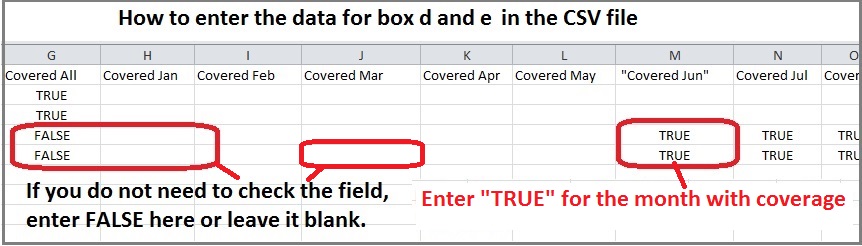
    field d e data

    import 1095-C covered individuals
    Click to view larger image

    Step 6: Review, Edit and Print Forms

    6.1 Print Forms for employees

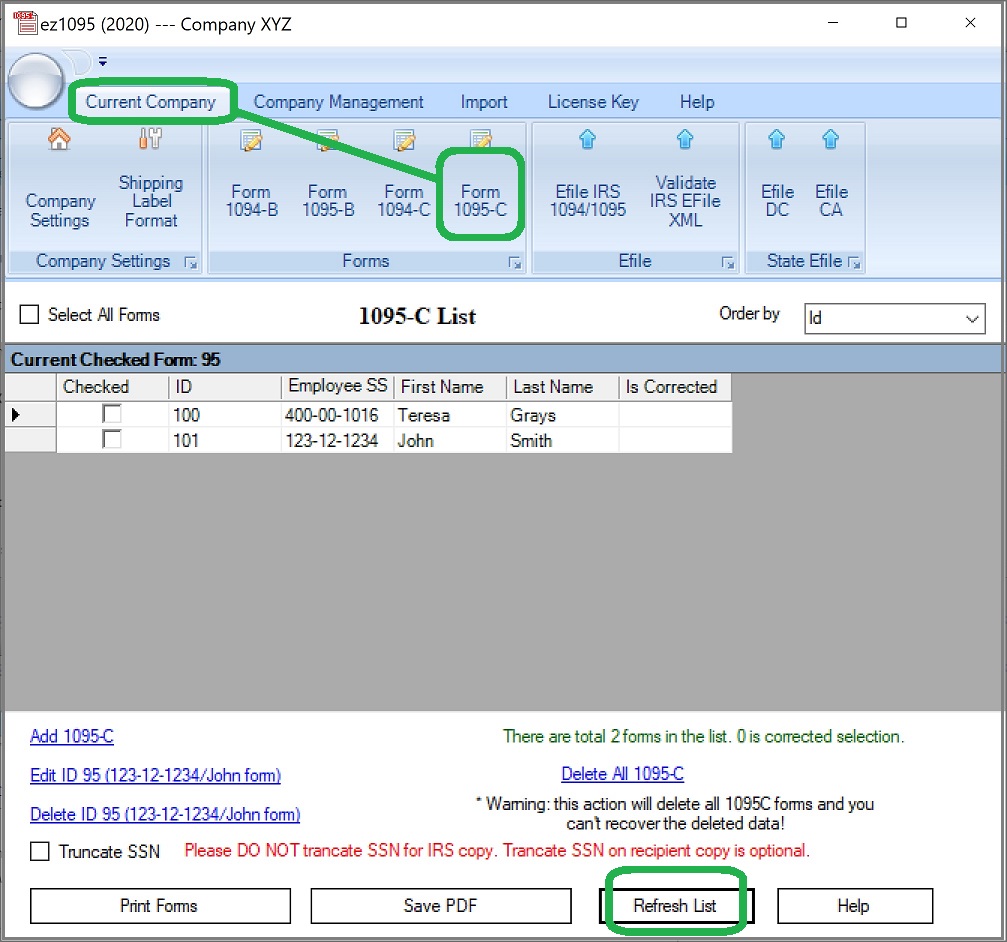
    After you import data, you can click the top menu "Current Company" then "Form 1095-C" to view the form list. Please do not forget to click the "Refresh List" button.

    You can select one form from list to review the data, edit form, print form or generate efile document. More information can be found from Quick Start Guide

    refresh 1095-C form list

    6.2 Review and update Form 1094-C before mailing or efiling forms to IRS

    1094-C menu


    Troubleshooting

  • Q1. Cannot import data from file or file with bad data
  • Answer:
    1.1 Please test with our sample data file (Please follow the step 2 in this guide).
    1.2 If there is no error with the test data, you can add some rows of your data to the .csv file and test import function again.
    1.3 Repeat step 1.2 until you find the bad data.

  • Q2. Why I cannot see any data from 1095C list after I import the data successfully.
  • Answer: Please click the "Refresh List" to view the new data.

  • Q3: I imported the data, but Part II fields are blank when I view Form 1095-C.
  • Answer: Please double check step 4.3 in above guide and make sure you import the data for box 14, 15, 16.

  • Q4: Unable to find responsible SSN error and solution


  •         


    Note:

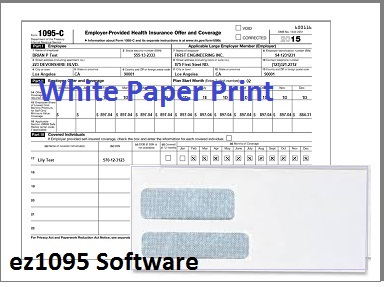
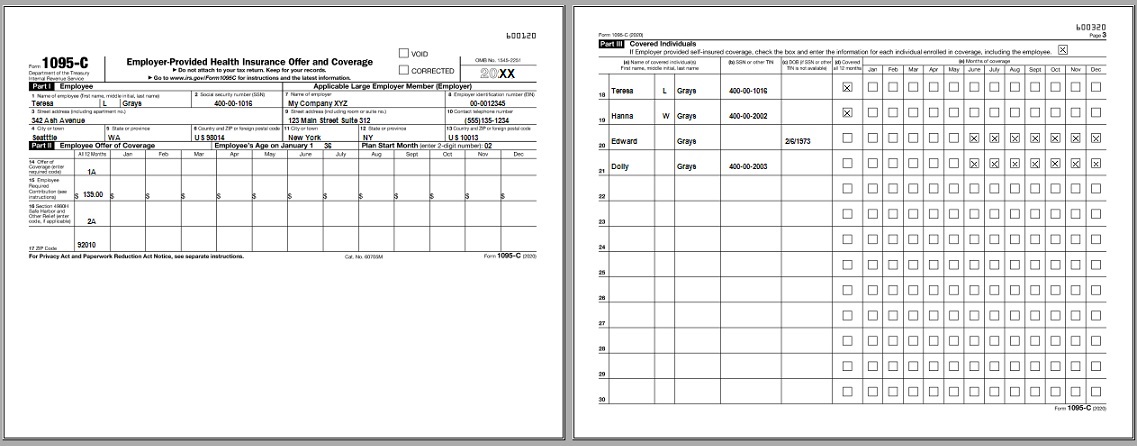
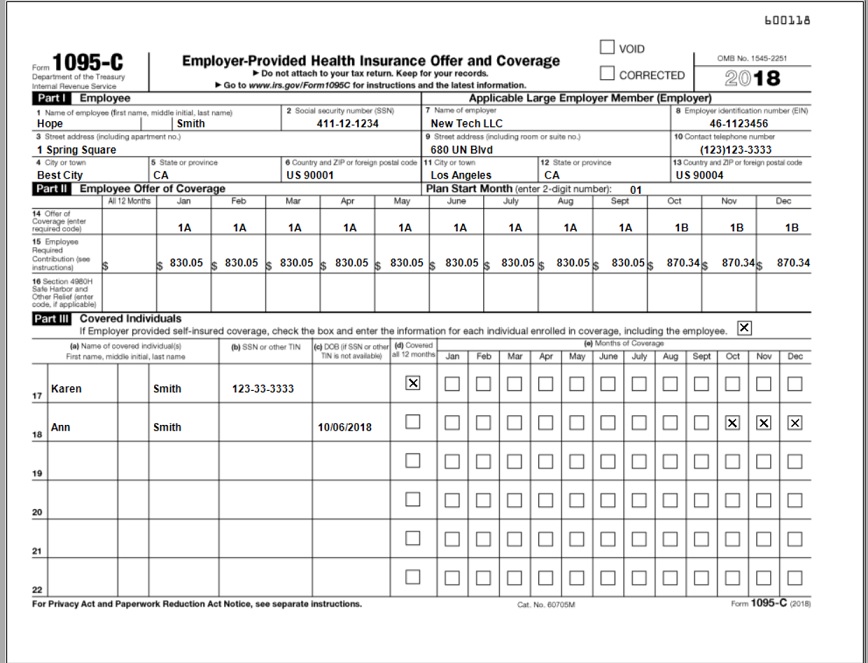
    IRS changed form format in Year 2020. The 2020 Form has 2 pages. Year 2015-2019 form has only one page

  • Sample 1095 C form for Year 2020 and later
  • sample Year 2020 1095 C form printed by ez1095 software

  • Sample 1095 C form for Year 2015 to 2019
  • sample 1095 C form printed by ez1095 software

    sample 1095 C form printed by ez1095 software