

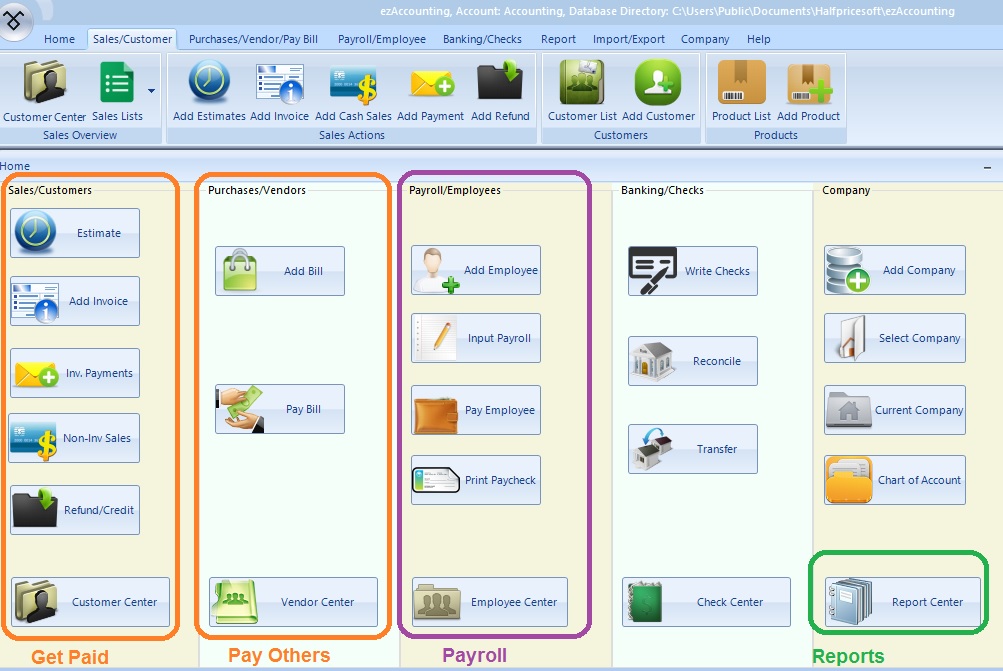
Get Paid
- Generate Estimate, Invoice, Receipt and Packing Slip
- Receive Payments
- Track Sales
- Refund and Credit
Simple Accounting Software for Small Businesses, Non-profits and Accountants!
You can download ezAccounting software fromdownload page. You can scroll down on that download page to view more details if you have any questions.
To start ezAccounting software, you can

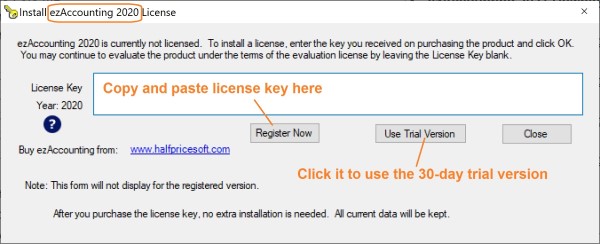
If you have not registered the key code, you will see the pop up key code input screen.
Paid Customers
The key code will be sent to your email account automatically after you purchase ezAccounting software. (If you have not received it in 30 minutes, please feel free to contact us).
You can copy and paste key code here and click the "Register Now" button. If you register the key code successfully, You will not see this popup screen next time you start ezAccounting software.
Trial Version User
You can click the "Use trial version" button to try ezAccounting software 30 days free before purchasing with no obligation.
The first time setup may take time but the quick start guide will walk you through the steps easily. If you still need assistance, you can find more information by visiting theFAQs pageor by contacting us at thesupport page.