HalfpricesoftHalfpricesoft


    QuickBooks Virtual Printer Free Download

    No Obligation. No Credit Card Required.


    ezCheckPrinting Virtual Printer Free Download for QuickBooks/Quicken Users

    The QB Virtual Printer must be used together with ezCheckPrinting application to print QuickBooks/Quicken checks on blank stock. If you have not installed ezCheckPrinting on your computer, please download ezCheckPrinting software from our site.


    File Name : QBDriver.exe
    Size : 12 MB
    Version: 9.1.18
    Date Published : 11/18/2025
    System: Windows (X86, X64, ARM64) 11, 10, 8, 7 with .net framework 4.0 and later

    Compatible with QuickBooks Online, current and previous QuickBooks, Quicken versions


    Please read End User Agreement here

    Uninstall previous version before you install the new version!


    Download Previous Version 8, 7, 6, 5

    Download Version 9 Special Release for Windows XP and 7

    How to update or rollback virtual printer

    Scroll down to view step by step guide

    Play


    Steps to Install Virtual Printer

    Step 1: Prepare for Installation

    1) Ensure you're logged into Windows as an administrator or a user with installation permissions!!!

    2) If you've previously installed Virtual Printer on your computer, uninstall it before installing the new version. View the program list by clicking the Start button, typing "Add and remove programs," selecting "EzCheckPrinting QuickBooks Virtual Printer" from the list, and then clicking Uninstall.

    Step 2: Download the Virtual Printer Installation Package

    Click the button 'Download Virtual Printer.' Once the download is complete, open your browser's download file list by clicking the download icon. Launch the installation by clicking on 'QBDriver.exe.'

    Step 3: Install Virtual Printer

    3.1 If you encounter an alert stating that ezCheckPrinting is not listed in the Microsoft Store, confidently click 'Install anyway' to proceed.
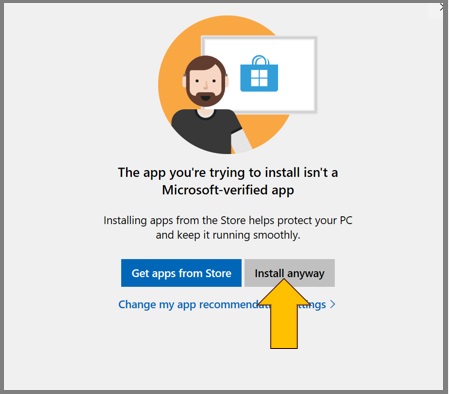
    install check printing software

    3.2 Navigate through the user-friendly Virtual Printer installation wizard. Accept the terms by clicking 'I Accept the agreement' on the license agreement screen. Follow the on-screen instructions to complete the installation process seamlessly.

    Quick Start Guide

    If you are a new client, please follow the quick start guide step by step.

  •  How to print QuickBooks checks

  •  How to print Quicken checks
