HalfpricesoftHalfpricesoft


    ACH Payments: Upload ACH file to Your Bank


    ezACH software makes it easy to generate the NACHA ACH (Automated Clearing House) file for electronic funds transfers. Here is instruction on how to upload NACHA ACH file to your bank.


    < Previous Step: Create ACH file

    Upload/Send ACH File to Your Bank

    Once you create the ACH file, you can upload (or send it) to your bank account to process the transactions. When you enable ACH Payment feature, your bank should give you the detailed instructions.

    If you have any questions, please contact your bank for guide about how to upload the ACH file for ACH payments.

    Below is an example on how to upload the ACH file to PNC bank.

    1. Navigate to Bank ACH Upload Page

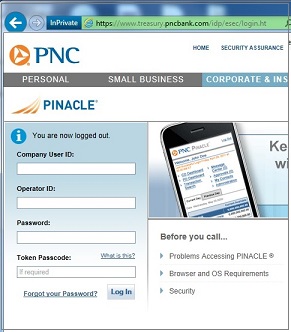
    Once you enable ACH payment feature with PNC bank, you will get the log in ID, password, log in page link, token devices and step by step guide.

    You can navigate to account log in page with your browser directly. Or if you have saved the link in ezACH, you can click button behind the link.
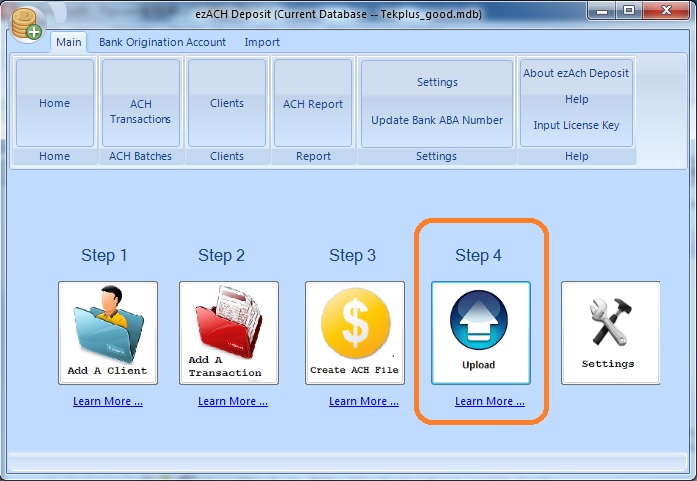
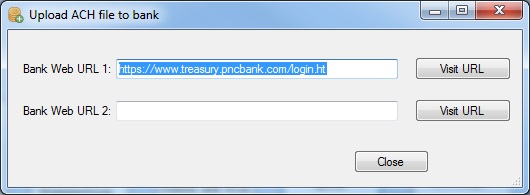


    2. Upload file

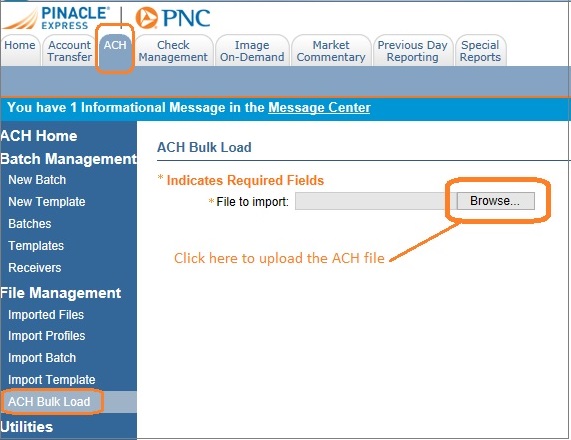
    Log in your account, then upload the ACH file to your account.
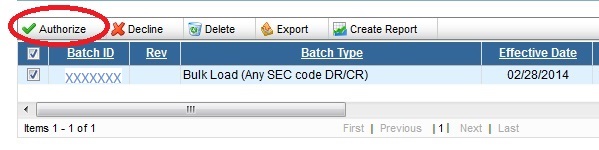
    3. Review and authorize transactions

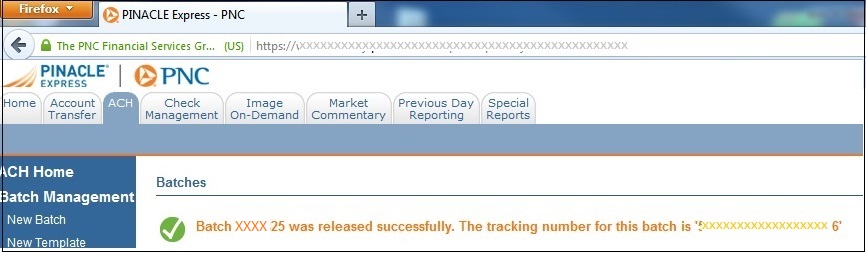
    Review the transactions. Once you authorize these transactions and your bank will process them. Usually these transaction will complete in 24-48 hours.


    < Previous Step: Create ACH file


    ACH software
    From $295

    Generate ACH Files for Direct Deposit In-House

    ezACH: Trusted By Thousands.

  • Generate ACH files for direct deposit paychecks
  • Generate ACH files for vendor payments
  • Generate ACH files for government payments
  • Unlimited accounts. Unlimited transactions.
  • For both federal and states.
  • Try free DEMO today. No obligation. No credit card required. No risk.

  • ezACH is compatible with Windows 11, 10, 8.1, 8, 7, and other Windows system, 32-bit or 64-bit.