License registration errors
Each ezCheckPrinting version has its own key. A key from another version returns Invalid Key Code.
| Error code | What it means | What to do |
|---|---|---|
| 4 or 9 | Invalid key code | Use wrong key or wrong software, or copy and paste the key. If the key is lost, retrieve the license. |
| 6 | This key is already registered on another computer | Transfer the license when you are switching computers. Buy an extra license from support for a new computer you will use at the same time. If the old computer crashed, reset the license. |
| 12, 15, 16, or 17 | The transaction failed, the order was canceled, or the order was switched or updated | A switched or updated order gets a new license key. Check your email inbox if you upgraded your existing order, or contact support. |
| Permission problem | See Permission issue. | |
| Insufficient privileges to install the license | See Insufficient privileges. | |
| The key screen returns after a restart | See Key input screen reappears. |
1. Wrong key or wrong software
-
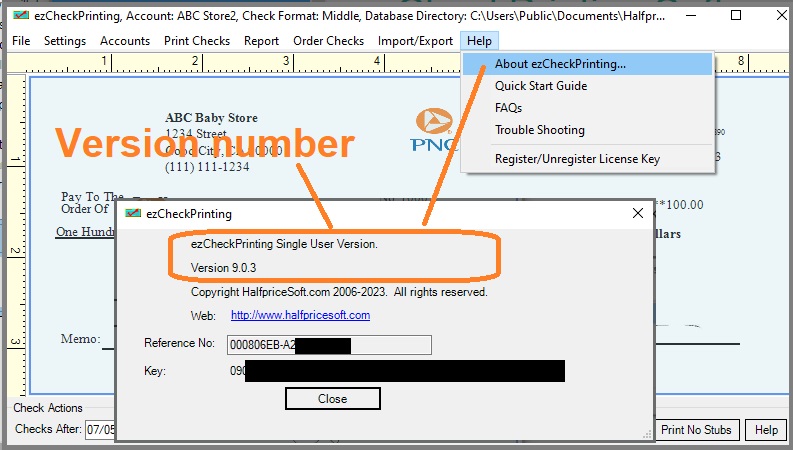
In ezCheckPrinting, go to Help > About ezCheckPrinting, and note the software name and version.
-
Compare that version with the name and version in the license email.

-
If the installed version doesn't match the license key you received, uninstall it and install the version that matches the key.
tipVersions 5, 6, and 7 of ezCheckPrinting are no longer available to download or purchase.
2. Copy and paste the key, including the dashes
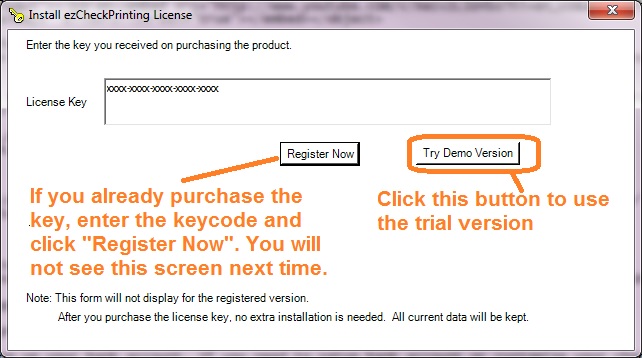
The key is case sensitive and includes the dashes.
Some mail servers add hidden characters around the key. Paste the key into Notepad first, then copy it from Notepad into ezCheckPrinting. This removes characters the mail server added that are not visible in the email.
Highlight the key in the license email and press Ctrl + C. Click the registration box and press Ctrl + V.
3. Permission issue
This happens when the Windows account cannot write the license, or a Windows update changed the permissions.
Register the key from an administrator account, or from an account that can write to the ezCheckPrinting folders.
- Ask the company IT administrator to register the key.
- If you administer this computer, set Read, Write, and Execute on the program folder and the data folder.
- Reinstall ezCheckPrinting from scratch. On the install screen, choose Everyone.
4. Invalid key or insufficient privileges
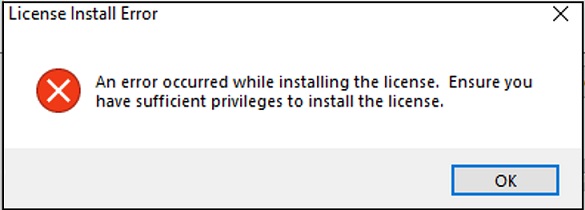
Security update: Windows security updates can make an older ezCheckPrinting version reject a valid key. Update ezCheckPrinting.
Current version, still blocked: The Windows account does not have permission to store the license, or a Windows update changed those permissions. Reinstall from scratch and choose Everyone on the install screen.
If the key still will not register, see What to send if you still need help.