Permissions
Database errors while printing from QuickBooks often mean the Windows user cannot create database files. Installing ezCheckPrinting requires an Administrator account. Creating a new company also requires permission to create files in the data folder.
ezCheckPrinting and the QuickBooks virtual printer need at least Read, Write, and Execute permissions on these folders and the files inside them:
-
Database folder
C:\Users\Public\Documents\Halfpricesoft\ezCheckPrinting -
ezCheckPrinting application folder
C:\Program Files (x86)\Halfpricesoft\ezCheckPrinting -
Virtual printer application folder
C:\Program Files (x86)\Halfpricesoft\ezCheckPrinting QuickBooks Printer -
Virtual printer settings folder
C:\Users\Public\Documents\Halfpricesoft\ezCheckPrintingQBImport
View permissions
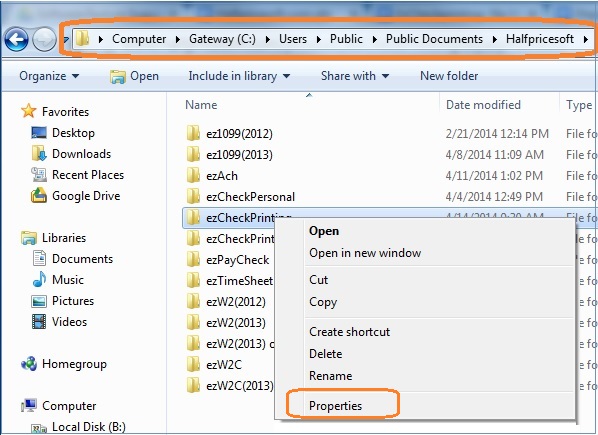
- In File Explorer, right-click the folder.
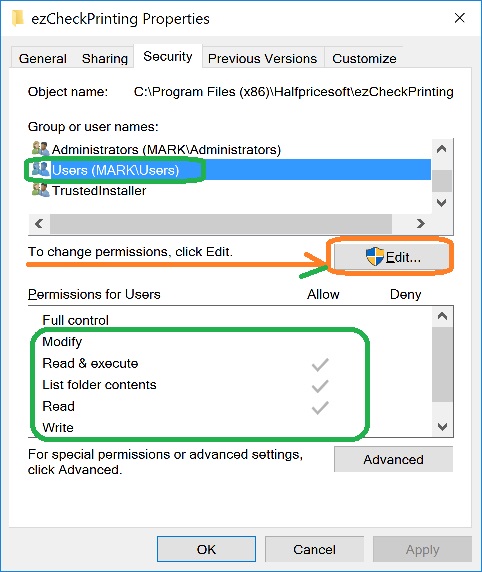
- Select Properties, then the Security tab.
- Select the user or group in the name list.
Edit permissions
- In File Explorer, right-click the folder.
- Select Properties, then the Security tab.
- Click Edit.
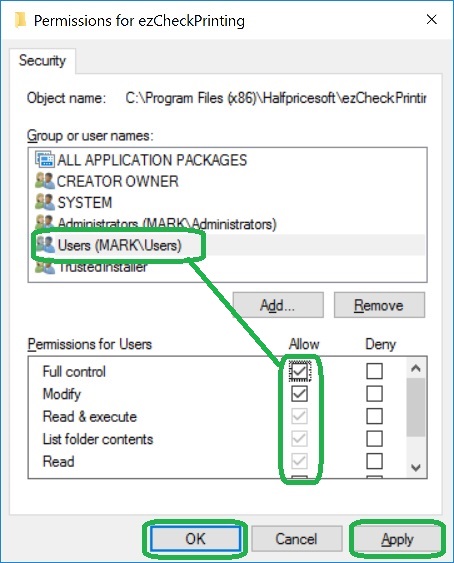
- Select the user or group.
- Select Allow for the permissions this account needs. For the account that runs the ezCheckPrinting QuickBooks virtual printer, allow Full control.
- Click Apply, then OK.
Sample: give the data folder Full Control
- Open C:\Users\Public\Documents\Halfpricesoft
- Right-click the ezCheckPrinting QuickBooks Printer folder.
- Select Properties, then the Security tab.
- Click Edit.
- Select the user or group.
- Select Allow for the permissions this account needs. For the account that runs the ezCheckPrinting QuickBooks virtual printer, allow Full control.
- Click Apply, then OK.
- Repeat the view steps to confirm the change was saved. If you are unable to save the changes, ask your IT administrator.