Printer missing or port error
Use this step when
- ezCheckPrinting QuickBooks Printer does not appear in the printer list after install.
- the installer reports a port error.
Solution 1: Log in as administrator and reinstall the software from scratch
- Log in as an administrator. Installing a printer driver requires administrator rights. If you are not an administrator, ask IT.
- Uninstall ezCheckPrinting QuickBooks Virtual Printer if it was installed before. Open Programs and Features (Start, Control Panel), select EzCheckPrinting QuickBooks Virtual Printer, and click Uninstall.
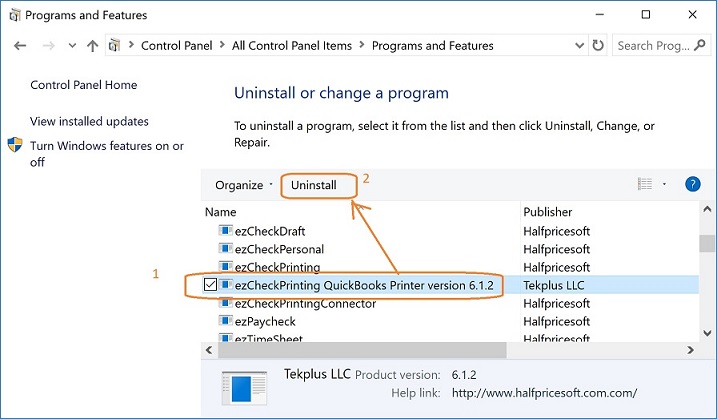
-
Delete these two folders if they are still there:
C:\Program Files (x86)\Halfpricesoft\ezCheckPrinting QuickBooks PrinterC:\Users\Public\Documents\Halfpricesoft\ezCheckPrintingQBImport
-
After ezCheckPrinting QuickBooks Driver shows in the printer list, print a check with the QuickBooks blank-stock guide or the Quicken blank-stock guide.
Solution 2: Create a new administrator account
Use this if you already are an administrator and Solution 1 did not work.
- Create a new local administrator account and change the original account to a standard (personal) account.
See Manage User Accounts in Windows.
- Uninstall the virtual printer.
- Delete the same two folders listed above.
- Download and install the virtual printer while logged in as the new administrator.