Add Employees
There are two ways to add employees to your company in ezPaycheck Online: invite them individually or import them in bulk from the ezPaycheck Desktop. Both paths are available from the Employees page.

Option A: Invite an Employee Individually
Use this option to add one employee at a time.
- Navigate to Employees in the sidebar.
- Select Invite Employee.
- Fill in the employee's details in the form (name, email address, and any other required fields).
- Click Submit.
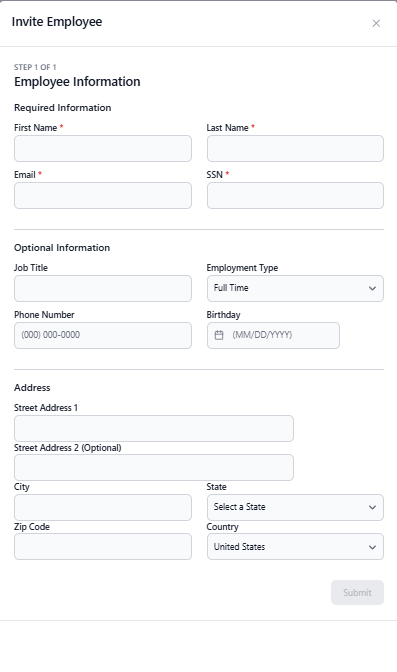
The employee will receive an email invitation. Once they accept, their account is linked to your company and they can access their paystubs and PTO, and manage their bank account information.
If an employee has not accepted their invitation, you can resend it from the employee's detail page. Navigate to Employees, click the employee's name, and then select the Resend Invite Email option.
Option B: Import Employees in Bulk from Desktop ezPaycheck
If you already have employees set up in ezPaycheck Desktop, use the Import wizard to bring them all in at once. This is a multistep process that requires both ezPaycheck Desktop and ezPaycheck Online.
ezPaycheck Desktop - Employee Upload
- In ezPaycheck Desktop, go to Direct Deposit and then select Upload data to my cloud account.
- The following window will appear. Enter your username/email and password and then select Upload.
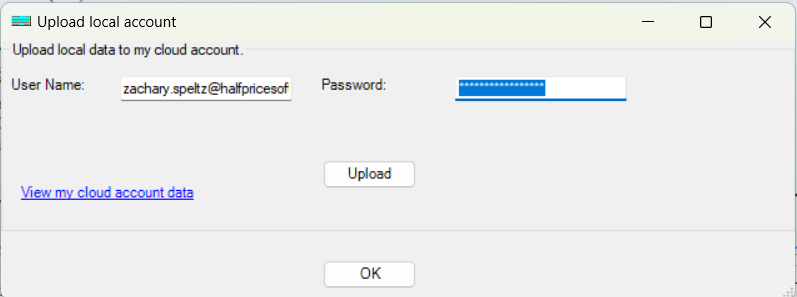
- After you see a success message, your employee data will be available for import in ezPaycheck Online. Follow the steps in the next section to complete the bulk import process.
The credentials you use in this step are the same credentials for your Halfpricesoft.com and ezPaycheck Online accounts.
ezPaycheck Online - Bulk Import
- Navigate to Employees in the sidebar.
- Click Import Employees from ezPaycheck to launch the bulk-import wizard.
Step 1: Introduction
Review the import overview and requirements, then click Next.
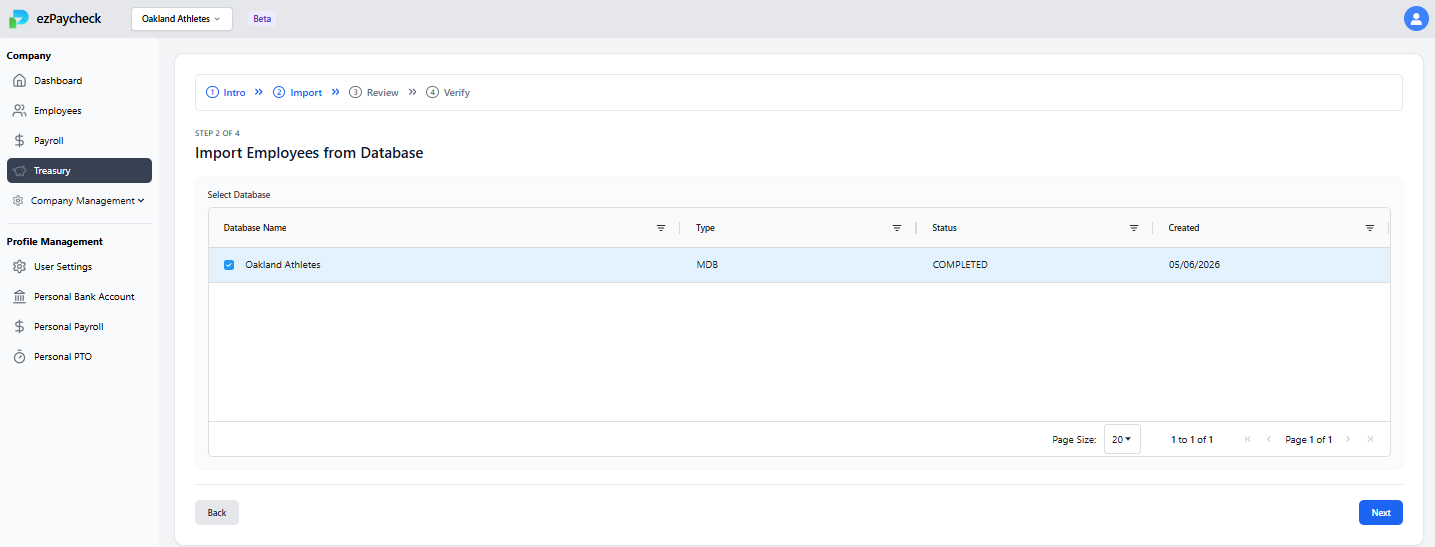
Step 2: Import Employees From Database
In the next step, you will see a table that contains the database you just uploaded from ezPaycheck Desktop displayed. Select the checkbox next to the database name you want to import to ezPaycheck Online and select Next to proceed to the next step.
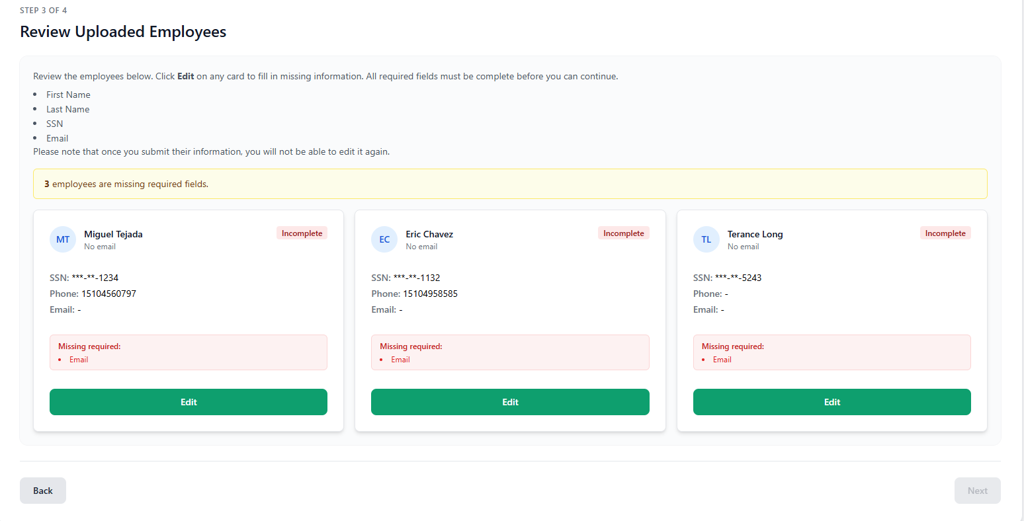
Step 3: Review Uploaded Employees
Inspect the list of employees displayed from the import. Add any required information that ezPaycheck Online listed for the profile. Once all required information has been populated, select Next to proceed with the process.
Step 4: Verify Bulk Employees
Confirm the final employee list and select Submit. Each imported employee will receive an invitation email to activate their ezPaycheck Online account.
Invited employees only gain access to their own payroll, PTO, and bank account information after they accept the invitation and activate their account.
Configuring Employee Profiles in ezPaycheck Desktop for Direct Deposit
An employee must be configured for Direct Deposit in ezPaycheck Desktop before you can transfer funds directly to their bank account using ezPaycheck Online. Follow these steps to properly set up an employee's profile.
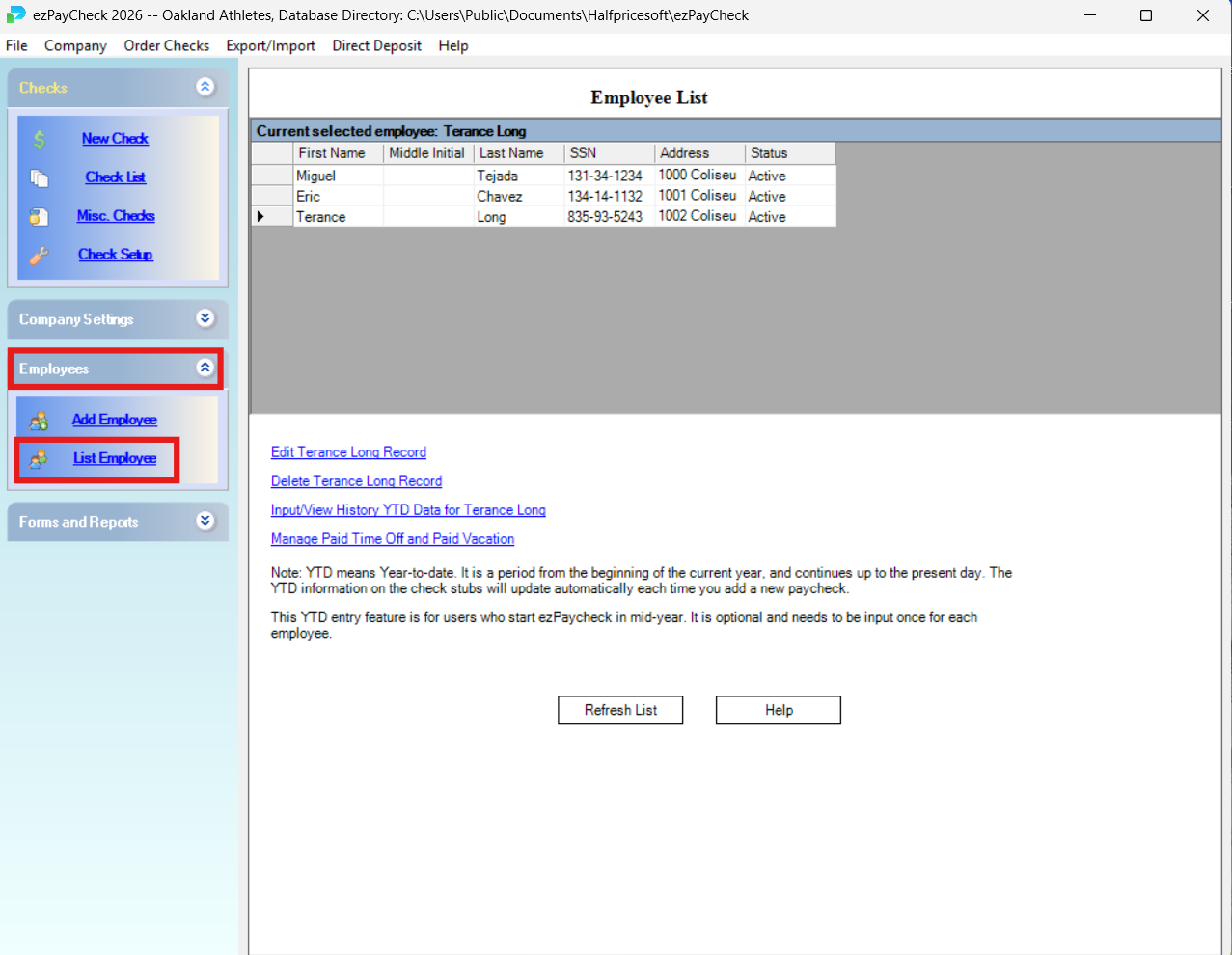
Step 1: Access the Employee list
Open ezPaycheck Desktop on your computer. On the left-hand side of the screen, open the Employees drop-down menu and select Employee List.
Step 2: Select and Edit the Employee
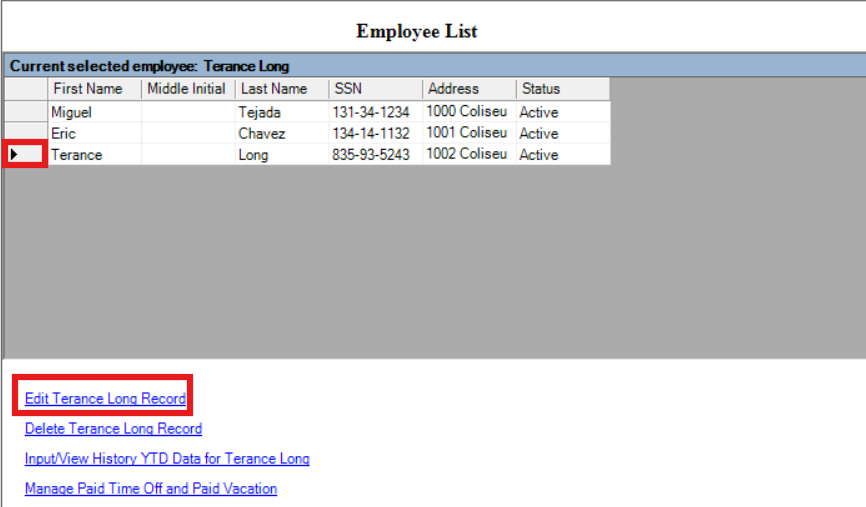
Click on the employee's name so that an arrow appears next to it, then select Edit [Employee Name] Record.
Step 3: Configure for Direct Deposit and Save
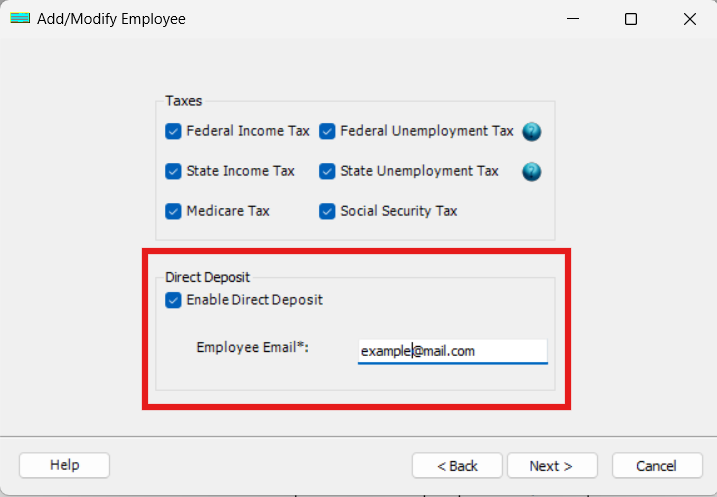
In the profile editing window, click Next until you reach the Direct Deposit section. Check the Direct Deposit box and enter the employee's email address to configure their profile. Continue clicking Next until the Finish option becomes available. Click Finish to save your changes and complete the Direct Deposit setup.
Once you configure an employee for Direct Deposit, all of their payments can be delivered electronically through ezPaycheck Online. If you print a physical check for a Direct Deposit employee in ezPaycheck Desktop, the check will not contain a MICR line. Any checks printed for Direct Deposit employees in the desktop software are for record-keeping purposes only.
What Employees Can Do After Joining
Once an employee activates their account, they can:
- View and download their previous paystubs
- Manage their bank account information for direct deposits
- Track their PTO balance and ledger