Verify Identity & Business
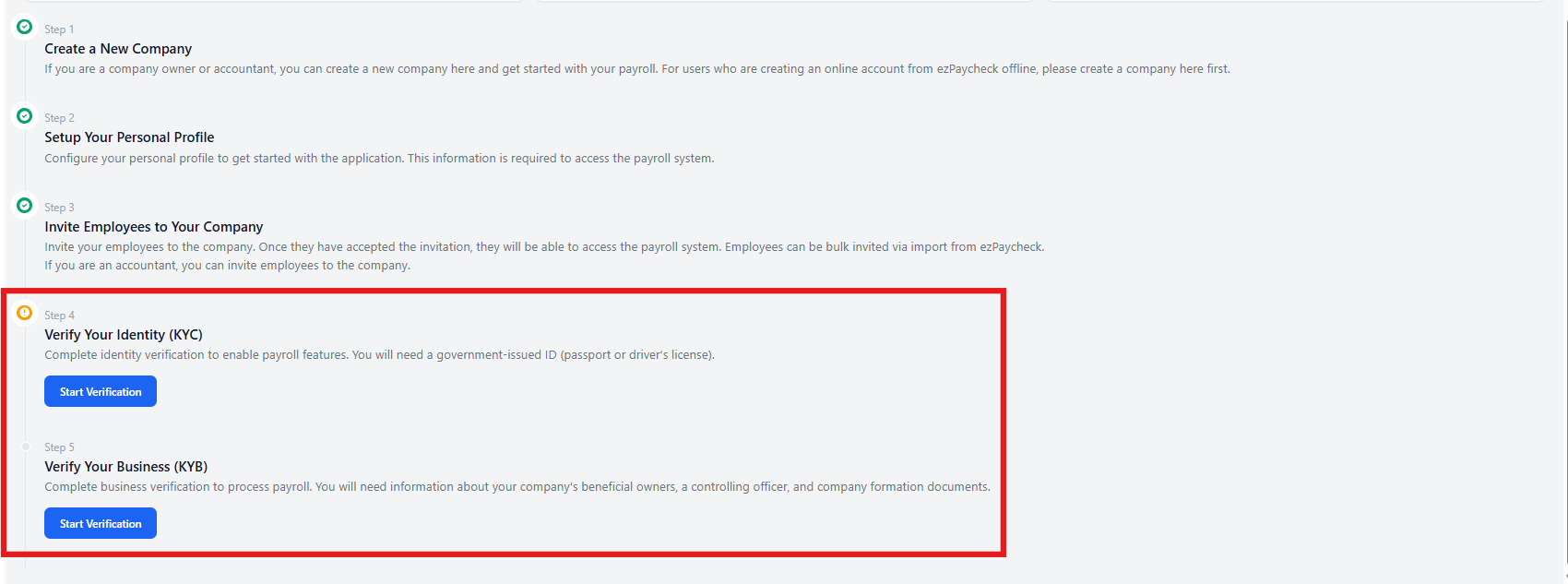
Before you can run payroll, ezPaycheck Online requires two verification steps:
- KYC (Know Your Customer) — Verifies your personal identity as a company admin or owner.
- KYB (Know Your Business) — Verifies your business entity, ownership structure, and legal standing.
Both steps are required by financial regulations and need to be completed to access ACH/direct deposit features. You can complete both requirements from the setup checklist on the Dashboard or navigate directly to Company Management → Legal Verification.
You will not be able to authorize payroll disbursements until both KYC and KYB are approved. Plan ahead — the KYB step includes a manual internal review that may take up to 1–3 business days to complete.
Part 1: Verify Your Identity (KYC)
KYC confirms who you are as an individual.
What You'll Need
- A government-issued photo ID (passport or driver's license)
Steps
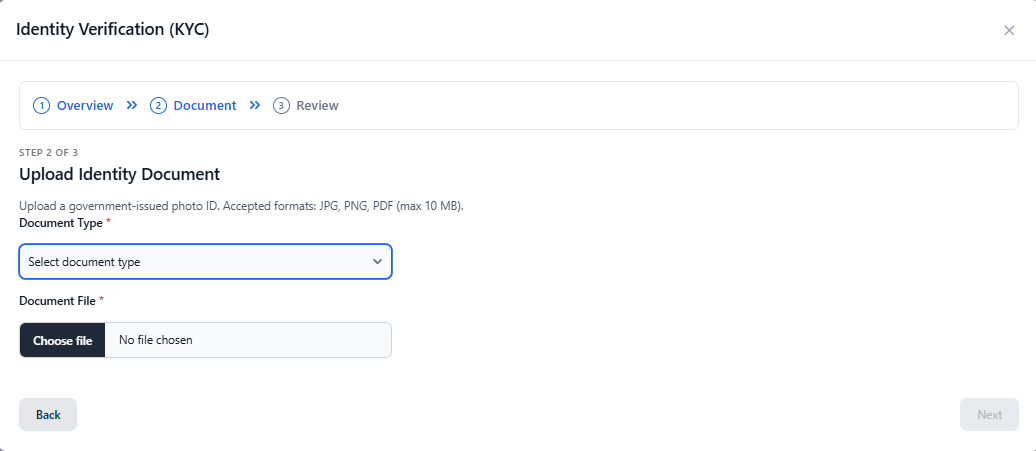
- From the Dashboard, under the "Verify Your Identity (KYC)" step in the setup checklist, select Start Verification — or go to Company Management → Legal Verification and select the identity section.
- Select the type of document you are uploading and then upload a clear photo or a scan of your government-issued ID (passport or driver's license). Once uploaded successfully, select Submit.
Use a high-contrast, well-lit photo of your ID. Blurry or partially obscured images will be rejected and delay the KYC process.
Part 2: Verify Your Business (KYB)
KYB confirms your business's legal identity, ownership structure, and regulatory standing.
What You'll Need
- Tax ID (EIN) for the business
- Information on all beneficial owners — individuals who own 25% or more of the company
- A designated controlling officer (the person with significant management control)
- Company formation documents (e.g., articles of incorporation, LLC operating agreement)
Steps
- From the Dashboard, under the "Verify Your Business (KYB)" step, select Start Verification — or go to Company Management → Legal Verification.
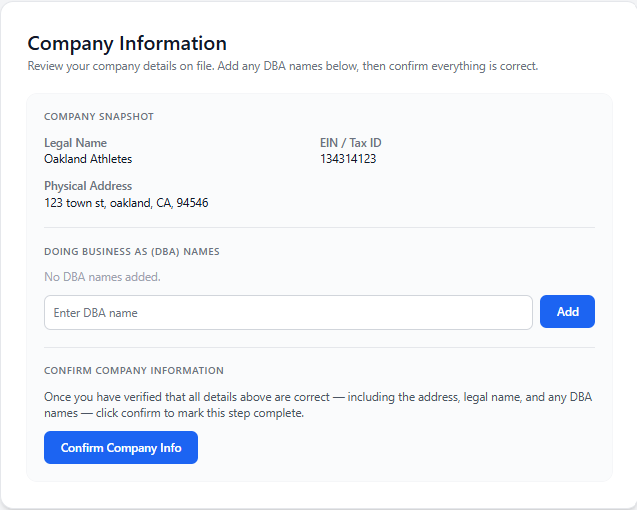
- Confirm Company Information — Confirm your company's legal name, physical address, and your business's EIN/Tax ID. You will also have the opportunity to add a DBA. Select Confirm Company Info if everything is correct.
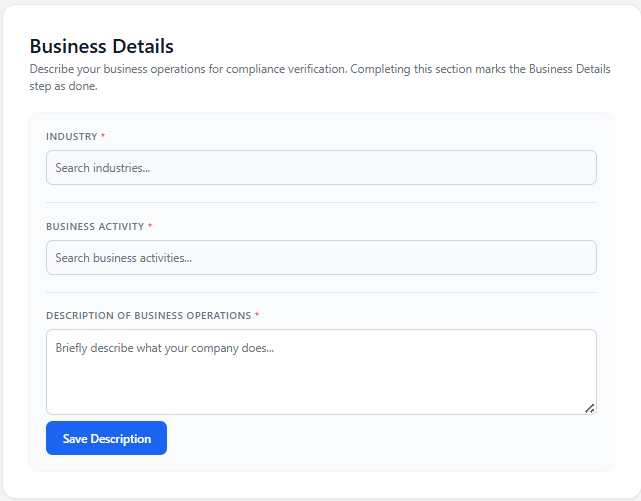
- Business Details — Add the industry you are in, business type, and a description of business operations to their respective fields. Once each field has been populated, select Save Description.
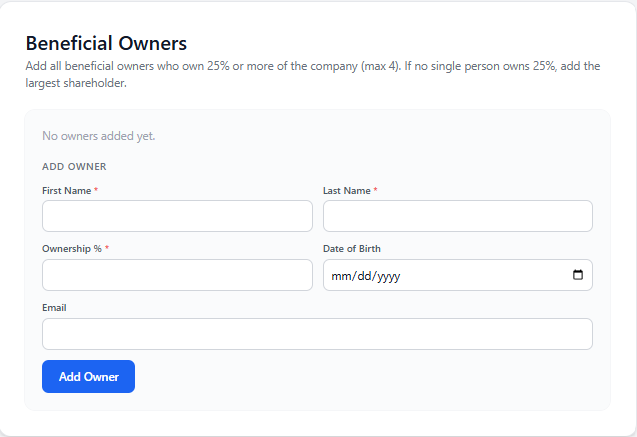
- Beneficial Owners — Add each individual who owns 25% or more of the company. For each owner, provide their name, title, date of birth, SSN, and address. If there is no owner over 25% equity, add the largest shareholder. Once you are ready to add an owner, select Add Owner.
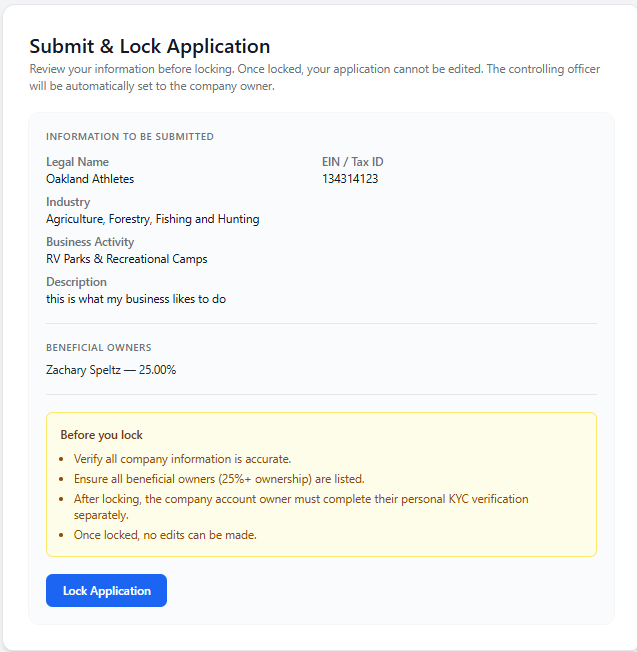
- Submit & Lock — Once you have completed all the previous steps, review your application and select Lock Application. Once you select Lock Application, you will not be able to make any edits to your KYB application.
KYB includes an internal manual review step performed by the Halfpricesoft team. This may take 1–3 business days. You will receive a notification once approved. In the meantime, you can continue setting up employees and adding bank accounts.