Halfpricesoft Halfpricesoft

Troubleshooting: Invalid QuickBooks Check Error

Several reasons can cause this "Invalid QuickBooks check" error. Please follow the steps below to fix it. If you still need assistance, please follow the last step and send us the data file "qbfile0001.txt".

Solution:

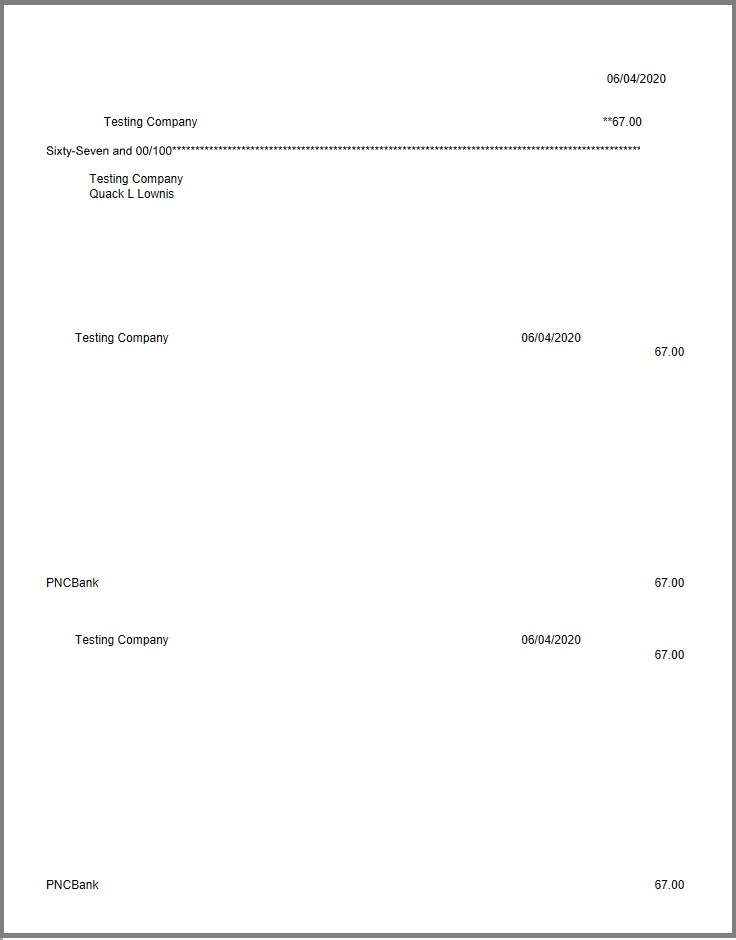
Print this QuickBooks check with a real printer (not QB virtual printer) on white paper and review the data.


Click to view bigger image


Problem 1: Invalid (or missing) payee name, amount or date.


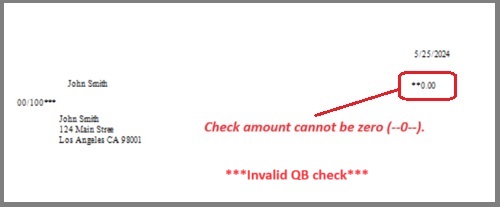
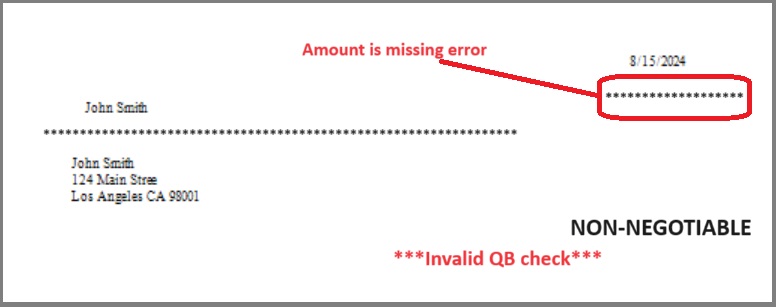
Solution: Please be sure you are printing a QuickBooks check with payee name and non-zero amount.

QuickBooks check zero amount

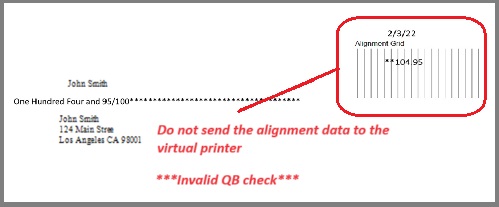
QuickBooks invalid check

QuickBooks check missing amount

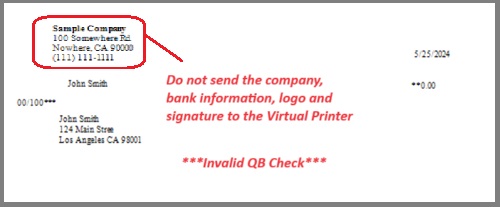
Problem 2: You print extra company logo, company information or signature *****


Solution:
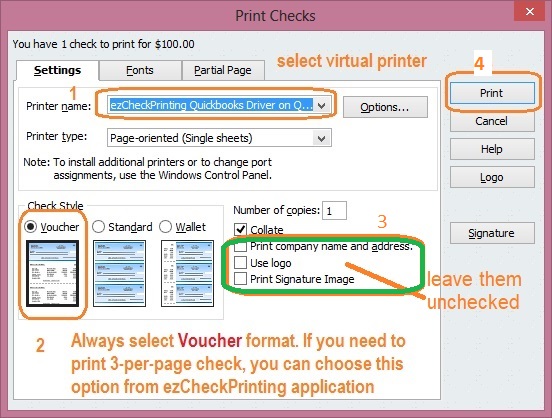
When you print QuickBooks, do not check the options to print company information, logo or signature.


Problem 3: When you print QuickBooks checks with virtual printer, you did not select Voucher format with QuickBooks. ***

Solution:

Voucher format (or top format) is the required format to transfer the check data and stub data from QuickBooks to ezCheckPrinting.


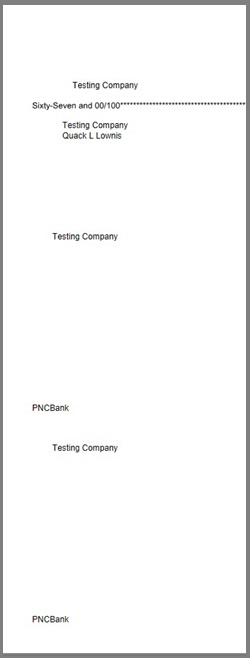
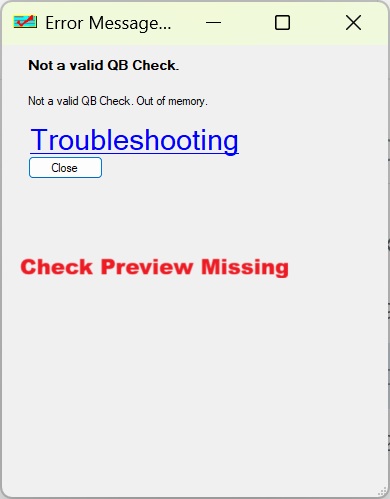
Problem 4: If only partial data was sent to virtual printer, you will see "invalid QB check, out of memory" error.***


Solution:

Step 1: check your printer settings. Please make sure the default paper size is letter sized.
https://www.halfpricesoft.com/business_check_software/printer_properties.asp

Step 2: Start QuickBooks, print a check on white paper with a real printer (with default settings).

If the check paper looks correct, move to step 3.

Step 3: Print QB checks with the QB virtual printer.


Problem 5. Out of memory issue


The Microsoft XPS Document Writer is required by both QuickBooks and the Virtual Printer. You may see this issue if Microsoft XPS Document Writer is missing or damaged.

Quick test

Try printing a QuickBooks check using the Microsoft XPS Document Writer. This will save the check as a .xps file instead of printing it on paper.

Solution

Reinstall the Microsoft XPS Document Writer if either of the following occurs:
  • You do not see Microsoft XPS Document Writer in your printer list, or
  • You cannot open the .xps file to view the check data.


Problem 6: QuickBooks Check Format Issue

Solution: Adjust QuickBooks check alignment

  • 6.1 Print the sample blank check at 100% size. Do not shrink it or resize it.
  • - Uncheck "Fit to page" option
    - Turn off "Auto scale" option
    Click here to print the sample QuickBooks blank check


  • 6.2 Insert the pre-printed blank check into the printer tray.

  • 6.3 Start QuickBooks and print check data with a real physical printer(not ezCheckPrinting QB Virtual Printer).

  • 6.4 Fix alignment issue in QuickBooks
  • If the check data is printed too high or too low, please follow the guide below to fix the alignment issue.

  • 6.5. Repeat from Step 6.1

  • 6.6. Print QuickBooks check with ezCheckPrinting QB Virtual Printer after you can fill in check data on blank check correctly
  • Once you can fill in the data on blank check correctly, you can print QB checks with ezCheckPrinting QB virtual printer again.

    7. Still Need Help? Send us the data file.

  • 7.1. Print a check from QB to duplicate this error by follow step 3 in this guide.

  • http://www.halfpricesoft.com/quickbooks-check-printing/print-quickbooks-checks.asp

  • 7.2. Then email us this file "qbfile0001.txt" to [email protected] as attachment.

  • The location of this file is:
    C:/Users/Public/Documents/Halfpricesoft/ezCheckPrintingQBImport/qbfile0001.txt

  • 7.3 Specify your system information also in your message

  • - Computer System: Windows 11, 10, 8, 7 or others?

    - QuickBooks online, Desktop 2025, , or others?

    We will check this issue as soon as possible after we receive the data file.


    QuickBooks check printing software ezCheckPrinting for QuickBooks allows QuickBooks users to print checks on blank stock with MICR encoding and logo in house. You can also use it to fill out preprinted blank checks also.

    If you have not installed this software, you can download and try it free with no obligation and no credit card needed.

    ezCheckPrinting for QuickBooks is compatible with Windows 11, 10, 8.1, 8, 7, Vista, XP and other Windows computers.


    Related Links:

  • Quick Start Guide: how to print QuickBooks checks?

  • How to customize check layout?

  • How to change the check number?

  • How to print QuickBooks compatible MICR blank checks?

  • How to print QuickBooks checks in different formats?

  • Tips on printing checks for QuickBooks?

  • How to use ezPaycheck payroll software with QuickBooks?

  • How to use ezW2 software with QuickBooks?

  • How to use ez1099 software with QuickBooks?

  • How to use ez1095 ACA form software with QuickBooks?
