If you switch to ezPaycheck payroll software in mid-year, you have two options to enter the previous payroll data.
YTD means Year-to-date. It is a period from the beginning of the current year, and continues up to the present day. The YTD information on the check stubs will update automatically each time you add a new paycheck.
This YTD entry feature is for customers who start ezPaycheck in mid-year. (If you start ezPaycheck from Jan 1, you do not need to enter YTD manually.)
For example, company ABC handles paychecks for employee Ryan Smith manually from 1/1/2024 to 6/30/2024. They plan to use ezPaycheck from 7/1/2024-7/15/2024 pay period. So instead of entering the old checks one by one by using theafter the fact payroll feature, they can enter the YTD summary data here.
If you have not set up company and add employee, please refer to step 1 "Set up company information" and step 2 "Add a new employee" first.
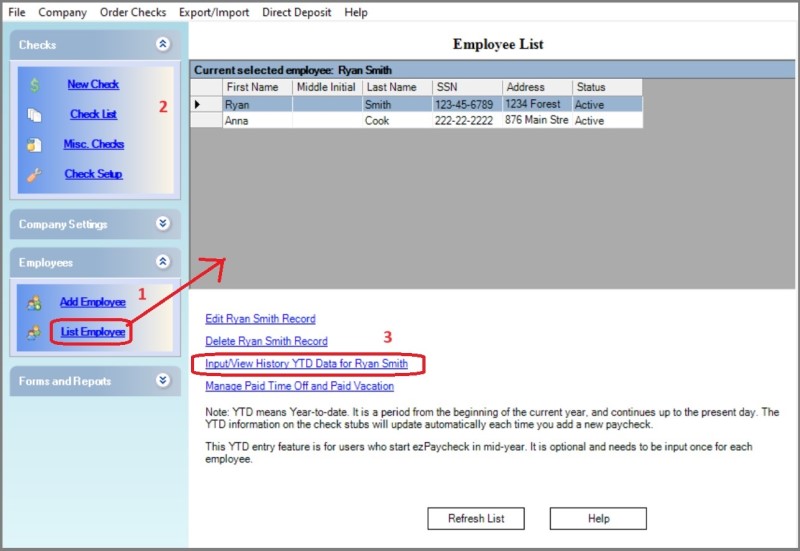
Start ezPaycheck application, click the left menu "Employees" then click the sub menu "Employee List" to view employee list. Select Ryan from Employee list and open YTD manually input screen.
You can enter the summary information for 1/1/2024 to 6/30/2024 if the first paycheck is from 7/1/2024.
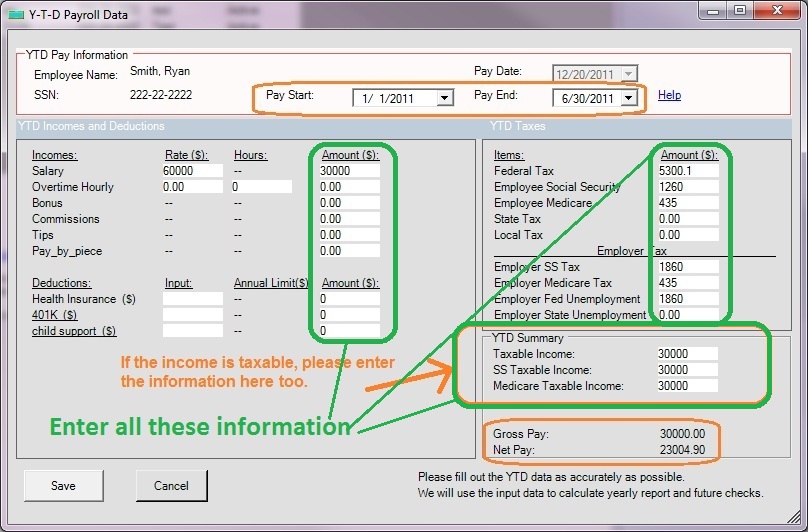
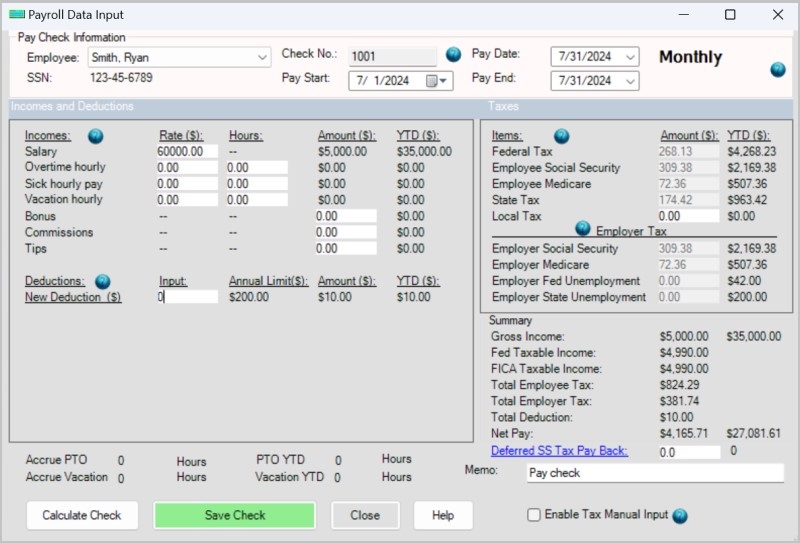
Click the SAVE button to update. When you generate the first check (in step 5), you will see the YTD data there
Please feel free to contact us whenever you need assistance. Our support team is glad to assist you. You can also check the FAQs page or email [email protected].

