ezCheckPrinting stopped working
ezCheckPrinting used to open and now it will not start.
| What you see | Likely cause | What to do |
|---|---|---|
| Nothing happens. There is no error. | The desktop shortcut is broken, or this user cannot run the program. | Start from the program folder, then Windows Security, a new settings file, and folder permissions. Or reinstall from scratch. |
| The window appears for a moment and closes, with no error. | Windows Defender or another antivirus is blocking ezCheckPrinting. | Windows Security and other antivirus products. |
| An insufficient-permission error. | Windows updates damaged the settings, or this user cannot write to the data folder. | Windows Security and folder permissions. Or reinstall from scratch. |
| Invalid license, or another license error. | The key does not match this install. | License registration errors. |
| Database directory error. | The database path is wrong, or this user cannot open the data folder. | Database directory error. |
| ezCheckPrinting opens and the checks are gone. | The date filter or the selected account is hiding them. | Missing check data. |
1. The desktop shortcut is broken
Start ezCheckPrinting from the program folder. The default folder is:
C:\Program Files (x86)\Halfpricesoft\ezCheckPrinting
Double-click ezCheckPrinting.exe. If file extensions are hidden, the file is named ezCheckPrinting.
If that starts the program, delete the old desktop shortcut and create a new one.
2. Windows Security is blocking the program
Follow Allow ezCheckPrinting through Windows Security.
3. Another antivirus product is blocking the program
Bitdefender, Webroot, and Kaspersky have blocked ezCheckPrinting for some customers. Allow the program in that product, then start it again. See Installation errors, antivirus.
4. The settings file points at the wrong folder
Watch: Create a new settings file.
The default data folder is:
C:\Users\Public\Documents\Halfpricesoft\ezCheckPrinting
-
In that folder, rename
settings.xmltosettings_old.xml.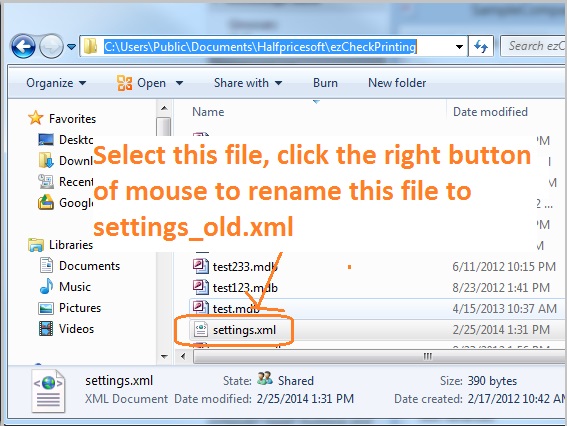
-
Start ezCheckPrinting. It opens in trial mode. Enter the license key from the purchase email.
-
Open Accounts > Select Account, and choose the account that has the checks.
5. A system file or registry entry is damaged
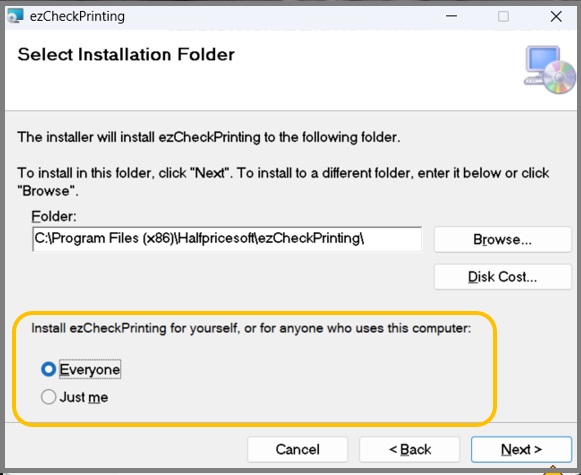
Reinstall ezCheckPrinting from scratch. Choose Everyone on the install screen.
6. This user cannot open the data folder
If the program still fails after a reinstall, set folder permissions so the current user has full control of the data folder and the program folder.
If it still will not start, contact support.