With ezPaycheck, you have the flexibility to print paychecks and vendor checks on both blank stock and pre-printed checks, while also easily customizing the check layout to your preferences.
You can click the ezPaycheck left menu "Checks" then "Check Setup" to access Check Setup screen.
If you print check on blank check stock, please check the option "Print on blank check stock". Otherwise uncheck this option to use pre-printed check.
Enter bank account information. If you use pre-printed checks with bank information, you can enter it with dummy data. This information will not print on checks when you use pre-printed checks.
Enter the check number you want to use for your new paychecks.
Specify the check format: check-on-top, check-in-middle, check-at-bottom or 3-per-page
If you want to print paycheck with signature image, you can specify the path here. Otherwise, leave it blank. You can delete current image by highlighting the field and clicking the DELETE button on your keyboard.
If you want to print paychecks with logo image, you can specify the path here. Otherwise, leave it blank. You can delete current image by highlight the field and click the DELETE button on your keyboard.
Enter the business name and address displayed on check.
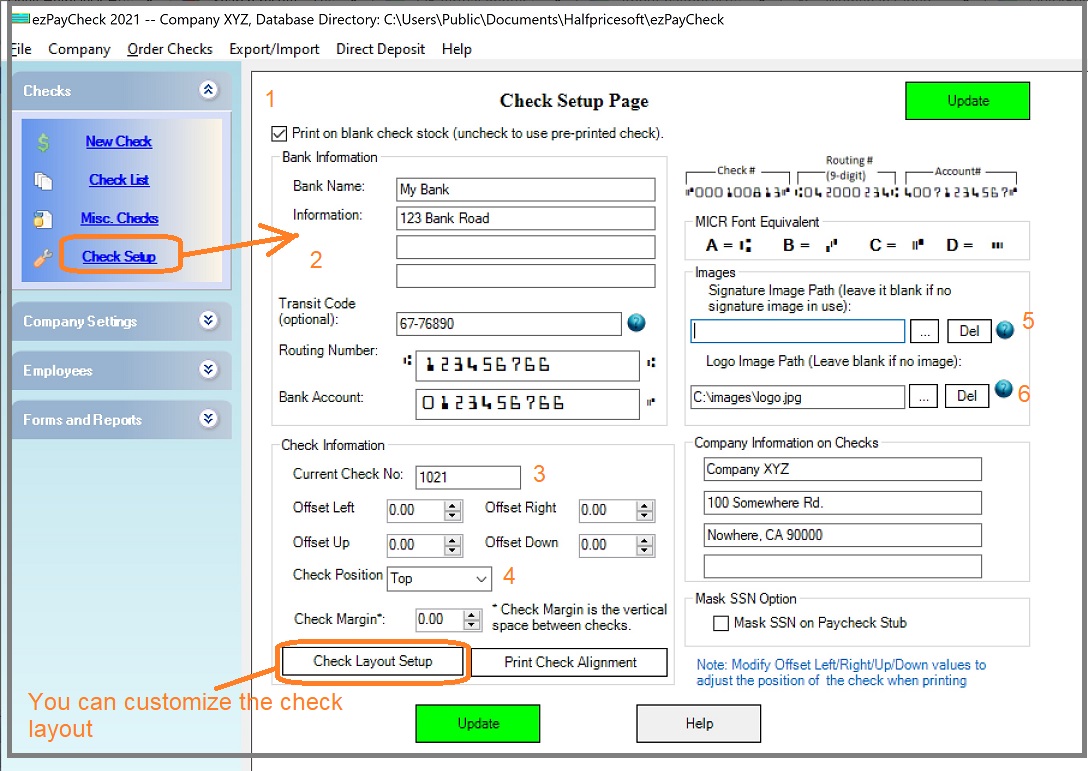
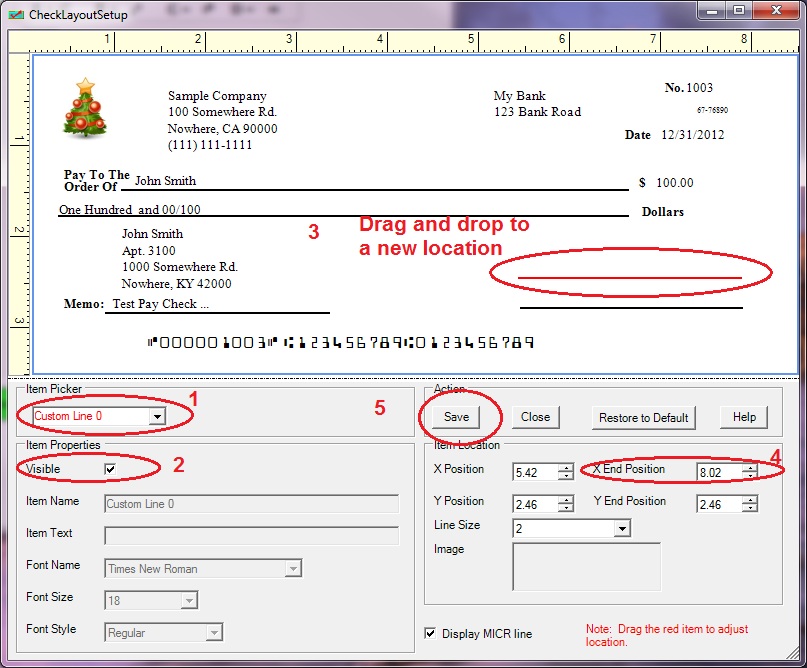
You can click the Check Layout Setup button to customize your check layout. You can change the font sizes, change logo position, add new labels and lines
Please feel free to contact us whenever you need assistance. Our support team is glad to assist you. You can also check the FAQs page or email [email protected].

