Popup to select account and printer does not appear
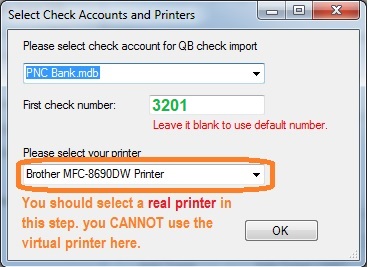
The window you are looking for is the one that asks for the bank account, the physical printer, and the check number.
Possible causes
- Windows is hiding the window.
- A Windows update changed settings or permissions.
- Server or computer security settings are blocking it.
- An antivirus program is blocking it.
- Tablet Mode is on. Tablet Mode can suppress desktop popups.
If checks must go out immediately, use Temporary workaround if you need to write checks now, then return here.
1. The window is hidden
- Restart the computer. Open only QuickBooks. Print one check with the virtual printer.
- If it still does not show, press Alt+Tab to switch windows. Or click the ezCheckPrinting virtual printer icon on the taskbar.


2. Installed on a server
- Log in as admin and reinstall the latest version of ezCheckPrinting and the latest version of the QuickBooks virtual printer together.
- If the server security is strict, install both programs on the local PC and share only the database from the server (network printing, option 2).
3. It used to work, then a Windows update broke it
See Solution 1: Log in as administrator and reinstall the software from scratch.
4. Antivirus blocked it
- Open
C:\Program Files (x86)\Halfpricesoft\ezCheckPrinting QuickBooks Printer - Confirm QBCheckInterface.exe is in that folder. If it is missing, reinstall the virtual printer.
- Double-click QBCheckInterface.exe to start the virtual printer by hand. If it does not start, Windows Defender or another antivirus likely blocked it. Allow or whitelist the virtual printer.
- If it starts, restart the computer and print from QuickBooks again.
5. Tablet Mode
Click the Windows button, type Tablet, and open Tablet Mode settings. Set "When I sign in" to "Use desktop mode".
6. Windows security keeps blocking the popup
Bypass it. See Bypass the popup.