Halfpricesoft Halfpricesoft

Fix QB Check Date Error & Print on Blank Stock | ezCheckPrinting

Stuck with an 'Invalid Date/Time' error while printing QuickBooks checks? You're not alone. This common technical glitch occurs when the virtual printer cannot correctly interpret the data sent from QuickBooks, often due to font mismatches or outdated printer drivers.
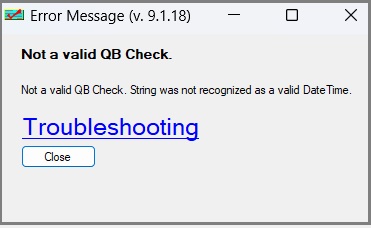
invalid QuickBooks date time

Our troubleshooting guide provides the exact steps to clear this error, ensuring your payroll and billing remain on schedule. With ezCheckPrinting, you can bypass these frustrations by printing professional checks on blank stock with your logo and signature in one seamless step.


Step 1: Update ezCheckPrinting and Virtual Printer (*****)

Reason: Recent QuickBooks/Quicken Format Updates

The most common cause for this error is a mismatch in date parsing following a QuickBooks/Quicken software update.
Solution: Update both ezCheckPrinting and virtual printer.

Follow this guide, check version number, update both ezCheckPrinting and virtual printer.
https://www.halfpricesoft.com/quickbooks-check-printing/update-quickbooks-checks-printing/

Step 2: Adjust Font Type for the Date Field. (***)

Reason:

Poor data quality may also cause this issue. Using a stronger font type for the date field can help.

Solution:

- Start QuickBooks, go to "File", then select "Printer Setup".

- In the "Form Name" dropdown, select "Check/Paycheck".

- Click on the "Fonts" tab and change the font for the Date field.
For example: change the font style from "Arial" to "Times New Roman" and make it bold.

- Click OK to save your new font selections.

Step 3: Adjust Printer Settings.(**)

Reason:

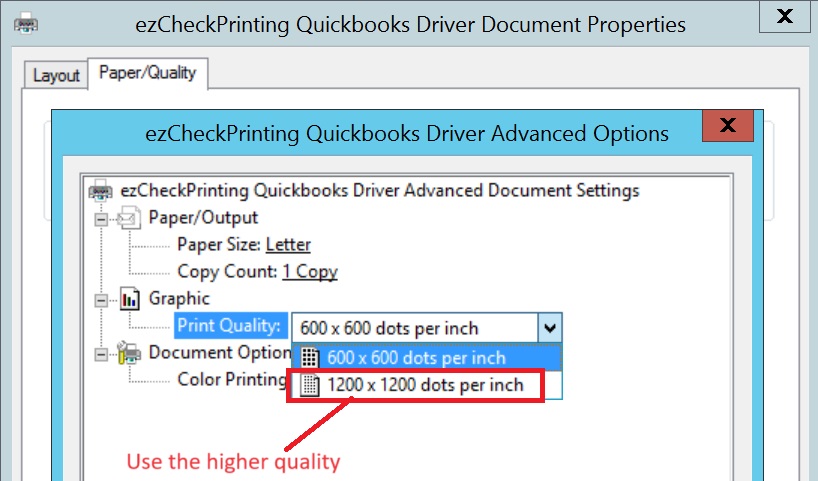
Your printer may be in ink-saving mode, resulting in poor quality check data being transferred to the virtual printer.

Solution:

- Click on QuickBooks top menu "Help" then "Printer Setup".

- Select "Check/Paycheck"

- Click "options" to edit printing options.

- Select the higher printing quality to ensure better data transfer.


Step 4: Adjust Computer Date Settings.(*)

Reason: System Date & Regional Format Conflicts (*)

Occasionally, your computer's internal Regional Date Format may differ from the specific data structure QuickBooks or Quicken expects. If your system is set to a non-standard or international date format (like DD.MM.YYYY), the virtual printer may fail to recognize the date field, resulting in an "Invalid Date/Time" error.

Solution: Change the date format to "M/D/YYYY"

Adjusting your Windows Regional settings to the standard M/D/YYYY format typically resolves this communication gap instantly.

Step-by-Step Guide: How to Edit Windows Date Settings

Step 1. Open Regional Settings:

- Press the Windows Key, type "Control Panel", and press Enter.

- Select "Clock and Region" and then click on "Region."

Step 2. Access Date Formats:

- In the Formats tab, look for the "Short date" dropdown menu.

Step 3. Select the Correct Format:

- Change the format to M/d/yyyy (e.g., 5/27/2026).

Tip: Ensure you do not choose a format with periods (M.D.YYYY) or dashes (M-D-YYYY).

Step 4: Save & Restart:

- Click OK, then Apply.

- We recommend restarting QuickBooks to allow the new system settings to take effect.

- Print QuickBooks checks with Virtual Printer again.

Still Need Help? Send us the data file.

1. Print a check from QB to duplicate this error by follow step 3 in this guide.

http://www.halfpricesoft.com/quickbooks-check-printing/print-quickbooks-checks.asp

2. Then email us this file "qbfile0001.txt" to [email protected] as attachment.

The location of this file is:
C:/Users/Public/Documents/Halfpricesoft/ezCheckPrintingQBImport/qbfile0001.txt

3. Specify your system information also in your message

- Computer System: Windows 11, 10, 8, 7 or others?

- QuickBooks online, Desktop 2025, or others?

We will check this issue as soon as possible after we receive the data file.


QuickBooks check printing software ezCheckPrinting for QuickBooks allows QuickBooks users to print checks on blank stock with MICR encoding and logo in house. You can also use it to fill out preprinted blank checks also.

If you have not installed this software, you can download and try it free with no obligation and no credit card needed.

ezCheckPrinting for QuickBooks is compatible with Windows 11, 10, 8.1, 8, 7, Vista, XP and other Windows computers.


Related Links:

  • Quick Start Guide: how to print QuickBooks checks?

  • How to customize check layout?

  • How to change the check number?

  • How to print QuickBooks compatible MICR blank checks?

  • How to print QuickBooks checks in different formats?

  • Tips on printing checks for QuickBooks?

  • How to use ezPaycheck payroll software with QuickBooks?

  • How to use ezW2 software with QuickBooks?

  • How to use ez1099 software with QuickBooks?

  • How to use ez1095 ACA form software with QuickBooks?
