Error finding check numbers
The account-and-printer window opens, then "Error in finding check numbers" appears after OK.
Step 1: Use the current versions
- ezCheckPrinting version: Help > About ezCheckPrinting.
- Quickbooks virtual printer version: Control Panel > Programs and Features.
Compare those with the download page. If they are old: back up the data, uninstall both, install the latest of both, and run ezCheckPrinting once before printing from QuickBooks.
Step 2: Check the bank account name
The account name should look like BankXYZ or Bank 1234. Do not use special characters. After some Windows updates, those characters stop being recognized. To rename:
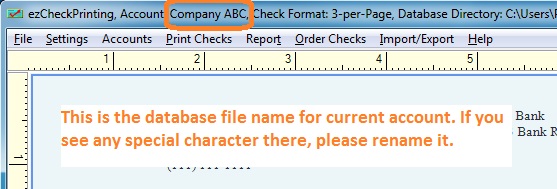
- Accounts > Duplicate Current Account
- Accounts > Select Account, and switch to the copy
Print from that account. If it works, you can stop here.
Step 3: Test with a new account
- In ezCheckPrinting: Account > New Account. Name it Test1234. Default bank setup is fine for the test.
- Add a check and print it on white paper with a real printer. Do not use the QuickBooks virtual printer for this test. If this fails, contact support.
- Print a check from QuickBooks through the virtual printer and choose Test1234.
- If the new account works, the old database is damaged. Create a new account in ezCheckPrinting and stop using the old one.