Invalid QuickBooks check
First, print the same check with a real printer (not the virtual printer) on white paper and look at the data.
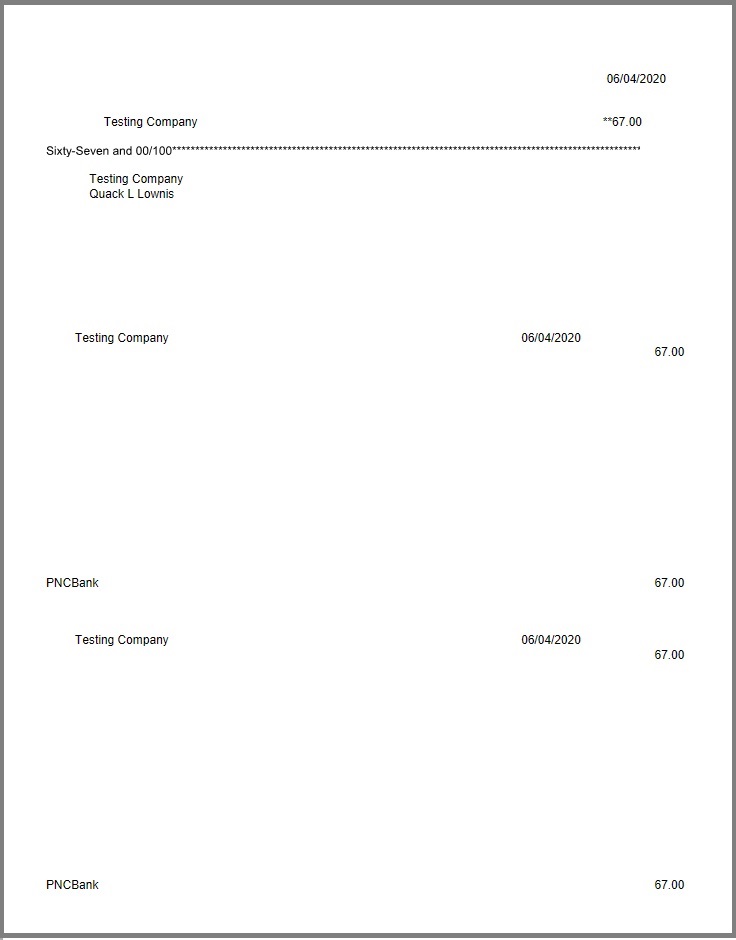
Problem 1: Missing or invalid payee, amount, or date
The check needs a payee name and a non-zero amount. A zero amount, a missing amount, or a blank payee produces this error. Direct-deposit checks with no amount cannot be parsed by the virtual printer.
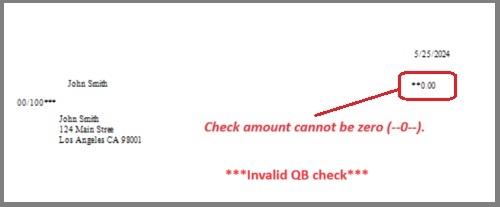
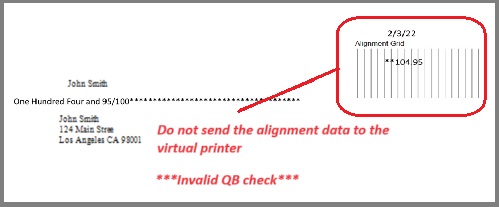
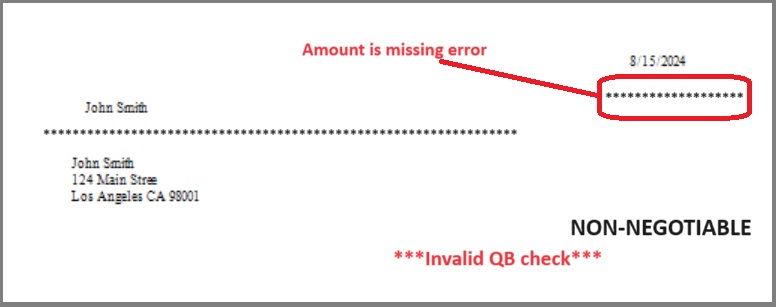
Problem 2: Company logo, company information, or signature was included
On the QuickBooks print-check screen, do not check the options to print company information, logo, or signature. ezCheckPrinting adds those.
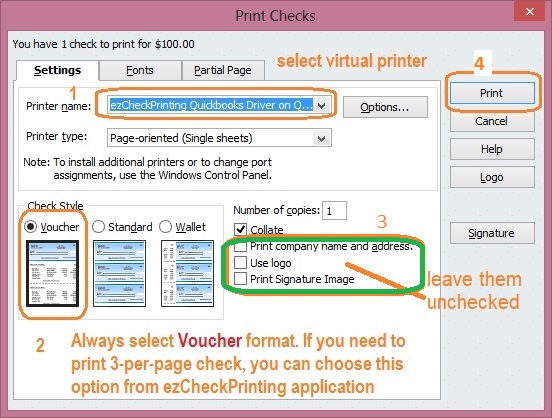
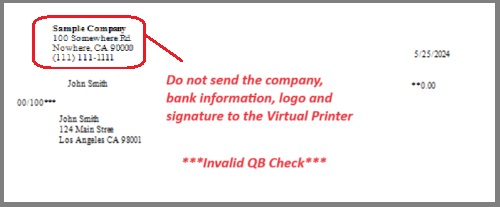
Problem 3: Voucher format was not selected
QuickBooks must send the check as Voucher (or top) format. That is the format the virtual printer uses to receive the check and the stubs. You can still print 3-per-page or check-on-bottom from ezCheckPrinting; the QuickBooks side of the handoff stays voucher.
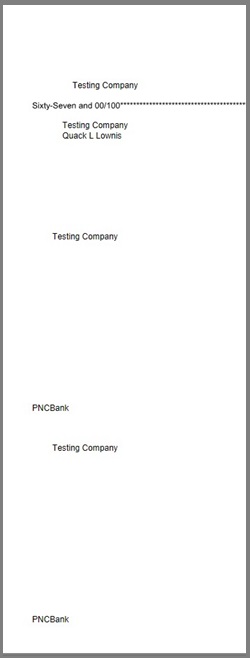
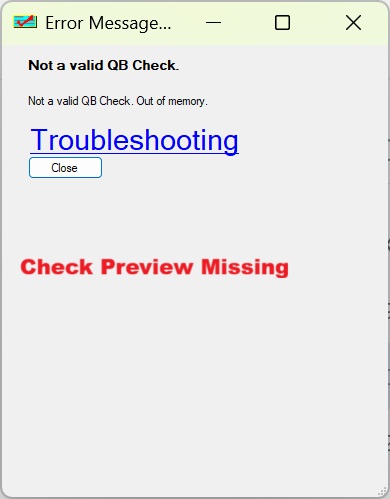
Problem 4: Only part of the check was sent ("invalid QB check, out of memory")
- Set the printer default paper size to Letter. Do not use Fit to page, a border, or auto-scale. Print at 100% (actual size).
- Print the check from QuickBooks onto white paper with a real printer and the default settings. Confirm the page looks complete.
- Print again with the virtual printer.
Problem 5: Microsoft XPS Document Writer is missing or damaged
QuickBooks and the virtual printer both need Microsoft XPS Document Writer.
Print a QuickBooks check to Microsoft XPS Document Writer so it saves an .xps file instead of paper.
If XPS Document Writer is not in the printer list, or the .xps file will not open:
- Reinstall it. See Reinstall Microsoft XPS Document Writer.
- Or run the QuickBooks Print and PDF Repair tool: Troubleshoot PDF and print problems in QuickBooks Desktop
Problem 6: QuickBooks alignment is off, so the data does not land on the check
- Print the sample blank check at 100%. Uncheck Fit to page and turn off Auto scale.
- Put that pre-printed blank check in the tray.
- Print the check data from QuickBooks with a real printer, not the virtual printer.
- If the data is too high or too low, fix alignment inside QuickBooks (File > Printer Setup > Checks > Align, vertical adjustment).
- Repeat from step 1 until the data sits correctly on the blank check.
- Print again with the virtual printer.
Problem 7: Invalid date/time
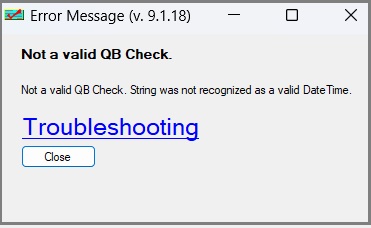
See Invalid date/time.
Problem 8: Amount does not agree

See Wrong amount / amount does not agree.