Wrong check date
Example: the check should say 7/21/2024 and it prints as 1/21/2024.
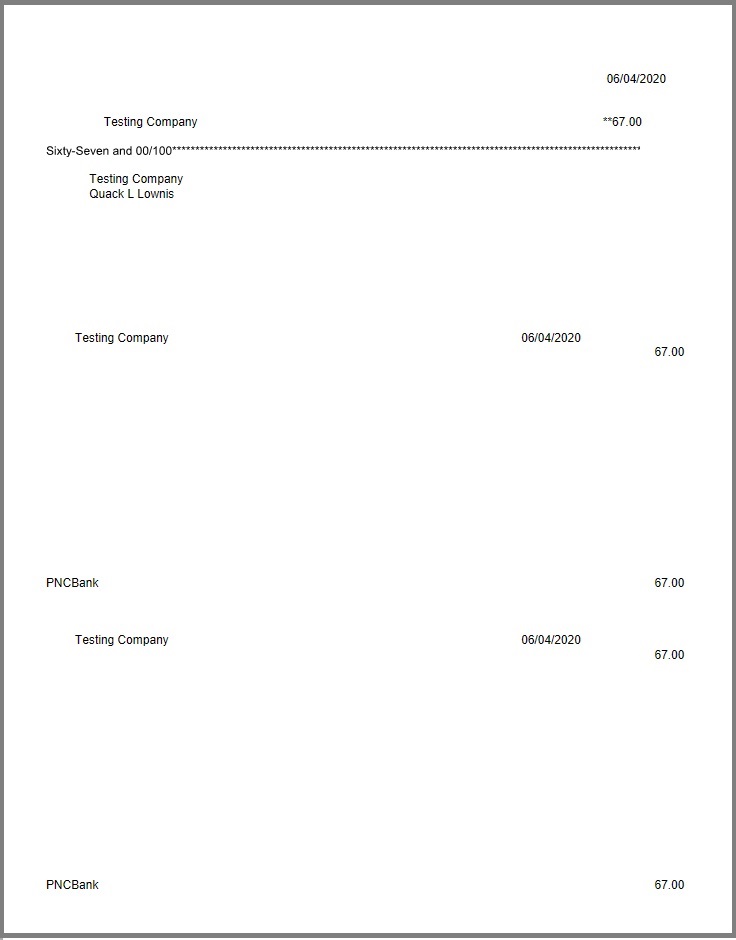
First print the check with a real printer (not the virtual printer) on white paper and read the date. If that paper copy is already wrong, fix the date in QuickBooks. If the paper copy is correct and only the virtual-printer copy is wrong:
- Update both ezCheckPrinting and the QuickBooks virtual printer. Recent QuickBooks format changes cause most of these issues.
- Change the Date field font in QuickBooks (File > Printer Setup > Check/Paycheck > Fonts). Example: Arial to Times New Roman, bold.
- Raise the print quality (Help or File > Printer Setup > Check/Paycheck > Options). Draft or ink-saver mode can corrupt the date.
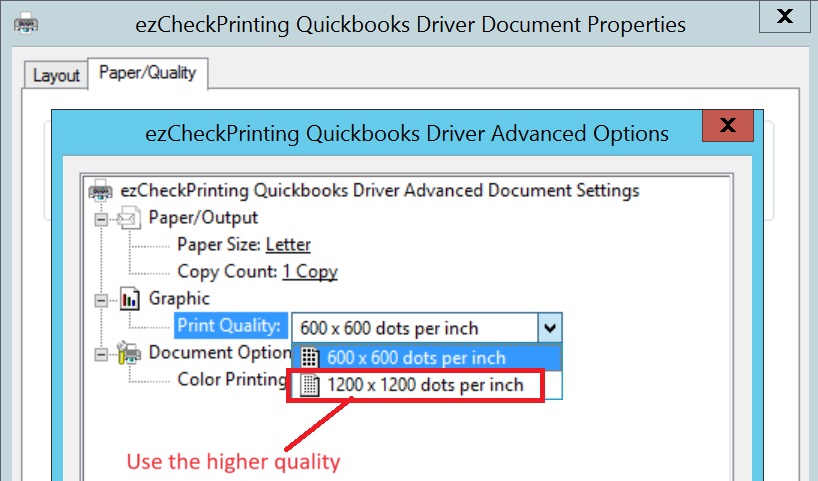
- If it still fails, see What to send if you still need help.