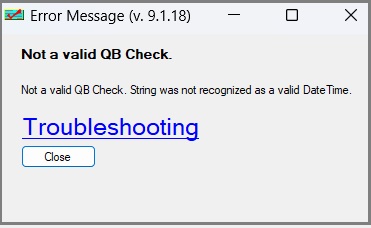
Invalid date/time
"String was not recognized as a valid DateTime." The virtual printer could not read the date QuickBooks sent.
Try these in order:
Step 1: Update both programs (most common)
A QuickBooks or Quicken format change is the usual cause. Check the installed versions and update both ezCheckPrinting and the virtual printer.
Step 2: Change the date font in QuickBooks
A weak font can make the date unreadable to the virtual printer.
- In QuickBooks: File > Printer Setup.
- Form Name: Check/Paycheck.
- Select the Fonts tab. Change the Date field. For example, change Arial to Times New Roman and make it bold.
- Click OK.
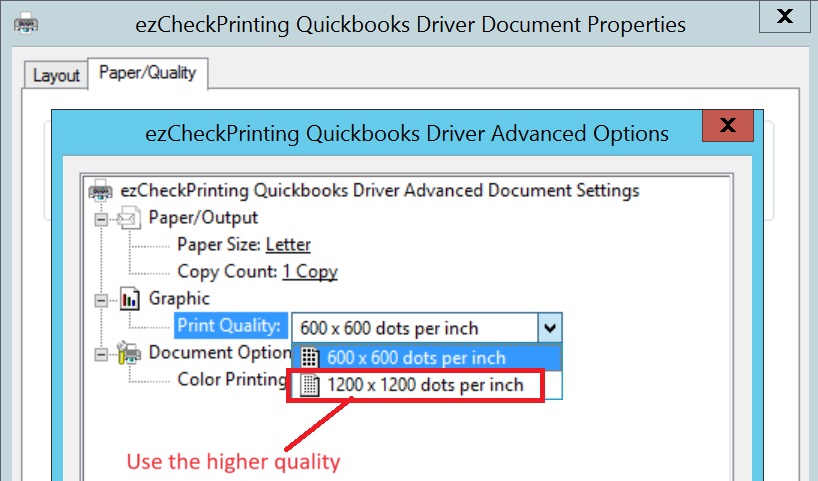
Step 3: Raise print quality
Ink-saving or draft quality can garble the data the virtual printer reads.
- QuickBooks: Help > Printer Setup. (Some versions use File > Printer Setup.)
- Select Check/Paycheck.
- Click Options.
- Choose a higher print quality.
Step 4: Set the Windows short date to M/d/yyyy
A regional format such as DD.MM.YYYY can make the date unreadable.
- Press the Windows key, type Control Panel, and open it.
- Clock and Region > Region.
- Got to Formats > Short date.
- Choose M/d/yyyy (example: 5/27/2026). Do not use periods (M.d.yyyy) or dashes (M-d-yyyy).
- Click OK, then Apply. Restart QuickBooks and print again.
If it still fails, see What to send if you still need help.