How to Share Payroll Data via Google Drive with the Different Google Accounts
In house Payroll Softwware ezPaycheck automates and streamline payroll processing for small businesses. With the multiple-user version, multiple users can share the same payroll data with Google Drive easily.
Here are the two options for multiple users to share the same payroll data:
Option 1: With the same Google Drive account Option 2: With the different Google Drive accounts
Option 2: Multiple computers share the payroll data with different Google Drive accounts
2.1 First computer: Install Google Drive app for Windows
2.1.1 Go to the Google Drive website, sign in to your Google account, create a new folder to store ezPaycheck data. (ie: "Shared ezPaycheck")
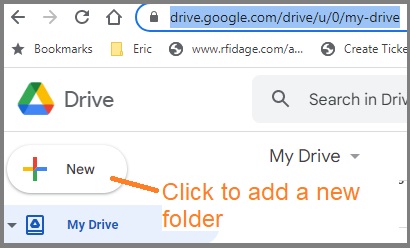 2.1.2 Share this data folder with other user(s)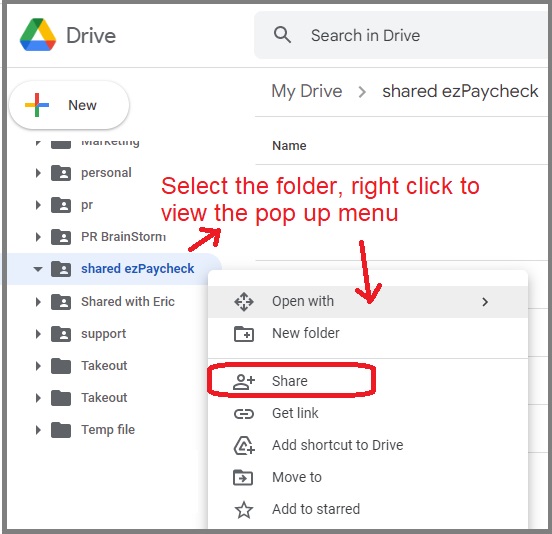
2.1.3 Download and install the Google Drive for desktop by following the guide from Google
https://www.google.com/drive/download/ 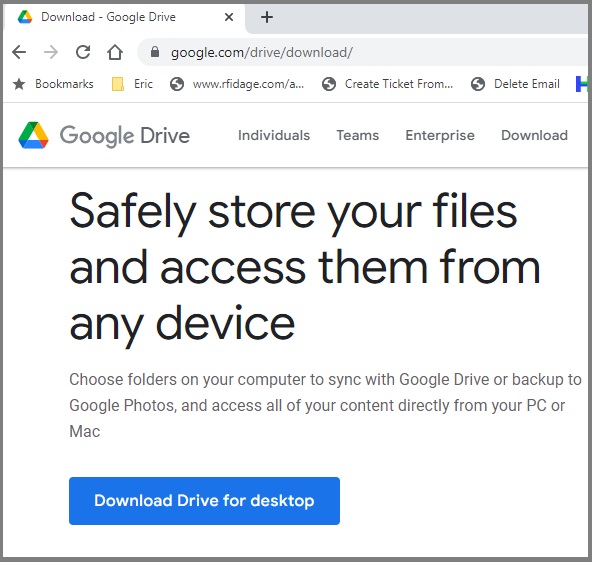
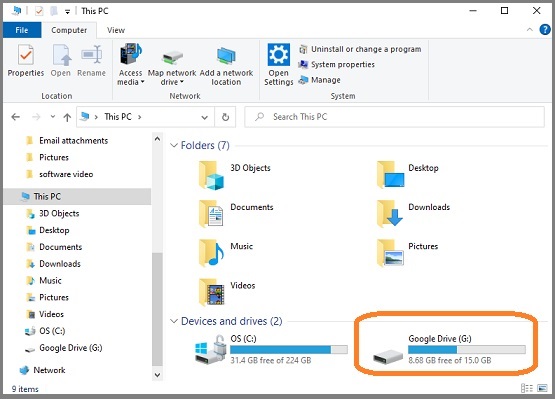
2.1.4 Then you will see Google Drive on your local computer.
2.2. First computer: Install and set up ezPaycheck
2.2.1. Download and install ezPaycheck on the first computer and enter license key. 2.2.2. Start ezPaycheck application, set up company, enter the employee information and print one test check to make sure ezPaycheck works normally.
You can learn more from ezPaycheck Quick Start Guide. 2.2.3. Copy this database file from the local computer to the Google Drive folder
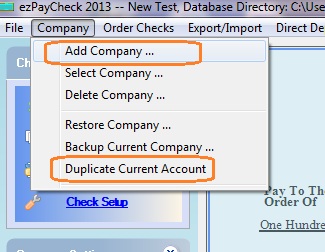
Click the top menu "Company" then click "Duplicate Current Account" sub menu to copy current database file to a network folder.
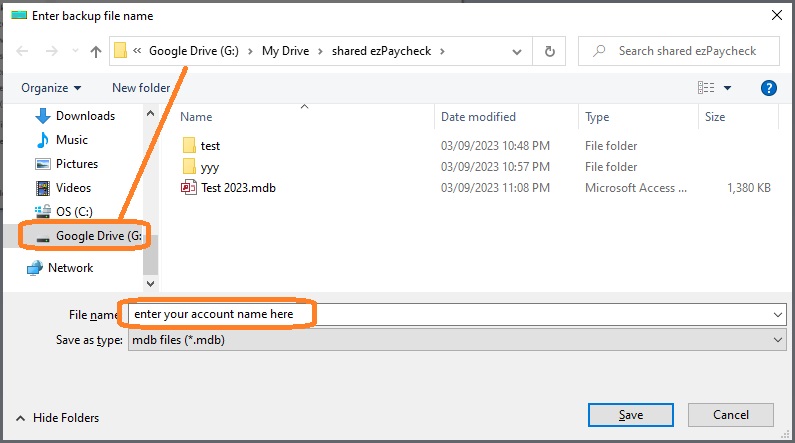 2.2.4. Switch the current account to ezPaycheck database .mdb file in Google Drive folder
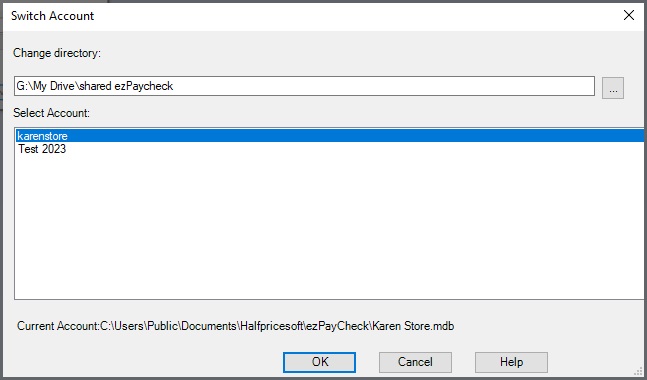
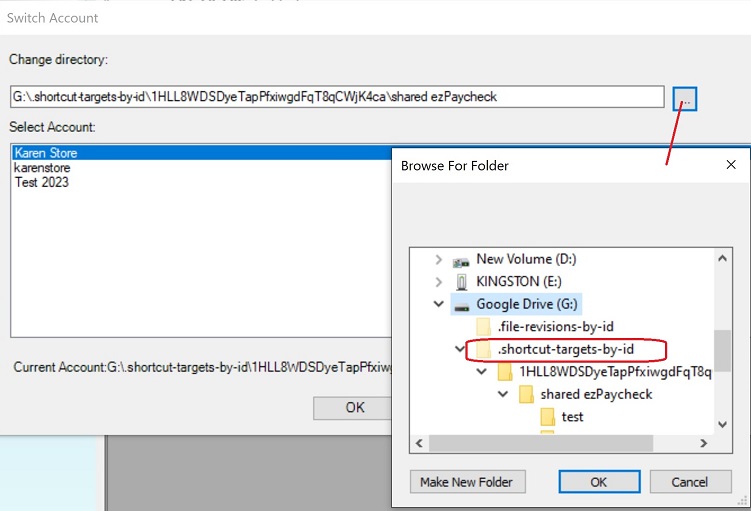
- Click top menu "Company" and click sub menu "Select Company" to open Switch Account screen. (If you are using the network version, you will be able to change the data folder directory.)
- Change the current directory to the ezPaycheck data folder on Google drive.
- Select the database file
- Click the OK button to save your change.
2.3 Set up 2nd computer
2.3.1 Install Google Drive app for Windows
(Follow step 2.1. You will see the ezPaycheck database .mdb file from the ezPaycheck folder.)
2.3.2 Install ezPaycheck payroll software and register license
(You do not need to set up ezPaycheck.)
2.3.3 Switch the current account to ezPaycheck database .mdb file in Google Drive folder
(Follow step 2.2.4)
If you cannot see the shared ezPaycheck folder, or you cannot see the .mdb file from your Google desk drive, please follow this solution:
1) Go to the Google Drive website, create a shortcut of the shared ezPaycheck folder.
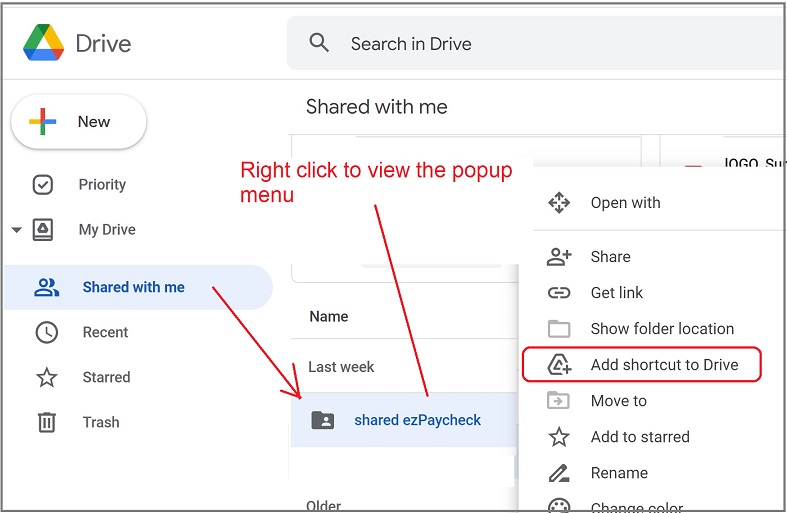
2) Open Google desk drive, click the shortcut to verify you can see the payroll data (.mdb file).
3) start ezPaycheck application and switch the current account.
2.4 Set up other computers if needed
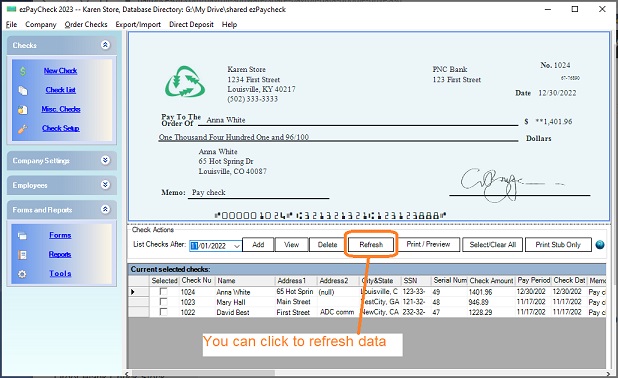
2.5 If you add one paycheck from one computer, the database will update automatically on other computer(s).
You can click the "Refresh" button to refresh paycheck list. If you have high speed internet, you will see the new check quickly.
Related Links:
ezPaycheck Quick Start Guide How a add a new company account How to handle both employees and contractors How to handle restaurant tips How to add a custom deduction and withhold it from each paycheck automatically How to handle local taxes How to handle State Disability Insurance (SDI) How to print paycheck in different formats: check-on-top, check-in-middle, check-at-bottom or 3-per-page How to print paycheck on blank stock How to print paycheck on pre-printed checks How to print paycheck with company logo How to adjust check printing position Sample Paychecks Determine a Company's Name for e-Filing
Download Now >
Buy Now