With ezPaycheck payroll software for Mac, you have two options to create a paycheck.
You can click the "NEW" button above check list on the main screen to add a new check. Or you can click the ezPaycheck payroll software left menu "Checks" then click the sub menu "New Check" to open New Check screen.
On new check screen:
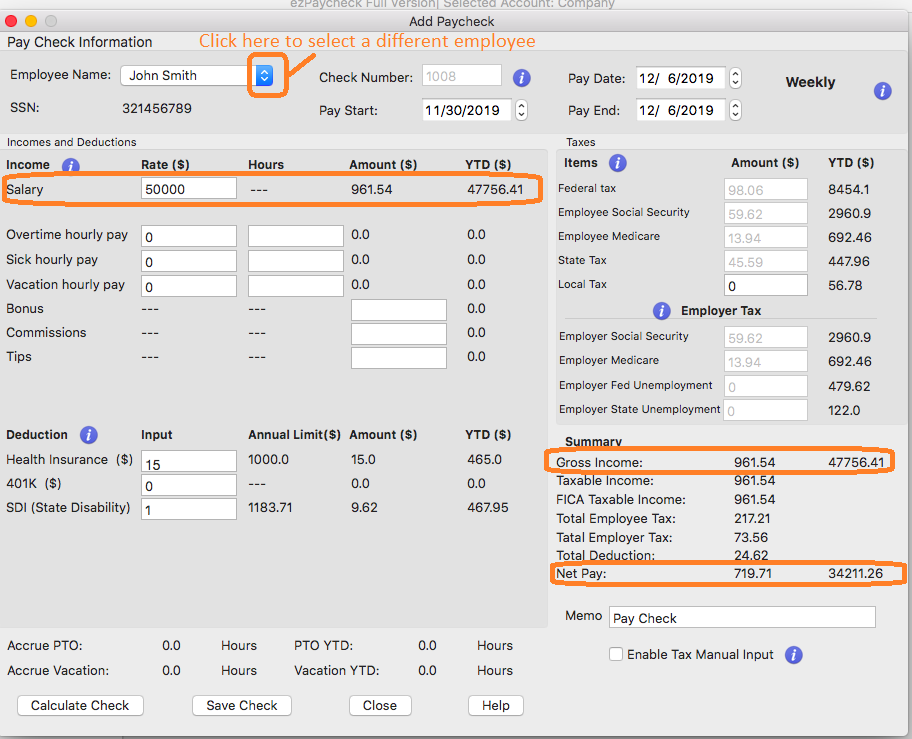
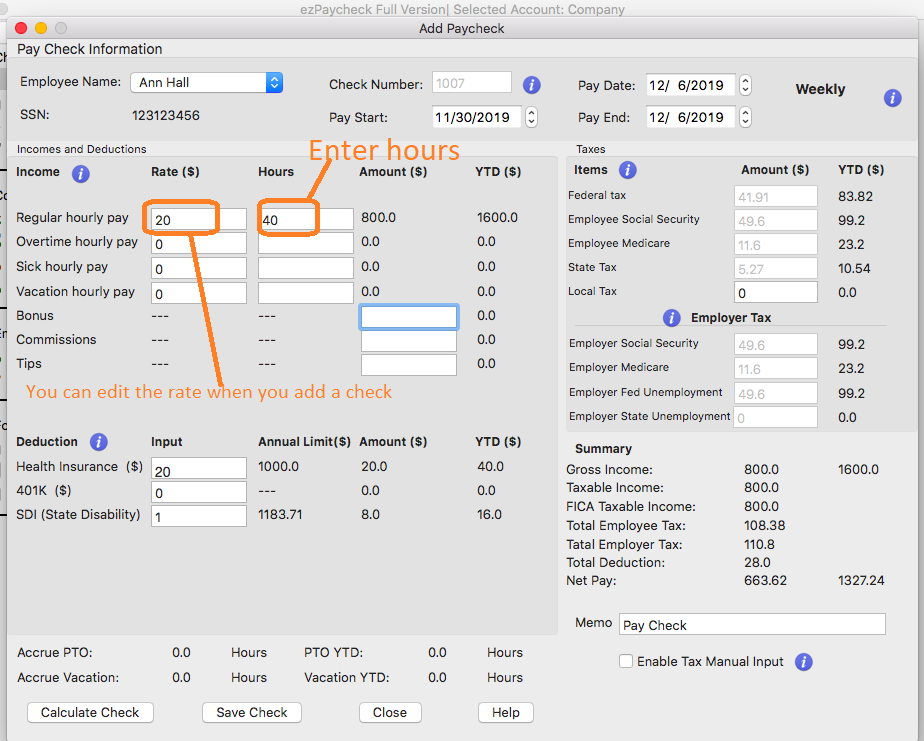
You can click the "NEW" button above check list on the main screen to add a new check. Or you can click the ezPaycheck payroll software left menu "Checks" then click the sub menu "New Check" to open New Check screen.
On new check screen:
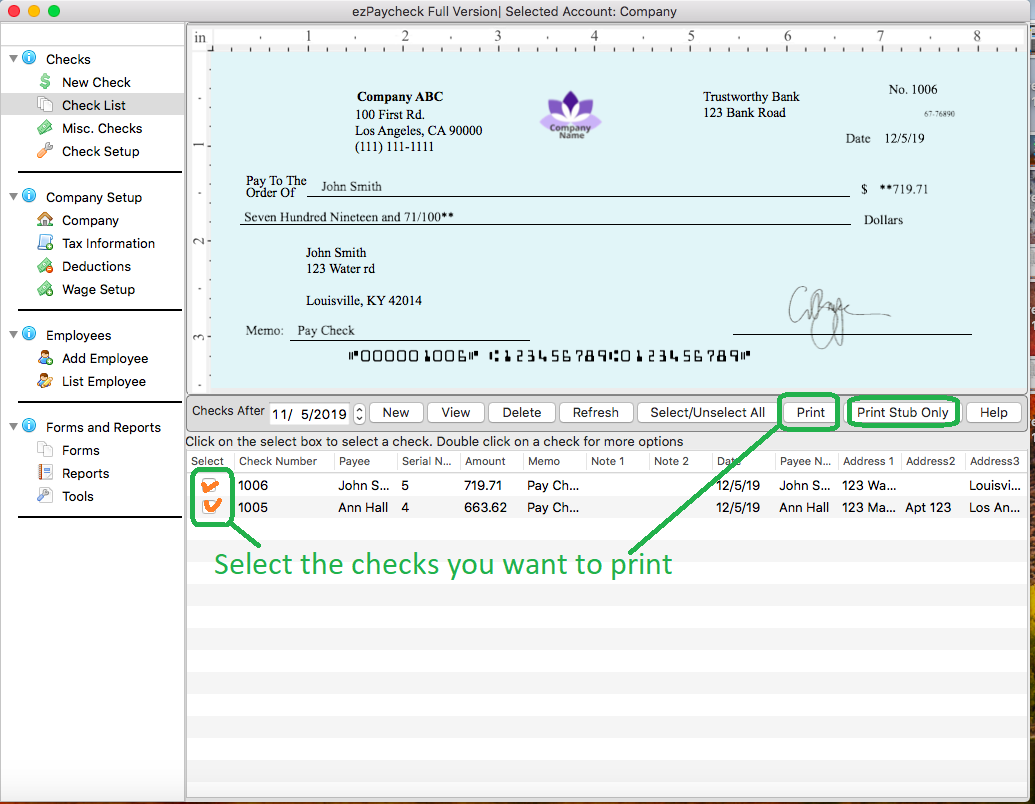
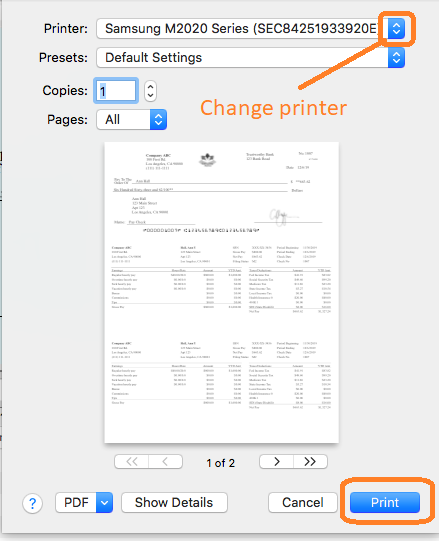
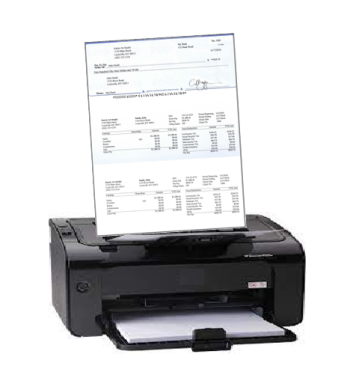
You can select multiple paychecks from list and click the Print button to print paychecks together.
Please feel free to contact us whenever you need assistance. Our support team is glad to assist you. You can also check the FAQs page or email [email protected].

