With ezW2 software, you can import 1099 NEC form data from the external .csv file in a few clicks.
If your data is saved as Excel file, you can convert it easily by clicking Excel top menu "File", then
click "Save As" to save it as .csv (comma delimited) file.
If you saved data in access, sql server or other database, you can export data to .csv file.
Step 1: Download the sample data files(optional)
If you need some data to test this import function, you can click here to
download 1099-NEC data
. You need to unzip the data before testing the import function.
Start ezW2 software. If you have not installed it, you are welcome to download the trial version and test drive it
with no obligation.
ezW2 software: SSA Approved. Trusted By Thousands for Two Decades.
Print and eFile Form W2, W3, 1099-NEC & 1096 in House.
Unlimited Company Accounts! Unlimited Forms!
Compatible with Windows 11, 10, 8.1, 8, 7, Vista, XP and other Windows computers.
Try it free today. No obligation. No credit card required.
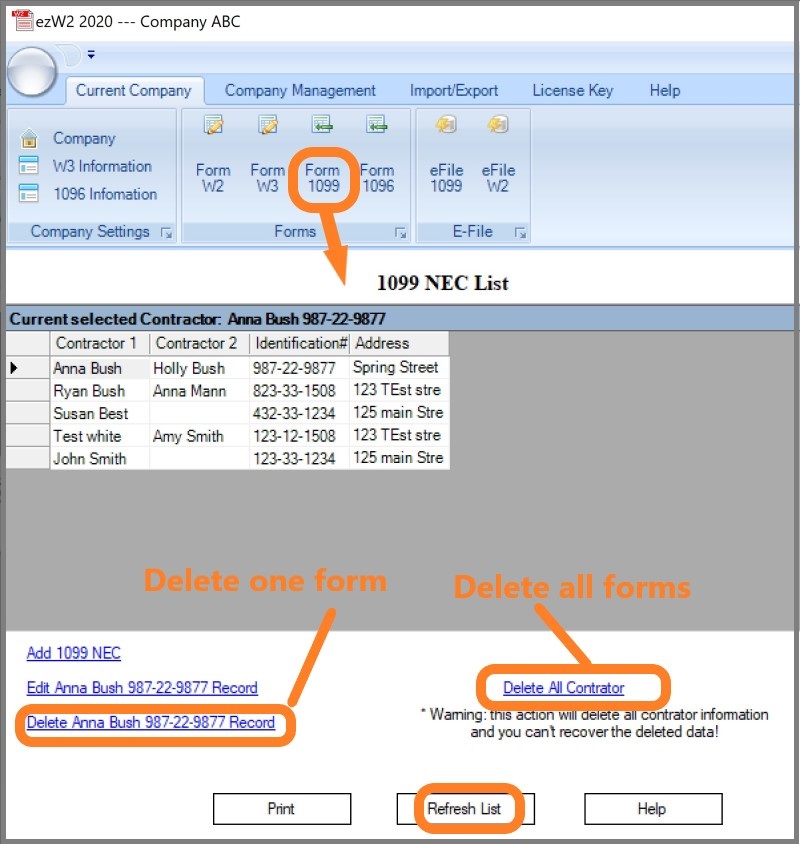
Step 3: Clear 1099-NEC form List (Optional)
If you have test data, please remove it before you import data data.
Step 4: Import data
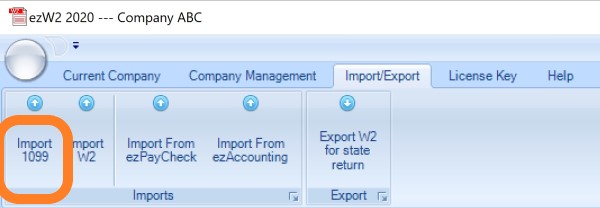
You can access this screen by clicking the top menu Current Company->Import W2.
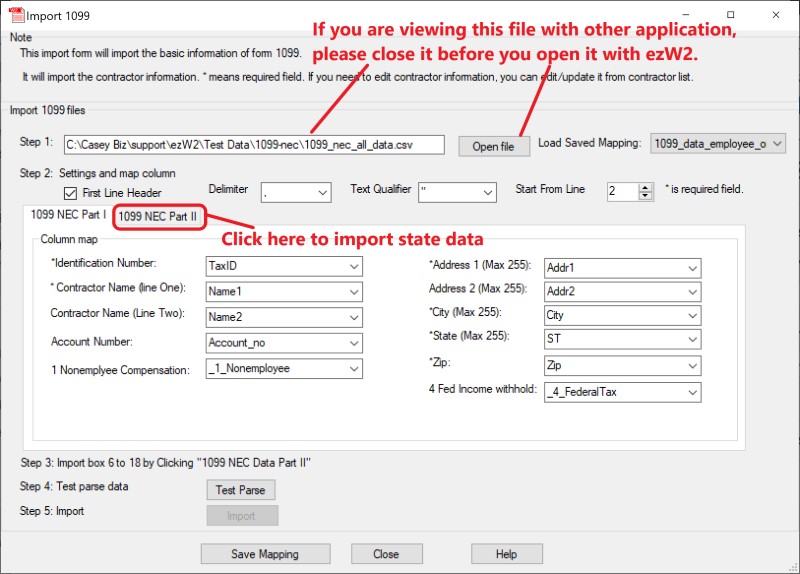
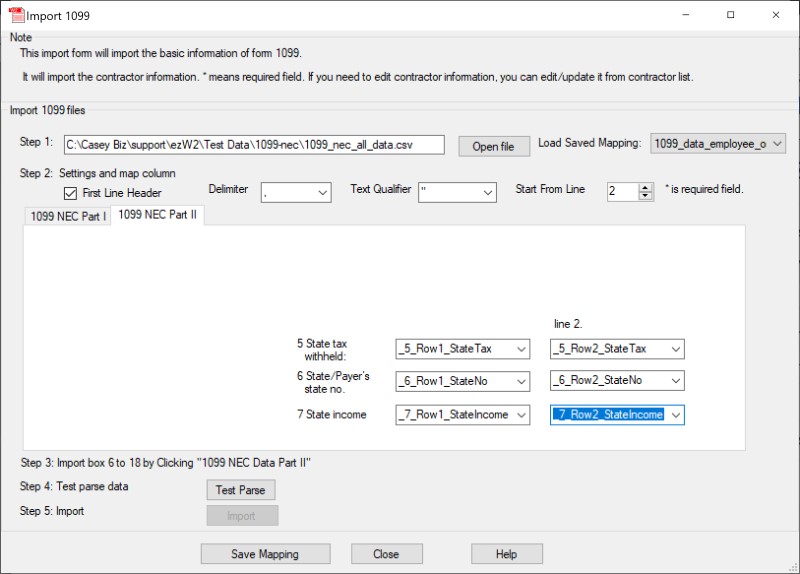
Follow the instructions on screen step by step and import 1099 data.
4.1 Open data file
If your data file is opened by other application (ie: Excel) now, please close it before you import data with
ezW2 software. You cannot open the same file with two applications.
4.2 Map Part I data
4.3 Map Part II data
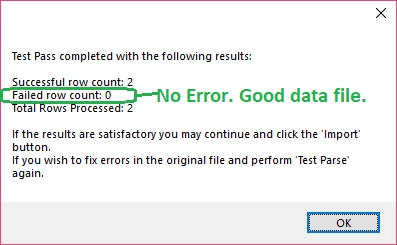
4.4 Click the "Test Parse" button to validate data
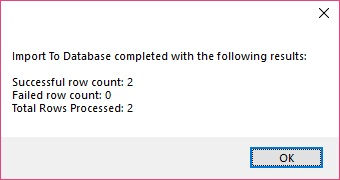
4.5 Import Data
Step 5: Refresh 1099-NEC list to view, edit and print forms
Notes:
1. Form W-3 will be generated automatically based on form W2 information
2. ezW2 allows user to set up unlimited companies with one flat rate. So if you have multiple companies or you are an accountant, you can add new company by clicking top menu "Company Management->New company"
3. The .csv file data import feature, PDF print feature and efile feature are available with enterprise version and multiple-user version. They are not available with small business version. Click here to view ezW2 feature list)
Troubleshooting
1. Access Violation Error
Solution: If your data file is opened by other application (ie: Excel) now, please close it before you import data
with ezW2 software. You cannot open the same file with two applications. Please restart ezW2 and try it again.
2. Other errors
Solution:
1. Please download our sample data files and test the import function.
2. If our sample data file works, you can add a few rows of your data and import data again.
3. Then add more data the file and import data
Still have questions?
If you have still have questions, you can also check the FAQs page or contact us at support page. We are glad to assist you as soon as possible.