With ezCheckDraft remote check writing software, you can backup data and restore easily. Here is guide on how to restore data.
ezCheckDraft database backup file is .db file. you should NOT open this backup file manually. Please follow the steps below to restore your data.
Herea are two options:
Option 1: for businesses with a few accounts
Option 2: for CPA with many clients accounts
Option 1: Restore Data with ezCheckDraft Restore Function
Step 1: Restore backup file
If you backup data to the default data folder, you can skip this step. You can follow step 2 and switch the current account directly.
1.1 Start ezChecKDraft application
1.2 Insert USB disk if you saved your backup data there. (Optional)
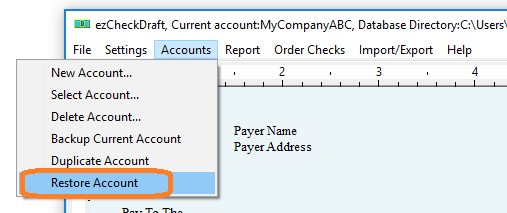
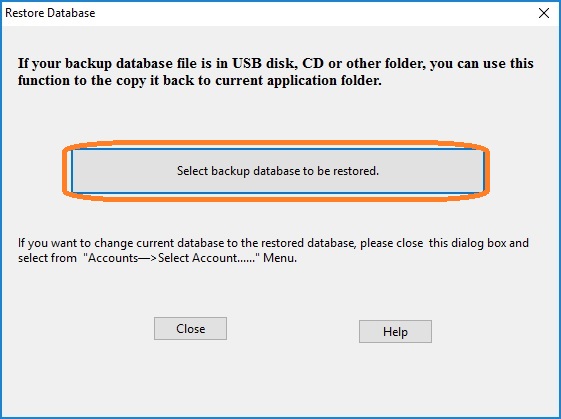
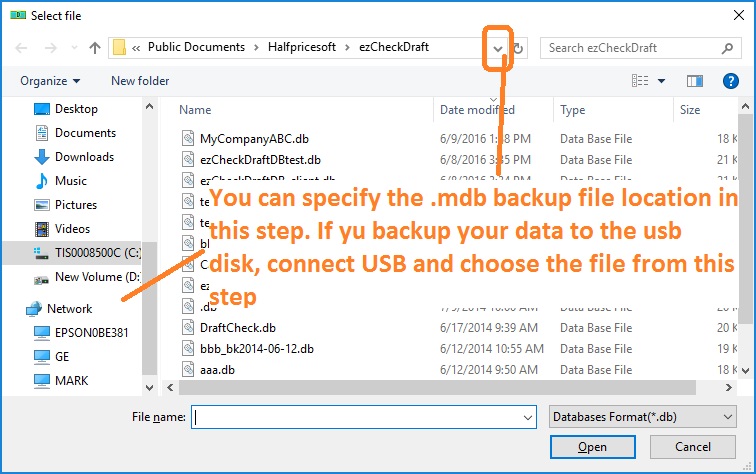
1.3 Click ezCheckDraft top menu "Accounts->Restore Account", then select the backup file from the USB disk or the backup folder
Step 2: Switch the current account
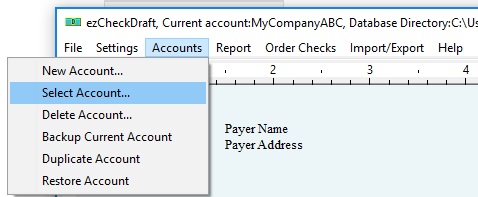
You can click ezCheckDraft top menu "Accounts" then "select account" to change the current to the new backup database file.
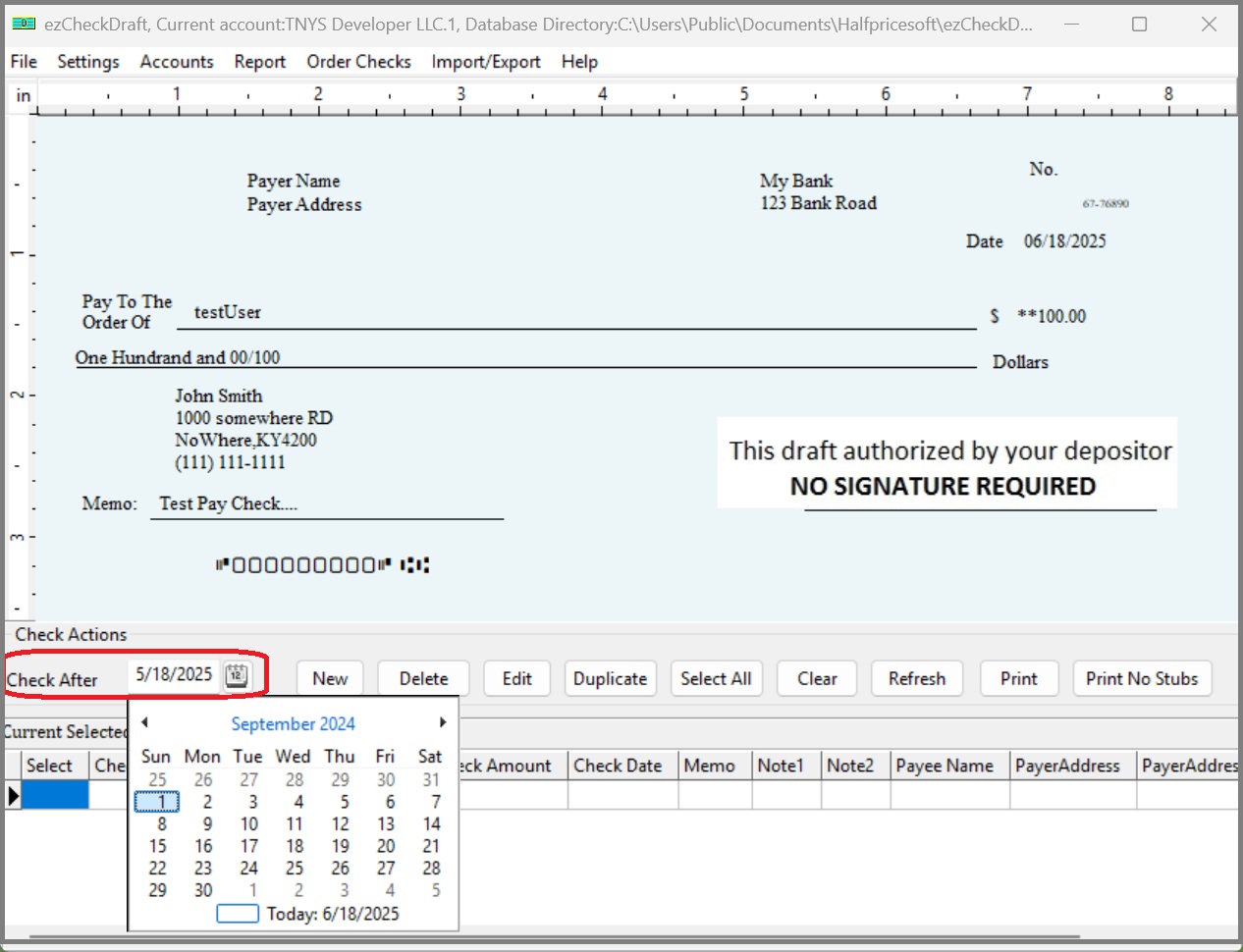
Step 3: Change "Check After" date to view more checks if needed
Option 2: Restore Multiple Accounts Manually
If you are a CPA and have many client accounts, it will be faster to restore the data manually.
The default data folder for ezCheckDraft is
C:\Users\Public\Documents\Halfpricesoft\ezCheckDraft
The database files are .db files.
You can copy all the backup files to your data folder
You can switch the current account by clicking ezCheckDraft top menu "Account" then "select account".
From $295
Draft Checks Electronically In-House
ezCheckDraft: Trusted By Thousands.
Draft checks electronically
Generate ACH files for draft checks
Unlimited accounts. Unlimited transactions.
For both federal and states.
Try free DEMO today. No obligation. No credit card required. No risk.
ezCheckDraft is compatible with Windows 11, 10, 8.1, 8, 7, and other Windows system, 32-bit or 64-bit.