Smart App Control Blocks Installation by Mistake
Some clients reported this installation error when they installed our software:
"Smart App Control blocks an app that may be unsafe" 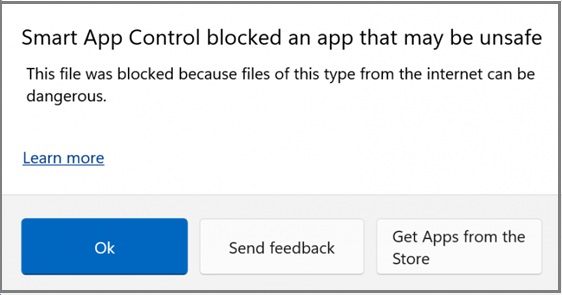
This is a very common issue. Microsoft’s security features (like Windows SmartScreen or Smart App Control) are designed to be overly cautious. They will often block perfectly safe, legitimate software simply because it was downloaded from the internet or isn't in their immediate database.
Solution 1: Unblock the File Directly
This issue is caused by a setting on your computer, which restricts the third-party apps and software from being installed. You can modify the settings to solve this issue.
Open your "Downloads" folder and find the software installation file you just downloaded. Right-click on the installation file and select Properties. Click "Apps" (or "Apps & Features") Check the box that says Unblock (or click the "Unblock" button). Click Apply, then OK. Try running the installation file again. Solution 2: Turn Off Smart App Control
Click the Windows Start Menu, type "Smart App Control", and press Enter. You will see three options: On, Evaluation, or Off. Select "Off". Click Yes on the confirmation prompt. 
