Halfpricesoft Halfpricesoft
 

ezW2 Software Guide: How to Import W-2, 1099 Data from ezAccounting Software

(Click there to view the guide for ezAccounting 2019 and earlier versions)

With ezW2 software, ezAccounting customers gain additional options to prepare, print, generate PDF copies, and e-file W-2 and 1099-NEC forms. If you are new to ezW2, you are welcome to download a free trial version of ezW2 software to explore its features.

ezAccounting customers can follow the guide below to use ezW2 together with ezAccounting:
  • Part 1: Import and file W2 and W3 forms
  • Part 2: Import and file 1099NEC and 1096 forms


Before you start: verify the data in ezAccounting

Please start the ezAccounting software and open the company from which you want to import data. Make sure that the correct information (such as the employee list and vendor list) is available in that account.


Part 1: Import and file W2/W3 forms

1.1. Add a new ezW2 account (optional)

If you are a CPA managing multiple client accounts, please create a separate account for each client within the ezW2 software. Do not mix data from different companies into a single account.

1.1.1 Start ezW2, click the top menu "Company Management", then click the sub menu "Add company" to add a new account. Please enter a simple name with letters and numbers only (for example: Company XYZ).

1.1.2 You do NOT need to edit the company settings because you can import these settings from ezAccounting in step 3.

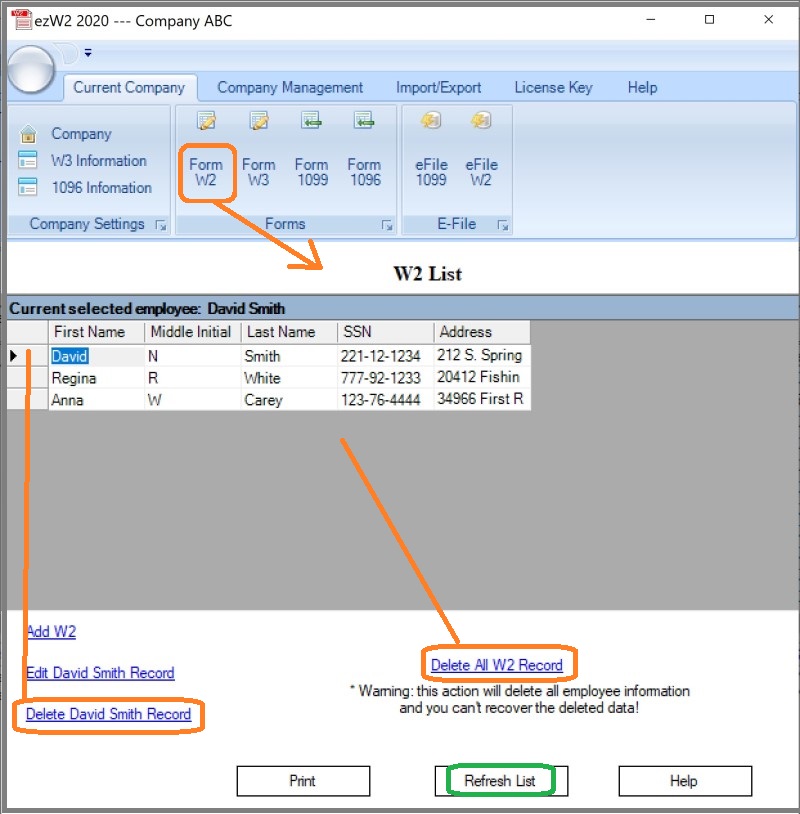
1.2. Remove W2 forms from list if needed. (optional)


1.3. Import w2 data

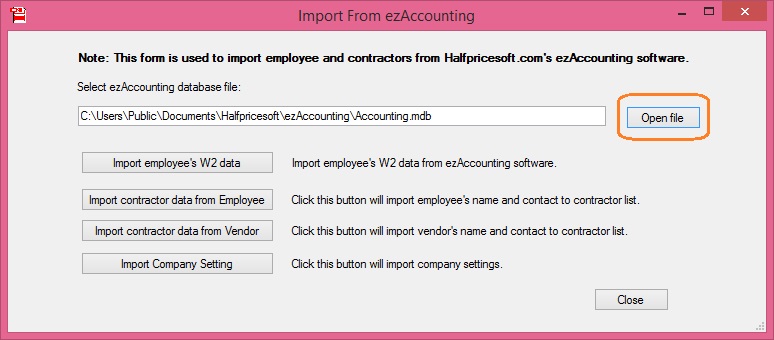
1.3.1 Open import data screen by clicking the top menu "Import" then "Import from ezAccounting".


Follow the instructions on screen step by step and import w2 data.

1.3.2 Open data source.

1.3.3 Click Import employee's W2 data button.

1.3.4 Click "Import company settings" button if you also want to import company settings.


1.4. Refresh W2 list, review and edit W2 forms

1.4.1 Click ezW2 top menu "Current company" then "Form W2" to view W2 list.

1.4.2 Click the Fresh List button to refresh the list if needed.

1.4.3 Then you can view and edit W2 form(s).

1.5. Print and efile W2 and W3 forms

Follow ezW2 software guide to reveiw company settings, review forms, print and efile W2 and W3.

Part 2: Import and file 1099 NEC and 1096 forms

2.1. Add a new ezW2 account (optional)

Note: You can skip this step if you only have one account for this company.

2.1.1 Start ezW2, click the top menu "Company Management", then click the sub menu "Add company" to add a new account. Please enter a simple name with letters and numbers only (For example: Company XYZ).

2.1.2 You do NOT need to edit the company settings because you can import these settings from ezAccounting in step 3.

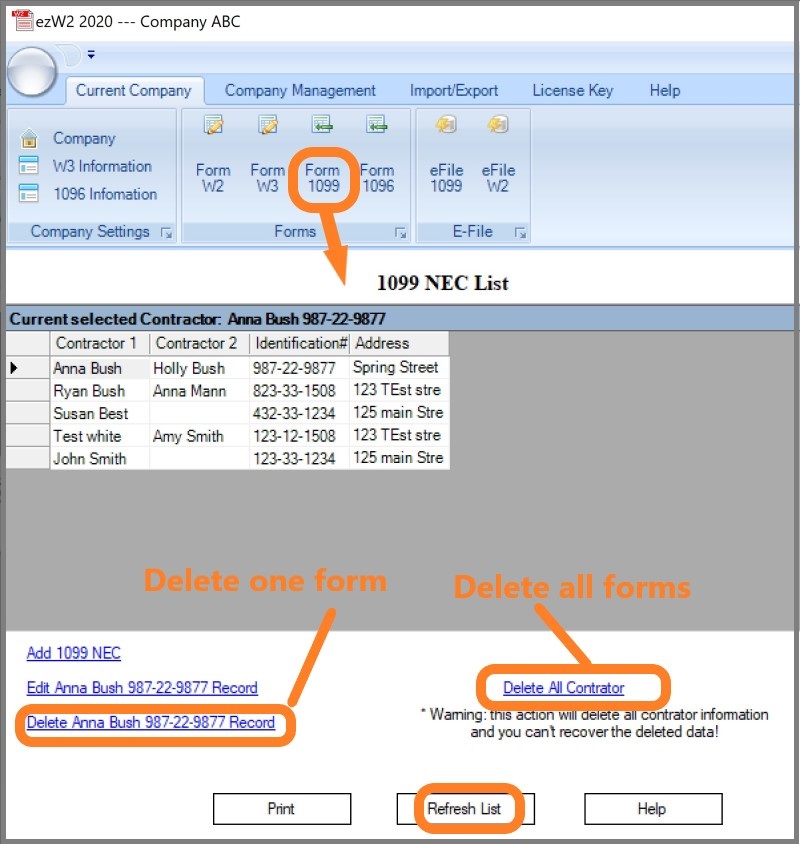
2.2. Remove 1099 NEC forms from list if needed. (optional)


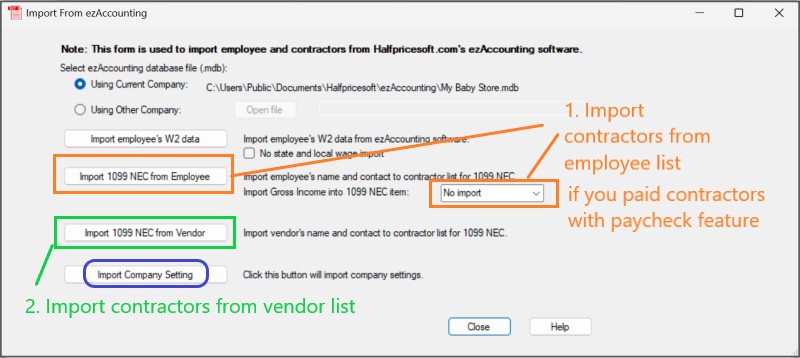
2.3. Import 1099 NEC forms

2.3.1 Open import data screen by clicking the top menu "Import" then "Import from ezAccounting".
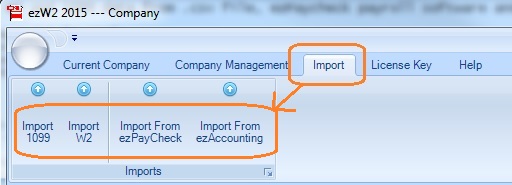

Follow the instructions on screen step by step and import 1099 NEC data.

2.3.2 Open data source.

2.3.3 Select "Import 1099 NEC from Employee" if your company paid contractors with paycheck feature.
You can specify the box number for amount field with this option.

2.3.4. Select "Import 1099 NEC from Vendor" if your company paid contractors with vendor feature.

2.3.5. Click "Import company settings" button if you also want to import company settings.


2.4. Refresh 1099-nec list, review and edit 1099 NEC forms

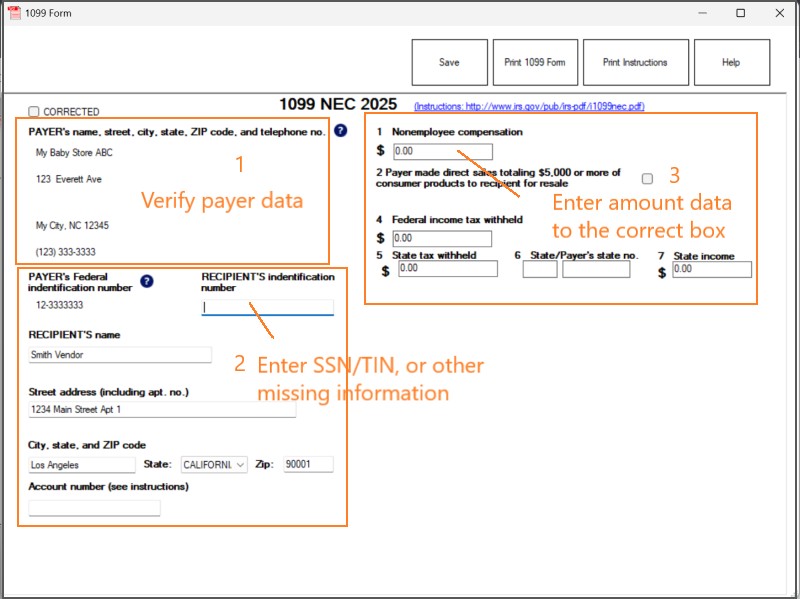
2.4.1 Click ezW2 top menu "Current company" then "Form 1099" to view 1099 NEC list.

2.4.2 Click the Refresh List button to refresh the list if needed.

2.4.3 Then you can view and edit 1099 NEC form(s).


2.5. Print, PDF print and efile 1099 NEC and 1096 forms

Follow ezW2 software guide to print and efile 1099 NEC forms.


Still have questions?

help image If you have still have questions, you can also check the FAQs page or contact us at support page. We are glad to assist you as soon as possible.