
HalfpricesoftHalfpricesoft


    ezAccounting Software: How to Add the 2nd Checking Account

    ezAccounting -> FAQs -> Checks and Banks

    With ezAccounting software, you can design and print professional-looking checks in house easily. ezAccounting software can support multiple checking accoounts. Here is the guide how to add the 2nd checking account easily.

    Step 1: Start ezAccounting software and click the "Chart of Account" button to view account list


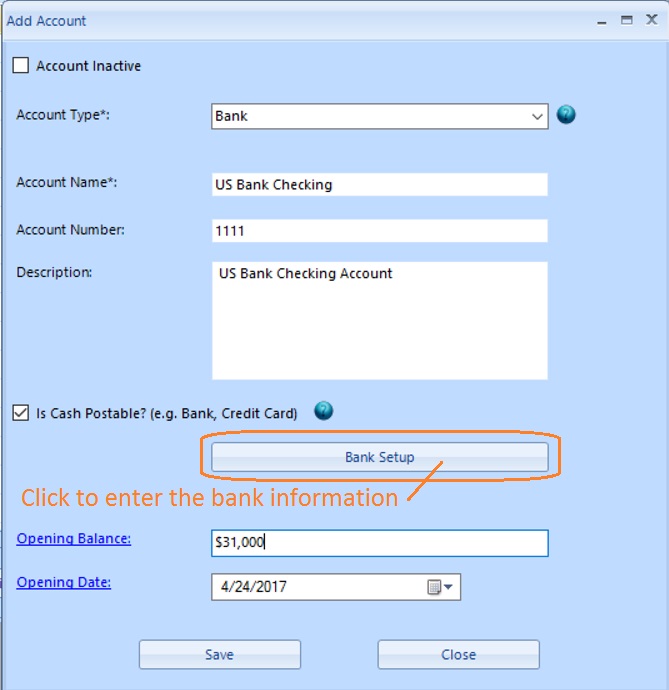
    Step 2: Click the "Add" button to add a new account

    2.1 Enter the bank information

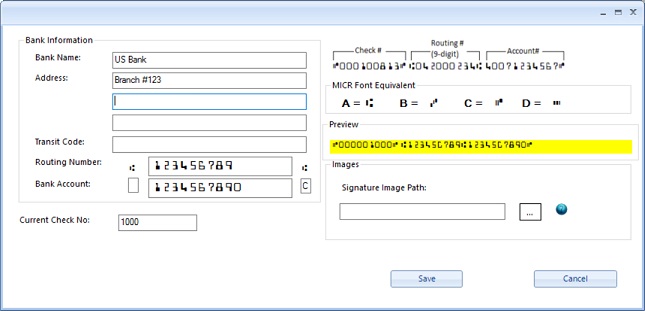
    2.2 Click the button "Bank Setup" to set up bank information.

    add 2nd checking account
    (Click image to enlarge)

    enter bank account
    (Click image to enlarge)


    accounting software
    From $199
    (Regular $219)

    Desktop Accounting & Payroll Solution

    ezAccounting software is the right in house accounting solution for small businesses needing to document and report on incoming and outgoing cash flow including sales, receipts, payments and purchases. It also supports payroll processing and tax form printing.

    Try the ezAccounting free demo - no credit card or obligation required.

    Limited Time Offer: ezAccounting 2026 & 2027 Bundle


    (back to top)

    Related Topics

  • ezAccounting Quick Start Guide

  • Set up Check and Form Layout
  • How to manage customer and sales
  • How to manage vendor and purchase
  • How to write check and manage bank account

  • How to generate invoice
  • How to generate estimate/Quote

  • Sample Paychecks
