HalfpricesoftHalfpricesoft


    ezCheckPrinting: How to Write Canada Check

    ezCheckPrinting software is designed for US market. Because it is so flexible, we have many ezCheckPrinting customers from Canada also. Here is the guide on how to set up ezCheckPrinting for Canada checks.

    Step 1: Install ezCheckPrinting

    If you have not installed ezCheckPrinting, you can download this check software and try it for free before purchasing.
    free check printing software

    Design and Print Professional Checks Yourself

    - Print checks on blank stock with logo and signature
    - Fill in data on pre-printed checks
    - Print blank checks to fill in later
    - QB virtual printer for QuickBooks/Quicken(for Windows)
    - Unlimited accounts and checks for Windows and Mac.

    Try ezCheckPrinting free demo version with no obligation and no credit card needed.


    Step 2: Set up Bank Information

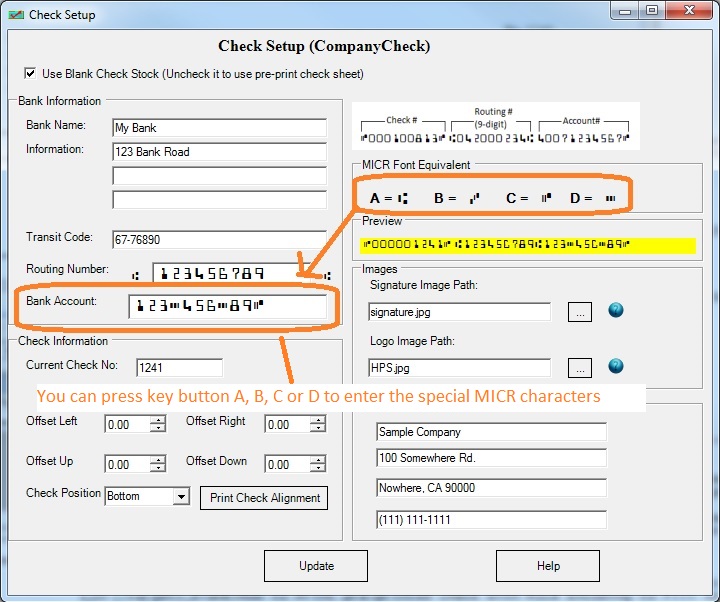
    Click the top menu "Settings->check setup" to open the check setup page. Set up your check information and add your company logo file there.


    click to enlarge


    Step 3: Add a new Canada check and print it.

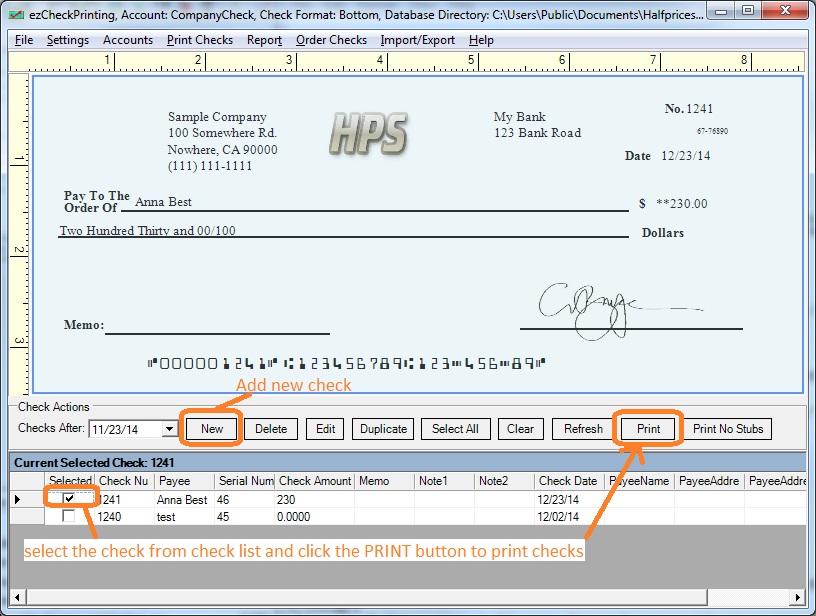
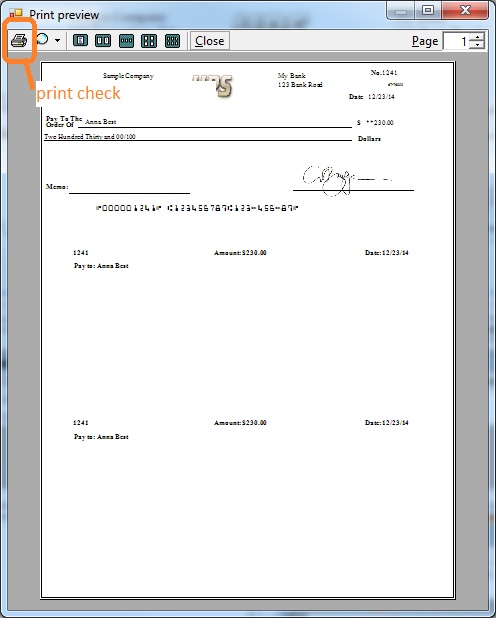
    Go back to the main page. Click the New button to add a check. Select this check from the check list and click the Print button to print your check


    click to enlarge


    Related Links:

  • How to print paychecks on blank stock?

  • How to print personal check on blank stock?

  • How to print QuickBooks check on blank stock?

  • How to print pre-printed blank check with MICR encoding to fill in manually?

  • How to print checks with logo?

  • How to print check draft to collect payment online or by phone?

  • Why my bank cannot scan my check?

  • Do I need special printer to print checks?