ezCheckPrinting: Checking Account Setup
ezCheckPrinting is designed for business check printing. If you need to print the smaller personal wallet sized check, you need to use ezCheckPersonal.
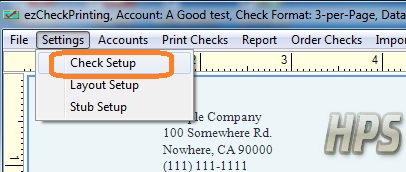
1. Click the top menu "Settings->check setup" to open the check setup page. Set up your check information and add your company logo file there
.
2. Enter the check information
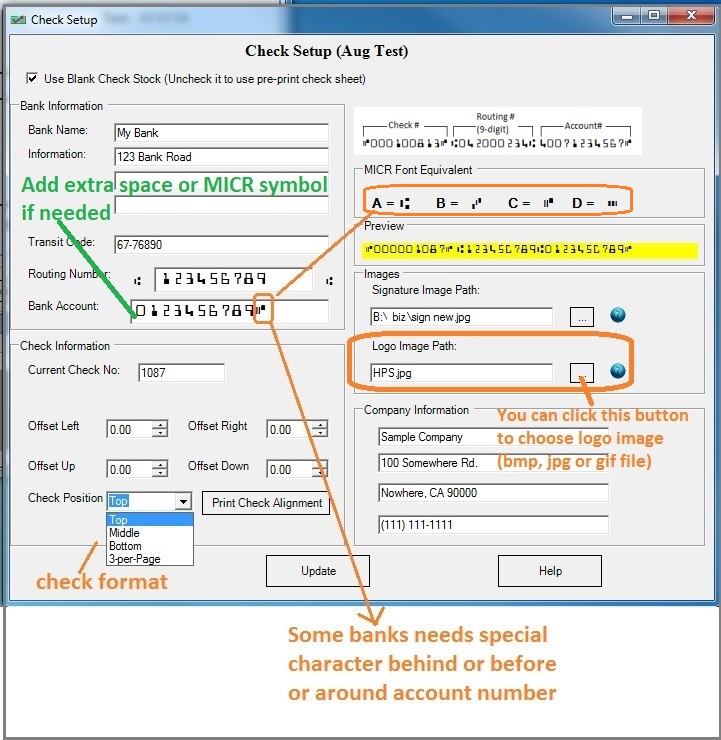
- Blank check stock or pre-printed check
If you will use blank check stock, check the option "Use Blank Check Stock". Otherwise, uncheck it.
- Bank information
Please enter the bank information here. Bank information is required. If you select to use pre-printed check, you can leave the default sample data here.
- Transit code (optional)
This information is optional. If you have this data on your previous check, you can enter it. Otherwise,
you can leave this field blank. US banks will not use this information to process checks today.
- Check position
ezCheckPrinting supports blank check stock and pre printed checks for check on top, middle, bottom and 3-per-page business size formats.
- Current check number
You can enter the starting check number here. ezCheckPrinting will increase it automatically when you add a new check.
- Offset left/right/up/down
Most customers can leave the values as 0 (zero). You can adjust the value to print check higher or lower if your printer is special.
- Images
You can choose your own logo image and signature images here. If you do not want to use images, you can delete the data and leave these fields blank.
- MICR line
The MICR line format of ezCheckPrinting checks is:
"CHECK #, THE ROUTING AND THE ACCOUNT NUMBER"How to customize MICR line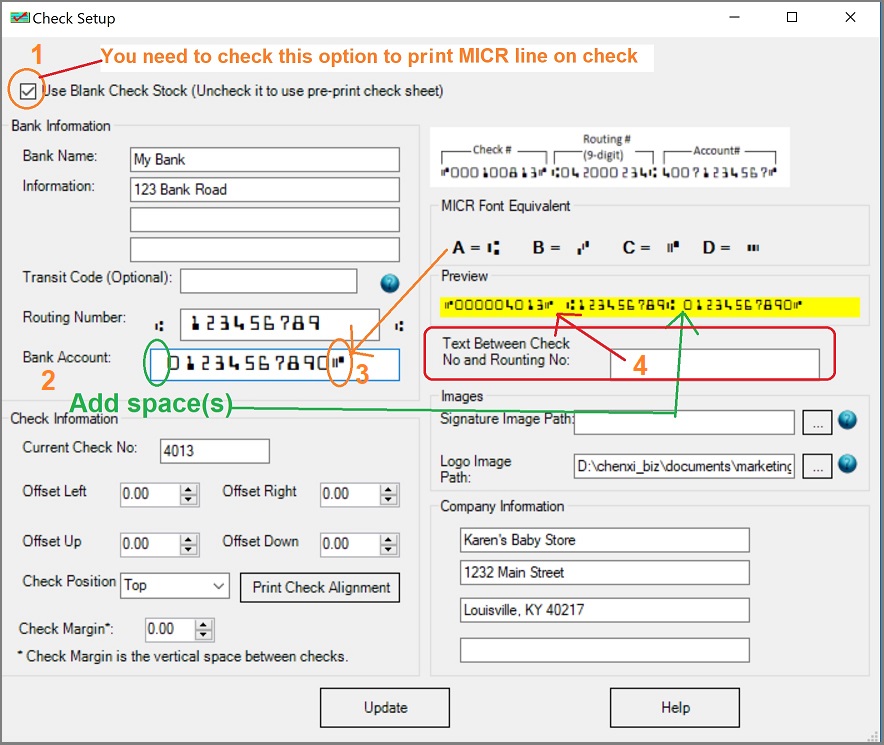
Related Articles:
How to customize the check layoutHow to customize the stub layoutHow to add and print a checkHow to print pre-printed blank checks to fill in later
https://www.halfpricesoft.com/articles/how-to-print-quickbooks-micr-blank-check.asp
How to print QuickBooks checks on blank stock
https://www.halfpricesoft.com/quickbooks-check-printing/print-quickbooks-checks.asp

