How to print checks in reverse order
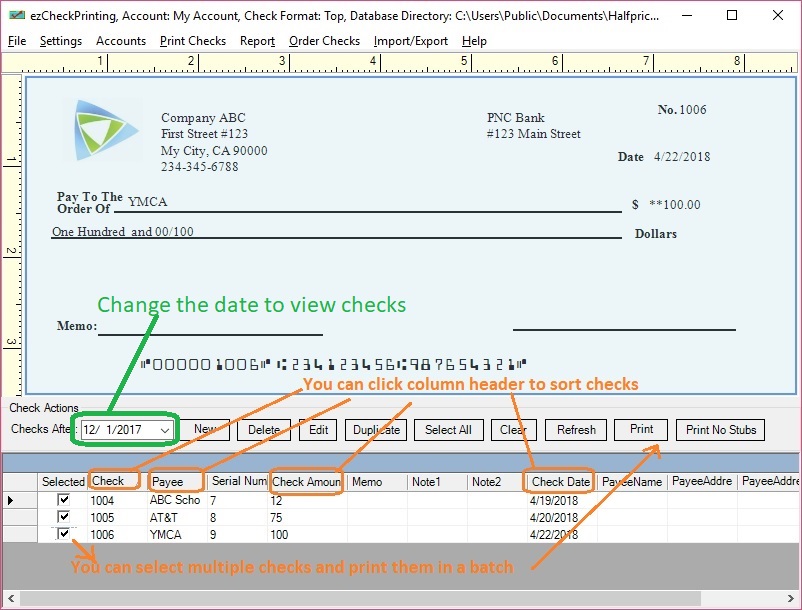
Option 1: You can sort the checks in list by check number, payee name, address or other fields easily to print them in the order you need.
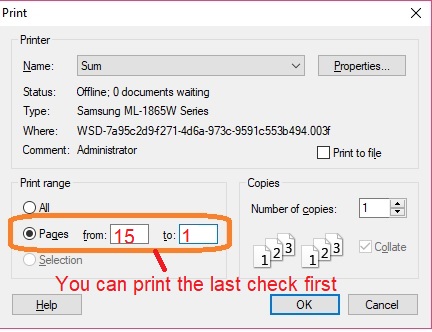
Option 2: From print screen, you can enter the print range. The trick is you can enter "15 to 1" instead of "1 to 15" to print checks in reserve order.
Option 3: For HP printer
- Click the Advanced tab in printing Preferences.
- Expand the Document Options entry.
- Expand the Layout Options entry.
- In the Page Order: drop down menu, select
Back to Front.
- Click OK. HP considers reversing the print order to be an advanced setting.
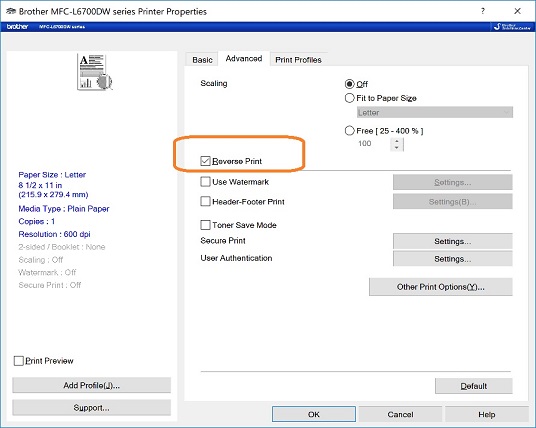
Option 4: For Brother Printer: Check
reverse Print option
Other resources:How to pull check data from QuickBooks and print them on the blank check paperHow to reset the starting check numberHow to customize check layoutHow to customize stub layout
 | Design and Print Professional Checks Yourself- Print checks on blank stock with logo and signature
- Fill in data on pre-printed checks
- Print blank checks to fill in later
- QB virtual printer for QuickBooks/Quicken(for Windows)
- Unlimited accounts and checks for Windows and Mac.
Try ezCheckPrinting free demo version with no obligation and no credit card needed.
|

