ezCheckPrinting Mac: Customize Stub
With eCheckPrinting software, you can
customize the check layout and stub layout easily.
Followings are the options to customize the check stub on Mac computer:
1. Customize a field (ie:change font size, style, position)
2. Print/Hide a field on stub
3. Add a field on stub
Open the stub layout screen
- Start ezCheckPrinting software
- Click the top menu Settings->Stub setup to open stub setup screen

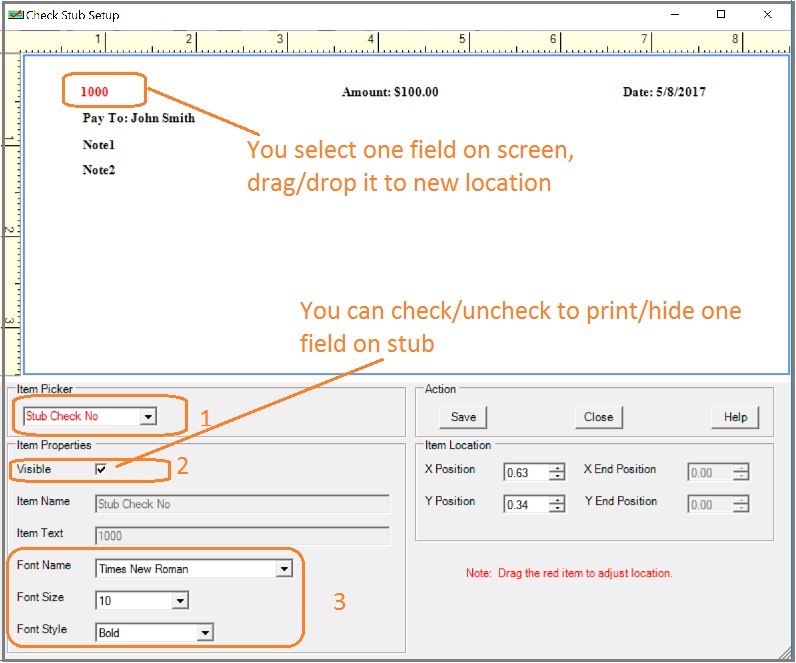
1. Customize a field
1.1 Select one field from item picker
1.2 You can check/uncheck visible box to print/hide the field
1.3. You can customize font size
1.4 You can select one field by mouse and drag/drop it to other location.
2. Print/hide a field on stub
2.1 Select one field from item picker
2.2 You can check/uncheck visible box to print/hide the field
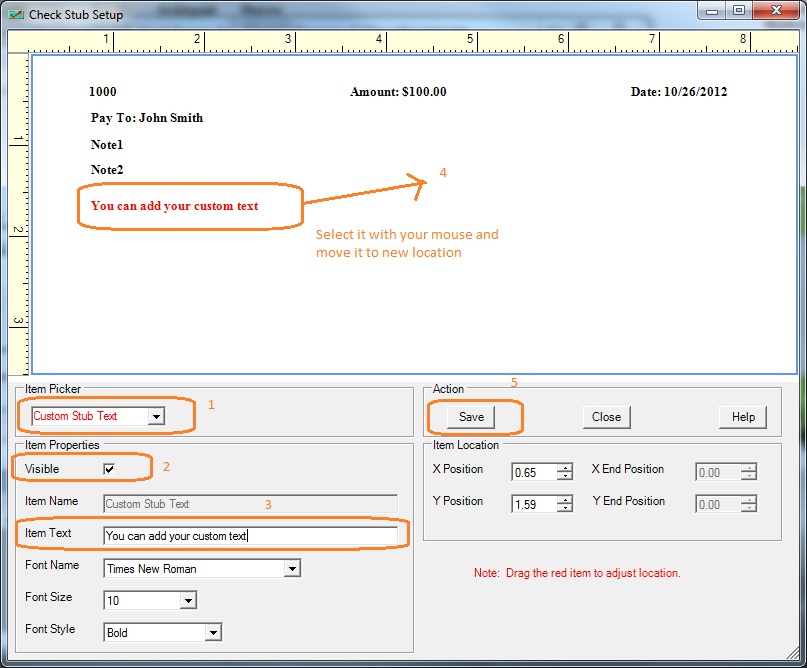
3. Add a new field on stub
3.1 Select Custom Stub Text from Item picker drop down list
3.2 Check Visible option
3.3 Add your text
3.4 You use your mouse to move this item
3.5 Click the Save button to save your changes.
 | Design and Print Professional Checks Yourself
- Print checks on blank stock with logo and signature
- Fill in data on pre-printed checks
- Print blank checks to fill in later
- QB virtual printer for QuickBooks/Quicken(for Windows)
- Unlimited accounts and checks for Windows and Mac.
Try ezCheckPrinting free demo version with no obligation and no credit card needed.
|
Related Links:
How to customized check laytout
How to edit check account(bank information, logo, signature..)
Related Articles:

