2.2 Click the desktop shortcut to start ezCheckPrinting application.
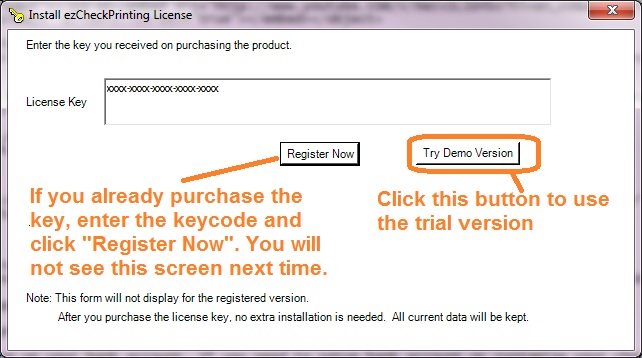
If you have not registered the license, you will see the input license popup screen.
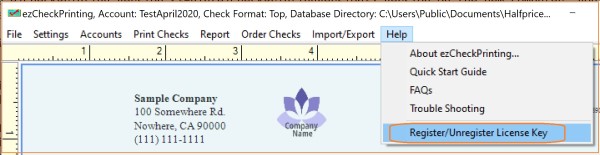
Or you can click the ezCheckPrinting top menu "help" if you need to register a new license.
2.3 Copy and paste the ezCheckPrintign license code including dashes("-") there.
Note: How to copy and paste
Double-click on the text you want to copy, or highlight it. With the text highlighted, press Ctrl + C to copy. Move your cursor to the appropriate location and press Ctrl + V to paste.
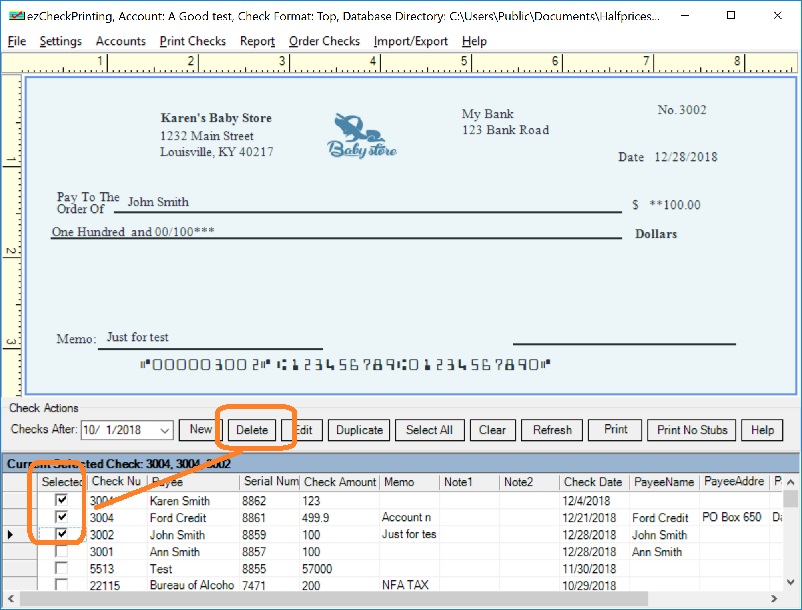
3. Delete check(s) created with the trial version
If you printed QB checks during the trial period, please remove the previous QB checks from ezCheckPrinting check list.
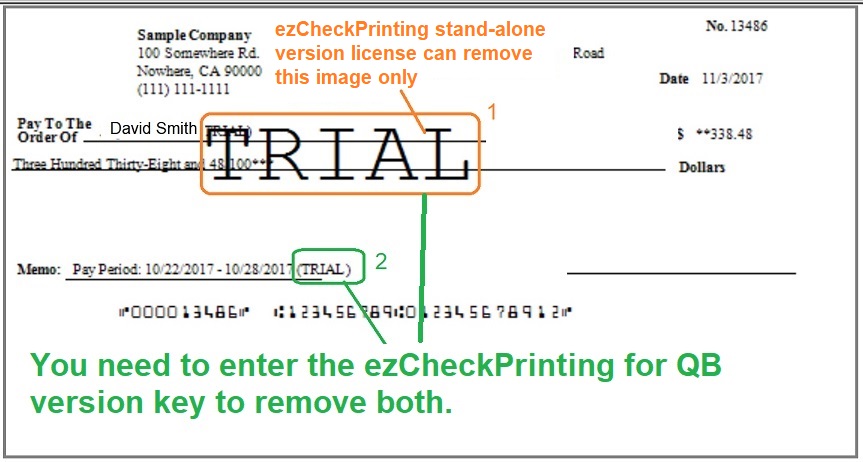
4. Print a new QB check. You will not see Trial watermarks on the new check.
ezCheckPrinting for QuickBooks allows QuickBooks users to print checks on blank stock with MICR encoding and logo in house. You can also use it to fill out preprinted blank checks also.
If you have not installed this software, you can download and try it free with no obligation and no credit card needed.
ezCheckPrinting for QuickBooks is compatible with Windows 11, 10, 8.1, 8, 7, Vista, XP and other Windows computers.