How to Print and File 1099-DIV, Dividends and Distributions
ez1099 Software: Trusted by Thousands of Clients for Nearly Two Decades
ez1099 software is the simple, fast and affordable tax forms preparing, printing and eFiling solution for businesses and accountants. ez1099 speeds up tax form reporting for 1099A, 1099B, 1099C, 1099CAP, 1099DIV, 1099G, 1099INT, 1099K, 1099LTC, 1099MISC, 1099NEC, 1099OID, 1099PATR, 1099Q, 1099QA, 1099R, 1099S, 1099SB, 1099SA, 1096 and more.
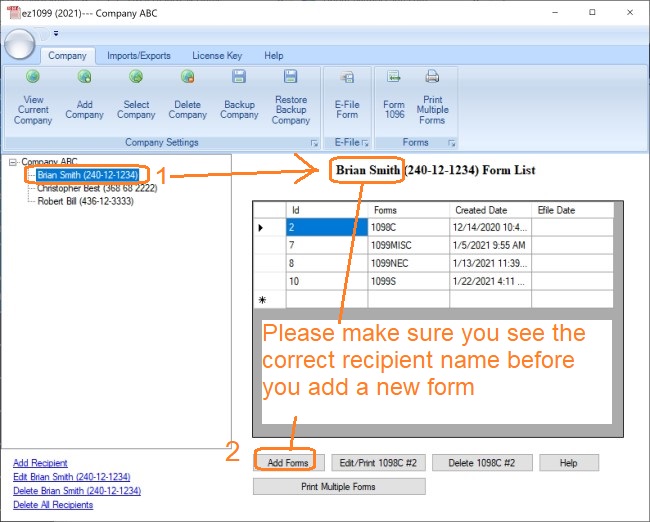
Start ez1099 software, select the recipient and click the Add Form button
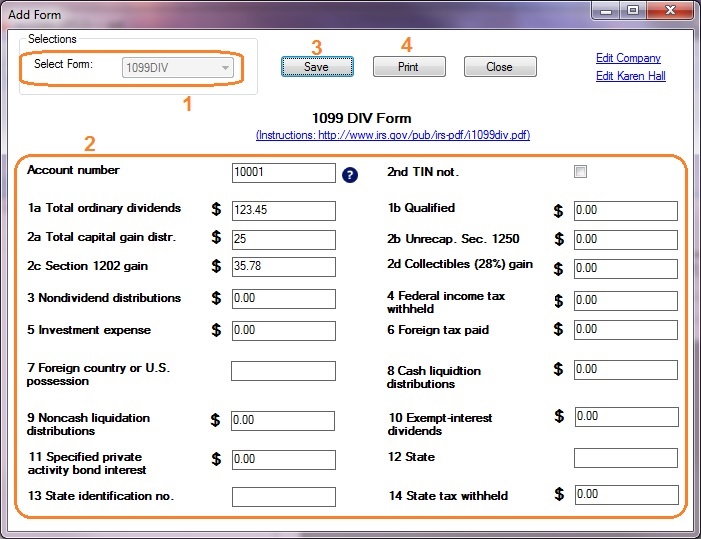
Step 2: Enter 1099-div form information
Enter form details. if you have questions, you can also check Form 1099-DIV Instructions at https://www.irs.gov/instructions/i1099div/
If you are ready to print form, you can click the "SAVE" button to save your changes first and click the "PRINT" button to view print options.
Step 3: Print 1099-div form
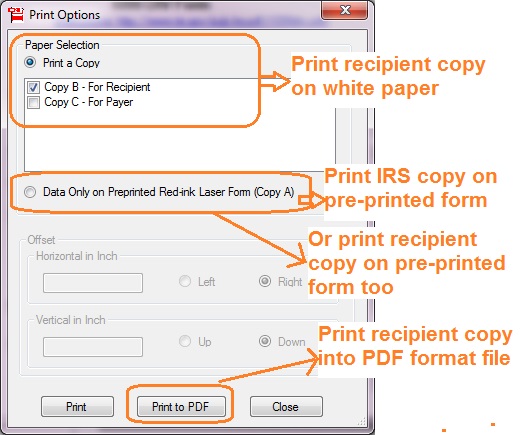
If you are ready to print form, you can click the "SAVE" button to save your changes first and click the "PRINT" button to view print options.
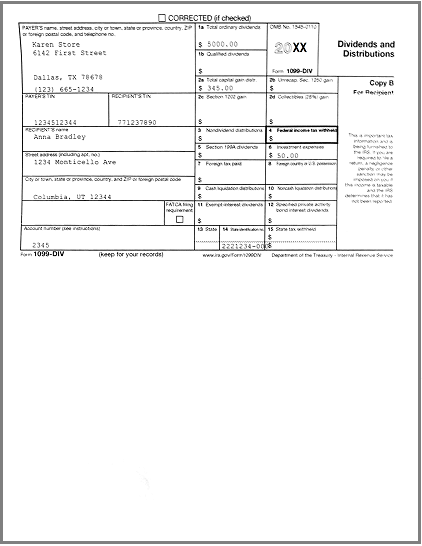
Recipient copies: - You can print form on white paper - Or you can fill data on pre-printed forms by choosing data only option for copy A
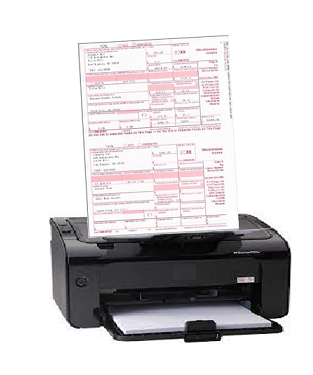
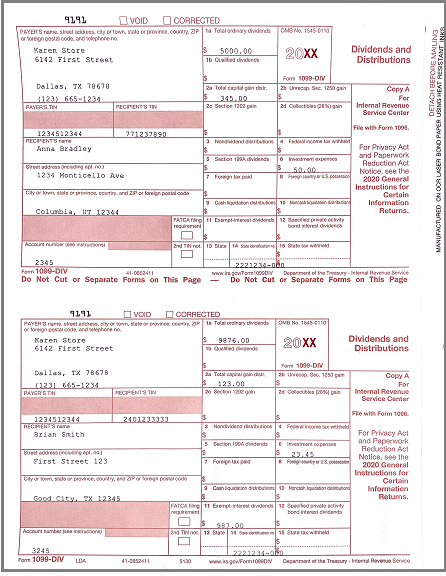
IRS copy: The Red-ink form is required since IRS does not certify black-and-white substitute form. You need to choose the "Data only" option
PDF files You can click the "PRINT TO PDF" button to print recipient copies into PDF files. However, this feature is only available for advanced version.