Sample: How ezDocuReader Extracts Data from 1095C PDF File
Download Sample 1095C PDF file
For testing purpose, you can download the sample 1095C PDF file(s).
https://www.halfpricesoft.com/Datareader/sample_TeresaSmith1095C.pdfhttps://www.halfpricesoft.com/Datareader/sample_JohnWhite1095C.pdfStart ezDocuReader and read data
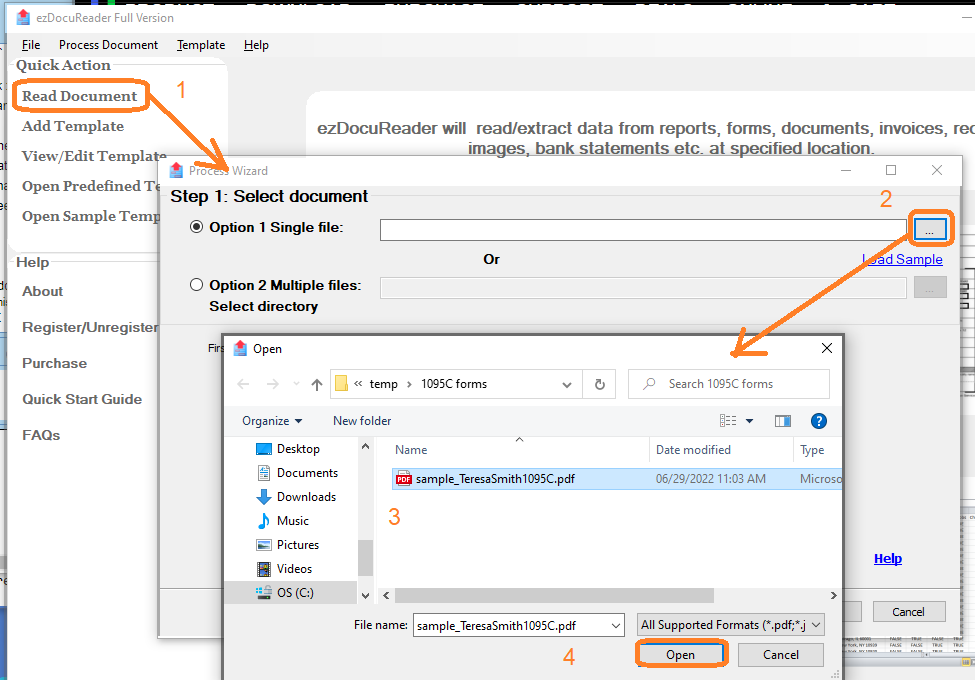
Please start ezDocument Reader and click the left menu "Read Document" to view select document screen.
Step 1: Select data file(s)
Option 1: Read data from one file- Click the button behind the file path to select the data file. Then you will see the first page be displayed on screen.
 Option 2: Read data from multiple files in the same folder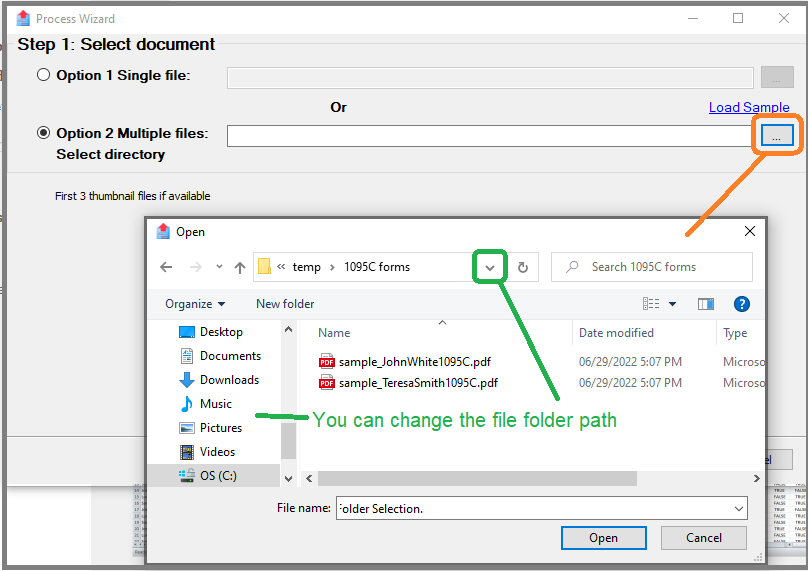
Step 2: Select template
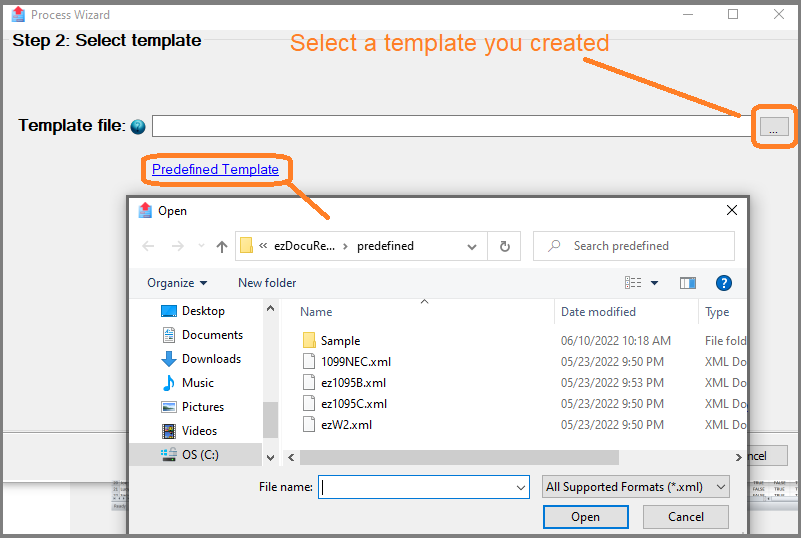
In this sample, we will use a predefined 1095C template.
- click the "Predefined Tempaltes" link on screen
- Select "ez1095C.xml" file
- Click the "Next" to continue
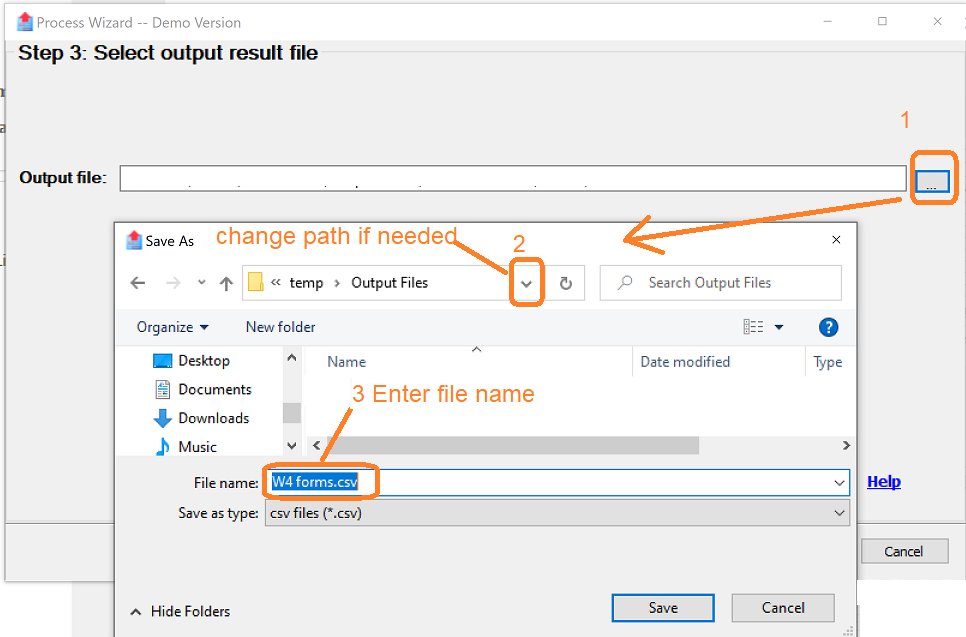
Step 3: Specify the output file path
Step 4: Extract data to a .csv file
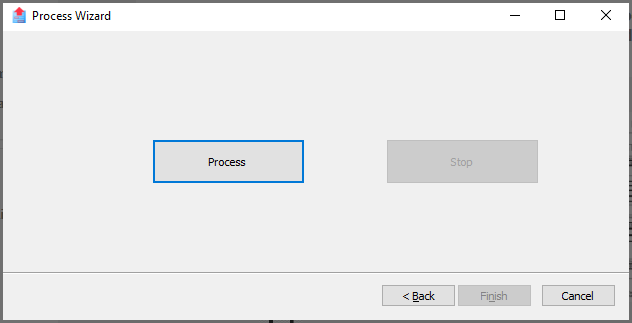
4.1 Click the "Process" button to extract data
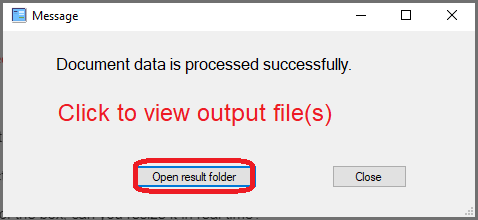
4.2 After the process completes, click "Open result folder" to view the output file folder
4.3 Double click the file to open it with Excel application
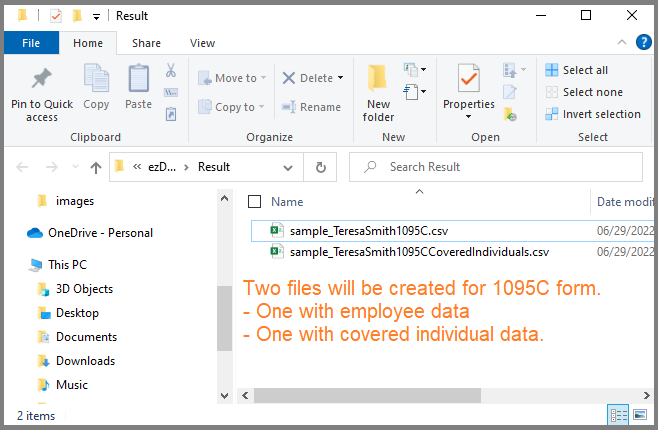
4.4 You will see the data in the file
You can open the file(s) with Excel application. (Note: If you are using the free Demo version, only the first three fields will be extracted.)
Step 5: Edit, print or efile 1095C forms if needed.
ez1095 software can import data from the these 1095 .csv data files. The following links may help if you need to efile 1095C, or need to file correction.
ez1095 software: How to import 1095C data from .csv filesez1095 software: How to efile 1095C 1094C formsez1095 software: How to correct 1095C 1094C forms
Related Links

